Xamarin.Forms BadgeView NuGet Announcement!

As promised, here is another release of one of my GitHub libraries for Xamarin! This time we are talking about the BadgeView​!

Here are some important links:

GitHub project: https://github.com/SuavePirate/BadgeView
NuGet package: https://www.nuget.org/packages/BadgeView

Don’t forget to read up on my original post on how to create your own BadgeView and how to use it: Xamarin.Controls – BadgeView

Documentation


BadgeView

A simple Xamarin.Forms control to display a round badge

Now available on nuget! https://www.nuget.org/packages/BadgeView

Installation

Install-Package BadgeView

Usage

<ContentPage xmlns="http://xamarin.com/schemas/2014/forms" xmlns:badge="clr-namespace:BadgeView.Shared;assembly=BadgeView.Shared" xmlns:x="http://schemas.microsoft.com/winfx/2009/xaml" x:Class="BadgeViewExample.BadgePage">
    <ContentPage.Content>
        <StackLayout Orientation="Horizontal" HorizontalOptions="CenterAndExpand" VerticalOptions="Center">
            <Label HorizontalTextAlignment="Center" Text="Look at me!" />
            <badge:BadgeView Text="3" BadgeColor="Green" VerticalOptions="Center" HorizontalOptions="End" />
        </StackLayout>
    </ContentPage.Content>
</ContentPage>

With Bindings

<badge:BadgeView Text="{Binding BadgeNumber}" BadgeColor="{Binding BadgeColor}" VerticalOptions="Center" HorizontalOptions="End" />

Without XAML

var badge = new BadgeView()
{
    Text = "4",
    BadgeColor = Color.Red
};

Additional Resources

Check out my blog post on how to build your own if you want!

Xamarin.Controls – BadgeView


// TODO:

I’m still working on adding UWP support, but if you want to help contribute to the repository, please do!

If you like what you see, don’t forget to follow me on twitter @Suave_Pirate, check out my GitHub, and subscribe to my blog to learn more mobile developer tips and tricks!

Interested in sponsoring developer content? Message @Suave_Pirate on twitter for details.

Xamarin.Tip – Read All Contacts in Android

To follow the posts made for iOS, let’s talk about reading the device contacts in Xamarin.Android.

Since Xamarin hasn’t been working on the Xamarin.Mobile component for a while, and James Montemagno dropped support for his Contacts Plugin, if you want to access the contact APIs on each platform, you might just have to go at it yourself – or just copy this code!

Android

The first thing we need to do is create our shared model to represent a contact on the device. In this example, we’ll focus on just the name and phone number of a given contact:
PhoneContact.cs

public class PhoneContact
{
    public string FirstName { get; set; }
    public string LastName { get; set; }
    public string PhoneNumber { get; set; }
 
    public string Name { get => $"{FirstName} {LastName}"; }
 
}

Now we need to create our service to enable the reading of the contacts on the device. We’ll call it the ContactService.

    public class ContactService_Android
    {
        public IEnumerable<PhoneContact> GetAllContacts()
        {
            var phoneContacts = new List<PhoneContact>();

            using (var phones = Android.App.Application.Context.ContentResolver.Query(ContactsContract.CommonDataKinds.Phone.ContentUri, null, null, null, null))
            {
                if (phones != null)
                {
                    while (phones.MoveToNext())
                    {
                        try
                        {
                            string name = phones.GetString(phones.GetColumnIndex(ContactsContract.Contacts.InterfaceConsts.DisplayName));
                            string phoneNumber = phones.GetString(phones.GetColumnIndex(ContactsContract.CommonDataKinds.Phone.Number));

                            string[] words = name.Split(' ');
                            var contact = new PhoneContact();
                            contact.FirstName = words[0];
                            if (words.Length > 1)
                                contact.LastName = words[1];
                            else
                                contact.LastName = ""; //no last name
                            contact.PhoneNumber = phoneNumber;
                            phoneContacts.Add(contact);
                        }
                        catch (Exception ex)
                        {
                            //something wrong with one contact, may be display name is completely empty, decide what to do
                        }
                    }
                    phones.Close(); 
                }
                // if we get here, we can't access the contacts. Consider throwing an exception to display to the user
            }

            return phoneContacts;
        }
    }

 
In this method, we get access to the Context‘s ContentResolver and query for all contacts’ phone numbers.

We can then iterate over each phone number and read their name and number which is added to the master list of PhoneContacts. This list is what ends up being returned, and we close the query context we opened in the using statement.

There is one more step we need to do in order to access the contacts on the device. In the AndroidManifest.xml we need to add the permission for READ_CONTACTS. This can be added in the XML directly or done in the UI from Visual Studio:
Screen Shot 2017-09-07 at 5.30.01 PM
 
Now that we have access to all the contacts on the device, we can render those in a list through either an Android ListView, RecyclerView, or if in Xamarin.Forms – a Xamarin.Forms.ListView.

Screenshot_1504821136

 Try building some other fun features into your ContactsService or selector!
– Filter the list via search
– Build a more user friendly selector without duplicating contacts
– Gather additional properties for contacts

If you like what you see, don’t forget to follow me on twitter @Suave_Pirate, check out my GitHub, and subscribe to my blog to learn more mobile developer tips and tricks!

Interested in sponsoring developer content? Message @Suave_Pirate on twitter for details.

Xamarin.Tip – Read All Contacts in iOS 2.0

This is a second post to follow Xamarin.Tip – Read All Contacts in iOS to give a more efficient alternative to interacting with the CNContact API. Check out the change in the ContactService below! Using the EnumerateContacts ensures we get contacts from all groups including non standard groups like those brought from backups or iCloud integrated contacts. It is also a newer API call that has better performance.

Since Xamarin hasn’t been working on the Xamarin.Mobile component for a while, and James Montemagno dropped support for his Contacts Plugin, if you want to access the contact APIs on each platform, you might just have to go at it yourself – or just copy this code!

iOS

Today we’ll look at getting all of the contacts in iOS and mapping them to a local shared model that any platform can ingest.

So let’s first define a simple model for our contact. This can have more models that are shared, but we will focus on the phone number and name for the sake of demonstrating.

PhoneContact.cs


    public class PhoneContact
    {
        public string FirstName { get; set; }
        public string LastName { get; set; }
        public string PhoneNumber { get; set; }

        public string Name { get => $"{FirstName} {LastName}"; }

    }

Now let’s create a service in our iOS app project that uses the CNContact API. This will be responsible for getting all of the devices contacts (whether they have come from a back up, added, or are synced through iCloud).

The breakdown of this code can be found below.

ContactService.cs

    public class ContactService
    {
       public IEnumerable<PhoneContact> GetAllContacts()
        {
            var keysTOFetch = new[] { CNContactKey.GivenName, CNContactKey.FamilyName, CNContactKey.PhoneNumbers };
            NSError error;
            //var containerId = new CNContactStore().DefaultContainerIdentifier;
            // using the container id of null to get all containers
            var contactList = new List<CNContact>();

            using (var store = new CNContactStore())
            {
                var request = new CNContactFetchRequest(keysTOFetch);
                store.EnumerateContacts(request, out error, new CNContactStoreListContactsHandler((CNContact contact, ref bool stop) => contactList.Add(contact)));
                
            }
            var contacts = new List<PhoneContact>();

            foreach (var item in contactList)
            {
                var numbers = item.PhoneNumbers;
                if (numbers != null)
                {
                    foreach (var item2 in numbers)
                    {
                        contacts.Add(new PhoneContact
                        {
                            FirstName = item.GivenName,
                            LastName = item.FamilyName,
                            PhoneNumber = item2.Value.StringValue

                        });
                    }
                }
            }
            return contacts;
        }
    
    }

Let’s breakdown what the code is doing here:

  1. Identify the properties of the contacts you want to grab – see keysToFetch
  2. Instantiate the CNContactStore and get all of the collections which will contain all of the contacts.
  3. Fetch all of the contacts from each container and add them to the master list.
  4. Loop over all of the contact data and add a new PhoneContact
    for each of the phone numbers they have. This could be done with giving a contact an IEnumerable PhoneNumbers rather than just one phone number, but in order to separate each phone number, that’s how we will do it.
  5. Return the formatted list of contacts/phone numbers

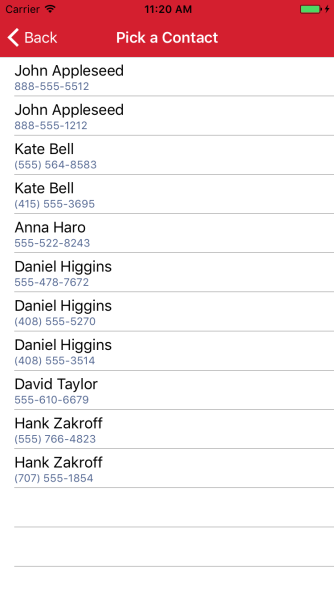
We can list this out in a UITableView, or in the case of the screenshot below, in a Xamarin.Forms ListView.

The last thing we need to do is make sure we have the permission to access the user’s contacts! We can do this by updating the info.plist with a Privacy - Contacts Usage Description property.

Screen Shot 2017-08-22 at 10.34.43 AM

Try building some other fun features into your ContactsService or selector!
– Filter the list via search
– Build a more user friendly selector without duplicating contacts
– Gather additional properties for contacts

Simulator Screen Shot Aug 21, 2017, 11.20.32 AM.png

Next we’ll look at building this same type of ContactService for Android in order to be able to gather all of the contacts on the device and follow up with using both of these services in Xamarin.Forms to create a contact picker control!

If you like what you see, don’t forget to follow me on twitter @Suave_Pirate, check out my GitHub, and subscribe to my blog to learn more mobile developer tips and tricks!

Interested in sponsoring developer content? Message @Suave_Pirate on twitter for details.

Xamarin.Meetup – “Fluxing” Up Your Apps With Alex Dunn

Join us at the Microsoft NERD Center in Cambridge for the September Boston Mobile C# User-group on September 20th!

I’ll personally be speaking about implementing the Flux design pattern in your Xamarin and other .NET applications.

https://www.meetup.com/bostonmobiledev/events/242742363/

Meeting Details

Flux is the design pattern created by Facebook in your .NET apps to build robust and manageable data-driven interfaces. Learn what Flux is, how it differs from other patterns such as MVVM and MVC, and follow along and build your first app with Flux.

About the Presenter

Alex Dunn is a software consultant and architect with a passion for mobile application development and edge technology such as machine learning, AI, IoT, and modern web. He’s a Xamarin MVP and a Microsoft MVP for .NET, and can be found giving Guest Lectures at Xamarin University or organizing Boston’s Mobile C# User-group. Follow Alex and learn how to build beautiful and robust applications.

Twitter: @Suave_Pirate
GitHub: @SuavePirate
Blog: https://alexdunn.org
Flux Resources:

Source code for demo: https://github.com/suavepirate/xamarin.flux
Xamarin University Lecture:
https://university.xamarin.com/guestlectures/architecting-your-app-with-xamarin-facebook-flux
Gone Mobile Podcast:
http://gonemobile.io/blog/e0044.fluxing.up.your.xamarin.apps.with.alex.dunn/


If you like what you see, don’t forget to follow me on twitter @Suave_Pirate, check out my GitHub, and subscribe to my blog to learn more mobile developer tips and tricks!

Interested in sponsoring developer content? Message @Suave_Pirate on twitter for details.

Xamarin.Tip – Read All Contacts in iOS

Since Xamarin hasn’t been working on the Xamarin.Mobile component for a while, and James Montemagno dropped support for his Contacts Plugin, if you want to access the contact APIs on each platform, you might just have to go at it yourself – or just copy this code!

iOS

Today we’ll look at getting all of the contacts in iOS and mapping them to a local shared model that any platform can ingest.

So let’s first define a simple model for our contact. This can have more models that are shared, but we will focus on the phone number and name for the sake of demonstrating.

PhoneContact.cs


    public class PhoneContact
    {
        public string FirstName { get; set; }
        public string LastName { get; set; }
        public string PhoneNumber { get; set; }

        public string Name { get => $"{FirstName} {LastName}"; }

    }

Now let’s create a service in our iOS app project that uses the CNContact API. This will be responsible for getting all of the devices contacts (whether they have come from a back up, added, or are synced through iCloud).

The breakdown of this code can be found below.

ContactService.cs

    public class ContactService
    {
        public IEnumerable<PhoneContact> GetAllContacts()
        {
            var keysToFetch = new[] { CNContactKey.GivenName, CNContactKey.FamilyName, CNContactKey.PhoneNumbers };
            NSError error;
            //var containerId = new CNContactStore().DefaultContainerIdentifier;
            // using the container id of null to get all containers.
            // If you want to get contacts for only a single container type, you can specify that here
            var contactList = new List<CNContact>();

            using (var store = new CNContactStore())
            {
                var allContainers = store.GetContainers(null, out error);
                foreach (var container in allContainers)
                {
                    try
                    {
                        using (var predicate = CNContact.GetPredicateForContactsInContainer(container.Identifier))
                        {
                            var containerResults = store.GetUnifiedContacts(predicate, keysToFetch, out error);
                            contactList.AddRange(containerResults);
                        }
                    }
                    catch
                    {
                        // ignore missed contacts from errors
                    }
                }
            }
            var contacts = new List<PhoneContact>();

            foreach (var item in contactList)
            {
                var numbers = item.PhoneNumbers;
                if (numbers != null)
                {
                    foreach (var item2 in numbers)
                    {
                        contacts.Add(new PhoneContact
                        {
                            FirstName = item.GivenName,
                            LastName = item.FamilyName,
                            PhoneNumber = item2.Value.StringValue

                        });
                    }
                }
            }
            return contacts;
        }
    }

Let’s breakdown what the code is doing here:

  1. Identify the properties of the contacts you want to grab – see keysToFetch
  2. Instantiate the CNContactStore and get all of the collections which will contain all of the contacts.
  3. Fetch all of the contacts from each container and add them to the master list.
  4. Loop over all of the contact data and add a new PhoneContact
    for each of the phone numbers they have. This could be done with giving a contact an IEnumerable PhoneNumbers rather than just one phone number, but in order to separate each phone number, that’s how we will do it.
  5. Return the formatted list of contacts/phone numbers

We can list this out in a UITableView, or in the case of the screenshot below, in a Xamarin.Forms ListView.

The last thing we need to do is make sure we have the permission to access the user’s contacts! We can do this by updating the info.plist with a Privacy - Contacts Usage Description property.

Screen Shot 2017-08-22 at 10.34.43 AM

Try building some other fun features into your ContactsService or selector!
– Filter the list via search
– Build a more user friendly selector without duplicating contacts
– Gather additional properties for contacts

Simulator Screen Shot Aug 21, 2017, 11.20.32 AM.png

Next we’ll look at building this same type of ContactService for Android in order to be able to gather all of the contacts on the device and follow up with using both of these services in Xamarin.Forms to create a contact picker control!

If you like what you see, don’t forget to follow me on twitter @Suave_Pirate, check out my GitHub, and subscribe to my blog to learn more mobile developer tips and tricks!

Interested in sponsoring developer content? Message @Suave_Pirate on twitter for details.

Xamarin.Tip – Playing Audio Through the Earpiece on Android

Xamarin provides plenty of documentation on how to play audio in Android:

However, this never touches on directing audio through the onboard earpiece for applications such as voicemail or other real-time uses. Here’s a quick and dirty service that can be used in Xamarin.Android to direct audio through either the speaker or the onboard earpiece:

AudioService.cs

    public class AudioService : IAudioService
    {
        public AudioService()
        {
        }

        public void PlaySoundThroughEarPiece()
        {
            var mediaPlayer = new MediaPlayer();

            mediaPlayer.Reset();

            var audioManager = (AudioManager)Android.App.Application.Context.GetSystemService(Context.AudioService);
            mediaPlayer.SetAudioStreamType(Stream.VoiceCall);
            audioManager.Mode = Mode.InCall;
            audioManager.SpeakerphoneOn = false;
            mediaPlayer.SetDataSource(Android.App.Application.Context, Android.Net.Uri.Parse("android.resource://com.suavepirate.audiotest/raw/sample_sound"));
            mediaPlayer.Prepare();
            mediaPlayer.Start();
        }

        public void PlaySoundThroughSpeaker()
        {
            var mediaPlayer = MediaPlayer.Create(Android.App.Application.Context, Resource.Raw.sample_sound);


            var audioManager = (AudioManager)Android.App.Application.Context.GetSystemService(Context.AudioService);
            mediaPlayer.SetAudioStreamType(Stream.Music);
            audioManager.Mode = Mode.Normal;
            audioManager.SpeakerphoneOn = true;

            mediaPlayer.Start();
        }
    }

There are 2 important pieces required to stream it through the earpiece. Certain devices and Android versions only require 1 of the 2, but using both seems to be the best bet.

The first is to use the AudioManager service from the current Context and set SpeakerphoneOn to false as well as set the Mode to Mode.InCall. The second is to take the MediaPlayer object created and set the AudioStreamType to Stream.VoiceCall.

To go back to playing through the full speaker, revert the audio manager Mode to Normal, and set SpeakerphoneOn back to true. Be sure to also set the MediaPlayer.SetAudioStreamType with Stream.Music.

Check out an example of this on my GitHub here in Xamarin.Forms: https://github.com/SuavePirate/XamarinEarpieceAudioTest

If you like what you see, don’t forget to follow me on twitter @Suave_Pirate, check out my GitHub, and subscribe to my blog to learn more mobile developer tips and tricks!

Interested in sponsoring developer content? Message @Suave_Pirate on twitter for details.

Xamarin.Tip – Borderless Inputs

I published multiple posts this week about creating Xamarin.Forms controls without borders using Custom renderers. This post is your one stop shop for all these posts. These are the controls that are used in my repository to create Material Design inputs in Xamarin.Forms that you can find here:
https://github.com/SuavePirate/SuaveControls.MaterialFormControls. These will be talked about in posts to come!
Check the borderless controls out here:

  1. Xamarin.Forms Borderless Entry
  2. Xamarin.Forms Borderless Picker
  3. Xamarin.Forms Borderless DatePicker
  4. Xamarin.Forms Borderless TimePicker
  5. Xamarin.Forms Borderless Editor

And check out how they look here:

BorderlessEntry


BorderlessEditor

BorderlessPicker

BorderlessDatePicker

BorderlessTimePicker

If you like what you see, don’t forget to follow me on twitter @Suave_Pirate, check out my GitHub, and subscribe to my blog to learn more mobile developer tips and tricks!

Interested in sponsoring developer content? Message @Suave_Pirate on twitter for details.

Xamarin.Tip – Playing Audio Through the Earpiece in iOS

There is plenty of documentation from Xamarin on how to play audio files in our Xamarin.iOS apps (or Xamarin.Forms apps):

But none of these talk about piping the audio to either the speaker or the earpiece (the onboard one used for phone calls). Handling this logic is useful for applications that have a “voicemail” sort of feature or a real-time communications app. Here’s a brief bit of code that can handle playing an audio file through the speaker or through the earpiece:

AudioService.cs

 public class AudioService : IAudioService
    {
        public AudioService()
        {
        }

        public void PlaySoundThroughEarPiece(string fileName)
        {
            var session = AVAudioSession.SharedInstance();
            session.SetCategory(AVAudioSessionCategory.PlayAndRecord);
            session.SetActive(true);
            NSError error;
            var player = new AVAudioPlayer(new NSUrl(fileName), "mp3", out error);
            player.Volume = 1.0f;
            player.Play();

        }

        public void PlaySoundThroughSpeaker(string fileName)
        {
            var session = AVAudioSession.SharedInstance();
            session.SetCategory(AVAudioSessionCategory.Playback);
            session.SetActive(true);
            NSError error;
            var player = new AVAudioPlayer(new NSUrl(fileName), "mp3", out error);
            player.Volume = 1.0f;
            player.Play();
            
        }
    }

The key is calling the SetCategory with the appropriate AVAudioSessionCategory and setting the session to active before playing the sound through the AVAudioPlayer.

and you can call it like so:

var audioService = new AudioService();
audioService.PlaySoundThroughEarPiece("sample_sound.mp3");
audioService.PlaySoundThroughSpeaker("sample_sound.mp3");

Check out an example of this on my GitHub here in Xamarin.Forms: https://github.com/SuavePirate/XamarinEarpieceAudioTest

If you like what you see, don’t forget to follow me on twitter @Suave_Pirate, check out my GitHub, and subscribe to my blog to learn more mobile developer tips and tricks!

Interested in sponsoring developer content? Message @Suave_Pirate on twitter for details.

Android.Kotlin – Create a TabLayout

We’ll once again take a break from the cross-platform Xamarin content and look at an example of using the latest Kotlin language from Jetbrains with our native Android applications. In this post, we’ll look at an implementation of a TabLayout with a ViewPager using Kotlin!

I also apologize for the lack of useful highlighting of the Kotlin code in this post. Since it is a new language, WordPress doesn’t support it as well for code snippets…

The source code for this example can be found on my GitHub here:
https://github.com/SuavePirate/KotlinPuppies.

The Layout

This example will use a RecyclerView for the content of each Fragment. So we need to define layouts for our Puppy, Fragment, and our entire Activity that houses the TabLayout and Fragments.

Our puppy item will contain a CardView that has an image and text to contain a picture of the puppy and the pup’s name!

puppy_item.xml

<?xml version="1.0" encoding="utf-8"?>
<LinearLayout xmlns:android="http://schemas.android.com/apk/res/android"
    xmlns:app="http://schemas.android.com/apk/res-auto"
    android:orientation="vertical" android:layout_width="match_parent"
    android:layout_height="wrap_content">

    <android.support.v7.widget.CardView
        android:layout_width="match_parent"
        android:layout_height="match_parent"
        android:layout_margin="8dp"
        app:cardElevation="8dp">

        <LinearLayout
            android:layout_width="match_parent"
            android:layout_height="match_parent"
            android:layout_margin="16dp"
            android:orientation="vertical">

            <ImageView
                android:id="@+id/puppyImageView"
                android:layout_width="match_parent"
                android:layout_height="wrap_content"
                app:srcCompat="@mipmap/ic_launcher" />

            <TextView
                android:id="@+id/puppyTextView"
                android:layout_width="match_parent"
                android:layout_height="wrap_content"
                android:textAlignment="center"
                android:text="Puppy Name" />
        </LinearLayout>

    </android.support.v7.widget.CardView>
</LinearLayout>

Now let’s look at our Fragment layout that will contain a RecylerView that houses each collection of puppies.

puppy_fragment.xml

<RelativeLayout xmlns:android="http://schemas.android.com/apk/res/android"
    xmlns:tools="http://schemas.android.com/tools"
    android:layout_width="match_parent"
    android:layout_height="match_parent"
    android:paddingBottom="@dimen/activity_vertical_margin"
    android:paddingLeft="@dimen/activity_horizontal_margin"
    android:paddingRight="@dimen/activity_horizontal_margin"
    android:paddingTop="@dimen/activity_vertical_margin"
    tools:context="com.suavepirate.kotlinpuppies.MainActivity$PlaceholderFragment">

    <android.support.v7.widget.RecyclerView
        android:id="@+id/puppyRecyclerView"
        android:layout_width="match_parent"
        android:layout_height="match_parent"
        android:layout_centerHorizontal="true"
        android:layout_centerVertical="true"
        tools:listitem="@layout/puppy_item" />
</RelativeLayout>

Now let’s wrap it all together with our main layout:

activity_main.xml

<?xml version="1.0" encoding="utf-8"?>
<android.support.design.widget.CoordinatorLayout xmlns:android="http://schemas.android.com/apk/res/android"
    xmlns:app="http://schemas.android.com/apk/res-auto"
    xmlns:tools="http://schemas.android.com/tools"
    android:id="@+id/main_content"
    android:layout_width="match_parent"
    android:layout_height="match_parent"
    android:fitsSystemWindows="true"
    tools:context="com.suavepirate.kotlinpuppies.MainActivity">

    <android.support.design.widget.AppBarLayout
        android:id="@+id/appbar"
        android:layout_width="match_parent"
        android:layout_height="wrap_content"
        android:paddingTop="@dimen/appbar_padding_top"
        android:theme="@style/AppTheme.AppBarOverlay">

        <android.support.v7.widget.Toolbar
            android:id="@+id/toolbar"
            android:layout_width="match_parent"
            android:layout_height="?attr/actionBarSize"
            android:background="?attr/colorPrimary"
            app:layout_scrollFlags="scroll|enterAlways"
            app:popupTheme="@style/AppTheme.PopupOverlay">

        </android.support.v7.widget.Toolbar>

        <android.support.design.widget.TabLayout
            android:id="@+id/tabs"
            android:layout_width="match_parent"
            android:layout_height="wrap_content" />

    </android.support.design.widget.AppBarLayout>

    <android.support.v4.view.ViewPager
        android:id="@+id/container"
        android:layout_width="match_parent"
        android:layout_height="match_parent"
        app:layout_behavior="@string/appbar_scrolling_view_behavior" />


</android.support.design.widget.CoordinatorLayout>

Now that we have our layouts, let’s create our Fragment, Adapters, and then wrap it all together in our MainActivity.

Building the Recycler Adapter

Let’s first define our RecyclerView adapter and ViewHolder to contain our collections of puppies.

PuppyHolder.kt

class PuppyHolder(itemView: View) : RecyclerView.ViewHolder(itemView) {
    private val puppyImage: ImageView = itemView.findViewById<ImageView>(R.id.puppyImageView)
    private val puppyName: TextView = itemView.findViewById(R.id.puppyTextView)

    fun updateWithPuppy(puppy: Puppy) {
        puppyImage.setImageDrawable(puppy.imageFile)
        puppyName.text = puppy.name
    }
}

This code defines a class that inherits the RecyclerView.ViewHolder with a default constructor that requires a View parameter that is also passed into the base class constructor. It then defines the two subviews we need to populate – the TextView and ImageView of a single puppy. Lastly, we create our updateWithPuppy function that will be called by our Adapter to instantiate the content with the given puppy’s information.

Now that we have our ViewHolder, we can create our Adapter:

PuppyAdapter.kt

class PuppyAdapter(private val puppies: ArrayList<Puppy>) : RecyclerView.Adapter<PuppyHolder>() {

    override fun onCreateViewHolder(parent: ViewGroup, viewType: Int): PuppyHolder {
        val puppyItem = LayoutInflater.from(parent.context).inflate(R.layout.puppy_item, parent, false) as LinearLayout
        return PuppyHolder(puppyItem)
    }

    override fun onBindViewHolder(holder: PuppyHolder, position: Int) {
        holder.updateWithPuppy(puppies[position])
    }

    override fun getItemCount(): Int {
        return puppies.toArray().count();
    }

}

This adapter uses another cool feature of Kotlin – Defining a private field in the constructor while also auto-setting it. The class declaration and default constructor of PuppyAdapter(private val puppies: ArrayList) is the equivalent to something like this in Java:

public class PuppyAdapter{
    private final ArrayList<Puppy> puppies;
    public PuppyAdapter(ArrayList<Puppy> puppies){
        this.puppies = puppies;
    }
}

That’s pretty sweet! The rest of the wire up for the Adapter is pretty standard. It sets the ViewHolder using the PuppyHolder we created above and updates it with the puppy by finding it with the given index.

The Puppy Fragment

Now we can create our Fragment that will contain and wire up the RecyclerView for each puppy collection.

PuppyListFragment.kt


class PuppyListFragment(passedContext: Context) : Fragment(){

    val puppyFactory : PuppyFactory = PuppyFactory(passedContext)
    val ARG_LIST_TYPE = "LIST_TYPE"
    val passThroughContext : Context = passedContext


    override fun onCreateView(inflater: LayoutInflater?, container: ViewGroup?,
                              savedInstanceState: Bundle?): View? {
        val rootView = inflater!!.inflate(R.layout.fragment_main, container, false)
        val recyclerView = rootView.findViewById<RecyclerView>(R.id.puppyRecyclerView) as RecyclerView
        val listType = this.arguments.getSerializable(ARG_LIST_TYPE) as PuppyListType
        var puppies = ArrayList<Puppy>()
        when (listType) {
            PuppyListType.All -> puppies = puppyFactory.puppies
            PuppyListType.Active -> puppies = puppyFactory.activePuppies
            PuppyListType.LeashTrained -> puppies = puppyFactory.leashTrainedPuppies
            PuppyListType.Big -> puppies = puppyFactory.bigPuppies
            PuppyListType.Small -> puppies = puppyFactory.smallPuppies
        }

        recyclerView.adapter = PuppyAdapter(puppies)
        recyclerView.layoutManager = LinearLayoutManager(passThroughContext)
        return rootView
    }

    companion object {
        val ARG_LIST_TYPE = "LIST_TYPE"

        fun newInstance(listType: PuppyListType, context: Context): PuppyListFragment {
            val fragment = PuppyListFragment(context)
            val args = Bundle()
            args.putSerializable(ARG_LIST_TYPE, listType)
            fragment.arguments = args
            return fragment
        }
    }


}

In the onCreateView override, we get our puppies by type from our factory class and then instantiate our PuppyAdapter and LinearLayoutManager that get applied to the RecyclerView that we grab from our layout created earlier. Now we can pass in the PuppyListType that the fragment is responsible for displaying which will then set up our RecyclerView to render those particular puppies.

We also set up what is the equivalent of a static function that can instantiate a new instance of a PuppyListFragment by using a nested companion object.

Adding Page Adapter

Now that we have our Fragment and it’s child RecyclerView for puppies all set up, we can now create an adapter that is responsible for handling the different pages within the TabLayout that we are ultimately setting up.

PageAdapter.kt

class PageAdapter(fm: FragmentManager, private val context: Context) : FragmentPagerAdapter(fm) {

    override fun getItem(position: Int): Fragment {
        when (position) {
            0 -> return PuppyListFragment.newInstance(PuppyListType.All, context)
            1 -> return PuppyListFragment.newInstance(PuppyListType.Big, context)
            2 -> return PuppyListFragment.newInstance(PuppyListType.Small, context)
            3 -> return PuppyListFragment.newInstance(PuppyListType.LeashTrained, context)
            4 -> return PuppyListFragment.newInstance(PuppyListType.Active, context)
        }
        return PuppyListFragment.newInstance(PuppyListType.All, context)
    }

    override fun getCount(): Int {
        // Show 5 total pages.
        return 5
    }

    override fun getPageTitle(position: Int): CharSequence? {
        // return null to show no title.
        return null
        
    }

}

This is a pretty standard implementation of a PageAdapter. We override the getItem function and return the appropriate instantiated PuppyListFragment by passing in the PuppyListType we want to use by the grouping.

Set up the Activity

The last bit now is the set up our Activity that will house our TabLayout and ViewPager that will contain multiple instances of the PuppyListFragment to show different collections of puppies by category.

MainActivity.kt


class MainActivity : AppCompatActivity() {
    private var mSectionsPagerAdapter: PageAdapter? = null

    /**
     * The [ViewPager] that will host the section contents.
     */
    private var mViewPager: ViewPager? = null

    override fun onCreate(savedInstanceState: Bundle?) {
        super.onCreate(savedInstanceState)
        setContentView(R.layout.activity_main)

        val toolbar = findViewById<View>(R.id.toolbar) as Toolbar
        setSupportActionBar(toolbar)

        // Create the adapter that will return a fragment for each of the three
        // primary sections of the activity.
        mSectionsPagerAdapter = PageAdapter(supportFragmentManager, this)

        // Set up the ViewPager with the sections adapter.
        mViewPager = findViewById<ViewPager?>(R.id.container)
        mViewPager!!.adapter = mSectionsPagerAdapter

        val tabLayout = findViewById<View>(R.id.tabs) as TabLayout
        tabLayout.setupWithViewPager(mViewPager)

        // set icons
        tabLayout.getTabAt(0)!!.setIcon(R.drawable.ic_home_white_24dp)
        tabLayout.getTabAt(1)!!.setIcon(R.drawable.ic_dog_white_24dp)
        tabLayout.getTabAt(2)!!.setIcon(R.drawable.ic_small_dog_white_24dp)
        tabLayout.getTabAt(3)!!.setIcon(R.drawable.ic_trained_white_24dp)
        tabLayout.getTabAt(4)!!.setIcon(R.drawable.ic_active_white_24dp)

    }
}

Our MainActivity holds a private field for the ViewPager reference, and in the override of onCreate, we set up our view components by finding them in our associated layout file, then wire up the PageAdapter with our TabLayout. Then we set our icons for each given tab after calling the setupWithViewPager on our TabLayout.

View the Results

We can run our application and view our expected results of our tabs and different list of puppy cards!

Screen Shot 2017-07-05 at 11.14.13 AM

If you like what you see, don’t forget to follow me on twitter @Suave_Pirate, check out my GitHub, and subscribe to my blog to learn more mobile developer tips and tricks!

Interested in sponsoring developer content? Message @Suave_Pirate on twitter for details.

Xamarin.Tip – Mvvm Light and Dependency Injection

Inversion of Control and Dependency Injection are some design principles that help make our applications more flexible and scalable. They both help us separate our implementations and make it easy to substitute drastic changes to our implemented data or business logic whether it be for writing unit tests or product improvement.

Xamarin is a platform where IoC and DI fit extremely well. I’ve talked about this concept a few other times in both my blogs and videos about the Onion Architecture in Xamarin as well as how to call Platform Specific code from a Portable Class Library. You can find those posts and videos here:

  1. Onionizing Xamarin Part 6
  2. [VIDEO] Xamarin.Tips: Calling Platform-Specific Code from a PCL (Dependency Injection)

In this post, I want to talk about using DI with Mvvm Light at a VERY basic level.

First, let’s define an interface for a service we might use:

IUserService.cs

public interface IUserService
{
    Task<User> GetCurrentUserAsync();
}

Now let’s create two different implementations. One that will be the service used in the application and the other that will be used for testing.

UserService.cs

public class UserService : IUserService
{
    // makes a call to a web api to get a user
    public async Task<User> GetCurrentUserAsync()
    {
        using (var client = new HttpClient())
        {
            var response = await client.GetAsync("https://mywebapi.mydomain/api/currentuser");
            var content = await response.Content.ReadAsStringAsync();
            return JsonConvert.DeserializeObject<User>(content);
        }
    }
}

TestUserServices.cs

public class TestUserService : IUserService
{
    public Task<User> GetCurrentUserAsync()
    {
        return Task.FromResult(new User { Name = "Test User" });
    }
}

Now we need a ViewModel that will use this service. We define a private readonly IUserService and then inject the implementation that we want in the constructor of the ViewModel.

CurrentUserViewModel.cs

public class CurrentUserViewModel : ViewModelBase
{
    // use the interface as the service and inject the implementation in the constructur
    private readonly IUserService _userService;
    private User _user;

    public User User
    {
        get
        {
            return _user;
        }
        set
        {
            Set(ref _user, value);
        }
    }

    public CurrentUserViewModel(IUserService userService)
    {
        _userService = userService;
    }

    public async Task UpdateUserAsync()
    {
        User = await _userService.GetCurrentUserAsync();
    }
}

Now let’s define an IoCConfig that handles registering dependencies and implementations.

IoCConfig.cs

public class IoCConfig
{
    public IoCConfig()
    {
        // use SimpleIoc from MvvmLight as our locator provider
        ServiceLocator.SetLocatorProvider(() => SimpleIoc.Default);
    }

    // register the real implementation
    public void RegisterServices()
    {
        SimpleIoc.Default.Register<IUserService, UserService>();
    }

    // register the test implementation
    public void RegisterTestServices()
    {
        SimpleIoc.Default.Register<IUserService, TestUserService>();
    }

    // register the view model
    public void RegisterViewModels()
    {
        SimpleIoc.Default.Register<CurrentUserViewModel>();
    }
}

Now that we can register our Services as well as our ViewModels, the dependency resolver from SimpleIoc can retrieve an instance of CurrentUserViewModel with whichever version of IUserService is registered depending on whether we call RegisterServices or RegisterTestServices.

Now we can retrieve our instance of the CurrentUserViewModel by calling

var currentUserViewModel = ServiceLocator.Current.GetInstance<CurrentUserViewModel>();

MvvmLight recommends using a ViewModelLocator to get the instance of your ViewModels:

ViewModelLocator.cs

public class ViewModelLocator
{
    private readonly IoCConfig _iocConfig;
    public CurrentUserViewModel CurrentUser
    {
        get
        {
            return ServiceLocator.Current.GetInstance<CurrentUserViewModel>();
        }
    }

    public ViewModelLocator()
    {
        _iocConfig = new IoCConfig();
        _iocConfig.RegisterServices();
        //_iocConfig.RegisterTestServices();
        _iocConfig.RegisterViewModels();
    }

}

It’s recommended to either create your ViewModelLocator at the app start up, or if you’re using Xamarin.Forms, register it as a Resource in your App.xaml

<Application ...     xmlns:locator="clr-namespace:YOUR_LOCATOR_LOCATION">
    <Application.Resources>
        <ResourceDictionary>
            <locator:ViewModelLocator x:Key="Locator"/>
        </ResourceDictionary>
    </Application.Resources>
</Application>

Now in your XAML pages, you can automatically wire up your view model.

MainPage.xaml

<ContentPage ...     BindingContext="{Binding Source={StaticResource Locator}, Path=CurrentUser}"     Title="{Binding User.Name}">
...
</ContentPage>

In order to change to your testing data, you can just switch which call to your IoCConfig is made for registering your dependency without having to make any changes to any of your other layers or UI!

If you like what you see, don’t forget to follow me on twitter @Suave_Pirate, check out my GitHub, and subscribe to my blog to learn more mobile developer tips and tricks!

Interested in sponsoring developer content? Message @Suave_Pirate on twitter for details.