Xamarin.Controls – JsonTextView

I had a relatively unique requirement where we needed to list out items in a single list that were originated from Json. That’s obviously pretty straightforward. However, each of these items coming back as Json had DRASTICALLY different properties.

The go-to thought is to use different DataTemplates for each unique type that was coming back. However, there was no consistency on top of around 100 different types we were going to get. This sounds like a design flaw in what is coming down from the server, but we didn’t have control over that.

I put my solution up on GitHub as a reusable control: https://github.com/SuavePirate/JsonTextView

It’s simply a control for Xamarin.Forms that has a bindable property called Json that consumes a Json string. It then takes that Json and puts it into an organized Label using Span classes:

public void SetJson(string json)
{
    try
    {
        var dict = JsonConvert.DeserializeObject<Dictionary<string, string>>(json);
        foreach (var pair in dict)
        {
            var boldSpan = new Span()
            {
                Text = UpperCase ? $"{pair.Key.SplitCamelCase().ToTitleCase()}: " : $"{pair.Key.SplitCamelCase()}: ",
                FontAttributes = FontAttributes.Bold
            };
            var detailSpan = new Span()
            {
                Text = pair.Value.SplitCamelCase().ToTitleCase()
            };
            var lineBreak = new Span()
            {
                Text = "\n"
            };
            FormattedText.Spans.Add(boldSpan);
            FormattedText.Spans.Add(detailSpan);
            FormattedText.Spans.Add(lineBreak);
        }
    }
    catch
    {
        WriteLine("Failed to parse json.");
    }
}

This also uses two extension methodsthat come in handy:

public static string SplitCamelCase(this string str)
{
    return Regex.Replace(
       Regex.Replace(
            str,
            @"(\P{Ll})(\P{Ll}\p{Ll})",
            "$1 $2"
        ),
        @"(\p{Ll})(\P{Ll})",
        "$1 $2"
     );
}

public static string ToTitleCase(this string str)
{
    return string.Join(" ", str.Split(' ').Select(i => $"{i.Substring(0, 1).ToUpper()}{i.Substring(1).ToLower()}").ToArray());
}

The usage is then pretty simple:

XAML


<ContentPage
  ...
  xmlns:sp="clr-namespace:SPControls;assembly=SPControls"
  ...>
    <Grid>
      <sp:JsonTextView Json="{Binding JsonString}" />
    </Grid>
</ContentPage>

Or in C#

...
var jsonTextView = new SPControls.JsonTextView();
jsonTextView.Json = jsonString;
...

Check out the repository for the full code, and help contribute! Fork the repository, add what features you’d like to see, then submit a pull request.

Xamarin.Tips – Super Simple Sqlite

Thinking about locally storing data and entity structures can be intimidating. You might have a complex data structure in your backend server structure and are trying to match that type of data in your mobile apps. Perhaps you’ve just never done it before and need a solution quickly. You might be over thinking it!

Let’s break it down into some straightforward steps.

  1. Create a Xamarin PCL or Shared project. It doesn’t matter if it’s Xamarin.Forms or native.
  2. Install this nuget package in your PCL or Shared project: https://www.nuget.org/packages/sqlite-net-pcl/
  3. Install the same nuget package in your Android, iOS, UWP, and any other project.
  4. Create your model in your PCL or Shared project. In this case, we will use a basic example model:
    public class Profile
    {
        public string Id { get; set; }
        public string FirstName { get; set; }
        public string LastName { get; set; }
        public string Handle { get; set; }
        public DateTime CreatedDate { get; set; }
    }
    
  5. Create a DbContext class in your PCL or Shared project:
    public class DbContext
    {
        public static string LocalFilePath; // Set this before creating from platform project
        public SQLiteAsyncConnection Database { get; }
        /// <summary>
        /// Initialized a new DbContext
        /// </summary>
        public DbContext()
        {
            Database = new SQLiteAsyncConnection(LocalFilePath + "localdb.db3");
        }
    
        /// <summary>
        /// Creates a table for a given type in sql lite
        /// </summary>
        /// <typeparam name="T"></typeparam>
        /// <returns></returns>
        public async Task<CreateTablesResult> CreateTableAsync<T>() where T : new()
        {
        return await Database.CreateTableAsync<T>();
        }
    
        /// <summary>
        /// Gets a table by it's type from the db.
        /// </summary>
        /// <typeparam name="T"></typeparam>
        /// <returns></returns>
        public AsyncTableQuery<T> Set<T>() where T : new()
        {
            return Database.Table<T>();
        }
    }
    
  6. Create a GenericRepository Class:
    public class GenericSqliteRepository<T> : IGenericRepository<T> where T : new()
    {
        protected readonly DbContext _context;
        public GenericSqliteRepository(DbContext context)
        {
            _context = context;
        }
        public virtual async Task InitializeAsync()
        {
            await _context.CreateTableAsync<T>();
        }
        public virtual async Task AddAsync(T entity)
        {
            await _context.Database.InsertOrReplaceAsync(entity);
        }
        public virtual async Task AddRangeAsync(IEnumerable<T> entities)
        {
            await _context.Database.InsertAllAsync(entities);
        }
    
        public virtual async Task<T> FindAsync(Expression<Func<T, bool>> predicate)
        {
            return await _context.Set<T>().Where(predicate).FirstOrDefaultAsync();
        }
    
        public virtual async Task<IEnumerable<T>> GetAsync(Expression<Func<T, bool>> predicate)
        {
            return await _context.Set<T>().Where(predicate).ToListAsync();
        }
    
        public virtual async Task<IEnumerable<T>> GetAsync(int skip, int take)
        {
            return await _context.Set<T>().Skip(skip).Take(take).ToListAsync();
        }
    
        public virtual async Task<IEnumerable<T>> GetAsync(Expression<Func<T, bool>> predicate, int skip, int take)
        {
            return await _context.Set<T>().Where(predicate).Skip(skip).Take(take).ToListAsync();
        }
    
        public virtual async Task RemoveAsync(T entity)
        {
            await _context.Database.DeleteAsync(entity);
        }
    
        public virtual async Task UpdateAsync(T entity)
        {
            await _context.Database.UpdateAsync(entity);
        }
    }
    
  7. Create a ProfileRepository Class:
    public class ProfileRepository : GenericSqliteRepository<Post>
    {
        public ProfileRepository(DbContext context) : base(context)
        {
        }
    }
    
  8. Set your file path in your platform code:
    1. Android
      DbContext.LocalFilePath = Environment.GetFolderPath(Environment.SpecialFolder.Personal);
      
    2. iOS
      var docFolder = Environment.GetFolderPath(Environment.SpecialFolder.Personal);
      string libFolder = Path.Combine(docFolder, "..", "Library", "Databases");
      
      if (!Directory.Exists(libFolder))
      {
          Directory.CreateDirectory(libFolder);
      }
      DbContext.LocalFilePath = libFolder;
      
  9. Use your repository in your shared code or platform code or wherever you want.
    var repo = new ProfileRepository(new DbContext());
    await repo.InitializeAsync();
    ...
    await repo.AddAsync(new Profile {...});
    ...
    var profiles = await repo.GetAsync(0, 10);
    ...
    var profile = await repo.FindAsync(p => p.Id == "foo");
    ...
    
  10. Start storing your things!

This is obviously a simple situation that doesn’t cover all needs, but it’s a place to start for complex data models. Build repositories for each of your types. Control your queries that are very specific in those model-specific repositories.

Look out for a follow up post about some patterns and tips to use for complex and large data sets!

Xamarin.Tips – Calling Platform-Specific Code from a Portable Class Library – Xamarin.Forms DependencyService

For those who just want code: https://github.com/SuavePirate/Xamarin.HockeyApp.Portable

For those who just want the video: [VIDEO] Xamarin.Tips: Calling Platform-Specific Code from a PCL (Xamarin.Forms DependencyService)

As we develop our applications to be cross-platform, we try to share as much code between different platforms as possible. Many times, though, we have a need to call platform-specific code from that shared code; whether it be something such as playing a sound file, handling hardware readings, or using a third-party SDK that isn’t abstracted to be shareable.

In these examples, we will look at implementing parts of the HockeyApp SDK that are specific to the platform you are running against such as showing the Feedback control to ask your users to report bugs or give feedback.

There are a few ways to accomplish this, but in this post, we will look at using the Xamarin.Forms DependencyService.

The Xamarin.Forms DependencyService allows us to register implementations in our platform code as the implementation of an interface defined in our shared code. We can then use the Get() method from the DependencyService to get a reference to the platform code in our shared code.

To start, in our shared code, we will create an interface that will be implemented on our platforms:

public interface IHockeyService
{
    void Init();
    void GetFeedback();
}


Now in our platform projects, we will implement our IHockeyService. The important thing to note is the assembly level attribute tag we put over our namespace. This tag is what registers our implementation to the Dependency Service!

iOS:

[assembly: Xamarin.Forms.Dependency(typeof(HockeyService))]
namcespace YOUR_NAMESPACE
{
    public class HockeyService : IHockeyService
    {
        public HockeyService()
        {
        }

        public void GetFeedback()
        {
            BITHockeyManager.SharedHockeyManager.FeedbackManager.ShowFeedbackListView();
        }

        public void Init()
        {
            var manager = BITHockeyManager.SharedHockeyManager;
            manager.Configure("HOCKEY_APP_ID");
            manager.StartManager();
        }
    }
}

Android:

[assembly: Xamarin.Forms.Dependency(typeof(HockeyService))]</pre>
namcespace YOUR_NAMESPACE
{
    public class HockeyService : IHockeyService
    {
        private const string HOCKEYAPP_KEY = "HOCKEY_APP_ID";
        private readonly Android.App.Application _androidApp;
        private readonly Activity _context;

        public HockeyAppService(Activity context, Android.App.Application androidApp)
        {
            _context = context;
            _androidApp = androidApp;
        }

        public void GetFeedback()
        {
            FeedbackManager.ShowFeedbackActivity(_context.ApplicationContext);
        }

        public void Initialize()
        {
            CrashManager.Register(_context, HOCKEYAPP_KEY);
            MetricsManager.Register(_androidApp, HOCKEYAPP_KEY);
            UpdateManager.Register(_context, HOCKEYAPP_KEY);
            FeedbackManager.Register(_context, HOCKEYAPP_KEY);
        }
    }
}

Now we need to initialize the HockeyApp manager from our shared code.

App.xaml.cs

public App ()
{
    DependenyService.Get<IHockeyService>().Init();
}

Now that our service is registered to the DependencyService, we can make calls to it from our Shared code. In this example, we will add a button to a Xamarin.Forms page with a click handler that calls the service:

<?xml version="1.0" encoding="utf-8" ?>
<ContentPage xmlns="http://xamarin.com/schemas/2014/forms" xmlns:x="http://schemas.microsoft.com/winfx/2009/xaml" x:Class="YourNamespace.MainPage">

    <Button Text="Get feedback with the dependency service!"
            VerticalOptions="Center"
            HorizontalOptions="Center"
            Clicked="Feedback_Clicked"/>

</ContentPage>

public partial class MainPage : ContentPage
{
    public MainPage()
    {
        InitializeComponent();
    }

    private void Feedback_Clicked(object sender, EventArgs e)
    {
        DependencyService.Get<IHockeyService>().GetFeedback();
    }
}

Now our results will show that our shared code call to the service successfully shows the HockeyApp UI

simulator-screen-shot-feb-15-2017-1-47-26-pm

Xamarin.Tips – Calling Platform-Specific Code from a Portable Class Library – The Singleton Method

For those who just want code: https://github.com/SuavePirate/Xamarin.HockeyApp.Portable

For those who just want the video: [VIDEO] Xamarin.Tips: Calling Platform-Specific Code from a PCL (Singleton Method)

As we develop our applications to be cross-platform, we try to share as much code between different platforms as possible. Many times, though, we have a need to call platform-specific code from that shared code; whether it be something such as playing a sound file, handling hardware readings, or using a third-party SDK that isn’t abstracted to be shareable.

In these examples, we will look at implementing parts of the HockeyApp SDK that are specific to the platform you are running against such as showing the Feedback control to ask your users to report bugs or give feedback.

There are a few ways to accomplish this, but in this post, we will look at using the Singleton Method.

The Singleton Method is where we create a universal Singleton in our shared code that is initialized in our platform code, and then called from our shared code.

To start, in our shared code, we will create an interface that will be implemented on our platforms:

public interface IHockeyService
{
    void Init();
    void GetFeedback();
}

Then we create our actual Singleton in our shared code:

public class HockeyManager
{
    public static IHockeyService Current;
}

Now in our platform projects, we will implement our IHockeyService:

iOS:

public class HockeyService : IHockeyService
{
    public HockeyService()
    {
    }

    public void GetFeedback()
    {
        BITHockeyManager.SharedHockeyManager.FeedbackManager.ShowFeedbackListView();
    }

    public void Init()
    {
        var manager = BITHockeyManager.SharedHockeyManager;
        manager.Configure("HOCKEY_APP_ID");
        manager.StartManager();
    }
}

Android:

public class HockeyService : IHockeyService
{
    private const string HOCKEYAPP_KEY = "HOCKEY_APP_ID";
    private readonly Android.App.Application _androidApp;
    private readonly Activity _context;

    public HockeyAppService(Activity context, Android.App.Application androidApp)
    {
        _context = context;
        _androidApp = androidApp;
    }

    public void GetFeedback()
    {
        FeedbackManager.ShowFeedbackActivity(_context.ApplicationContext);
    }

    public void Initialize()
    {
        CrashManager.Register(_context, HOCKEYAPP_KEY);
        MetricsManager.Register(_androidApp, HOCKEYAPP_KEY);
        UpdateManager.Register(_context, HOCKEYAPP_KEY);
        FeedbackManager.Register(_context, HOCKEYAPP_KEY);
    }
}

Now we need to initialize our Singleton from our platform-specific code. In iOS, we will do this in our AppDelegate, and in Android – our MainActivity:

iOS

public override bool FinishedLaunching(UIApplication app, NSDictionary options)
{
    HockeyManager.Current = new HockeyService();
    global::Xamarin.Forms.Forms.Init();
    LoadApplication(new App());

    return base.FinishedLaunching(app, options);
}

Android:

protected override void OnCreate(Bundle bundle)
{
    TabLayoutResource = Resource.Layout.Tabbar;
    ToolbarResource = Resource.Layout.Toolbar;
    base.OnCreate(bundle);
    HockeyManager.Current = new HockeyService(this, Application);
    global::Xamarin.Forms.Forms.Init(this, bundle);
    LoadApplication(new App());
}

Now we need to initialize the HockeyApp manager from our shared code.

App.xaml.cs

public App ()
{
    HockeyManager.Current.Init();
}

Now that our Singleton is created, we can make calls to it from our Shared code. In this example, we will add a button to a Xamarin.Forms page with a click handler that calls the service:

<?xml version="1.0" encoding="utf-8" ?>
<ContentPage xmlns="http://xamarin.com/schemas/2014/forms" xmlns:x="http://schemas.microsoft.com/winfx/2009/xaml" x:Class="YourNamespace.MainPage">

    <Button Text="Get feedback with a singleton!"
            VerticalOptions="Center"
            HorizontalOptions="Center"
            Clicked="Feedback_Clicked"/>

</ContentPage>
public partial class MainPage : ContentPage
{
    public MainPage()
    {
        InitializeComponent();
    }

    private void Feedback_Clicked(object sender, EventArgs e)
    {
        HockeyManager.Current.GetFeedback();
    }
}

Now our results will show that our shared code call to the Singleton successfully shows the HockeyApp UI

simulator-screen-shot-feb-15-2017-1-47-26-pm

Xamarin.University Guest Lecture – Xamarin.Flux

Excited to announce I’ll be instructing a lecture on Xamarin University on February 23rd, 2017!

Be sure to come check it out: https://university.xamarin.com/guestlectures/architecting-your-app-with-xamarin-facebook-flux 

The topic is on using the Flux design pattern to build Xamarin applications as seen in my video and GitHub.

Xamarin.Android Continuous Integration with Visual Studio Team Services

Have you or someone you know been physically harmed or emotionally scarred by the stress of setting up Continuous Integration on VSTS for your Xamarin.Android project? If your answer is yes, you are entitled to no compensation, but this blog post might help.

Easily one of the most frustrating experiences I’ve had with CI so far. It seemed that after I worked through one issue breaking the build, another two popped up. It’s like fighting the Hydra of builds.

Of course everything built fine on my local machine as well as on my other developers’ machines! So WTF VSTS???

Let’s look at some common errors you might have run into. If none of these cover your problems, leave a comment and we can try to sort it out after.

“Major version 51 is newer than 50, the highest major version supported by this compiler.”

Maybe you’ve run into this problem during your actual builds in the past. Basically the issue is that the latest Android Support Libraries build with a newer version of the compiler. The fix is simple – in VSTS, set your JDK version explicitly to 8.

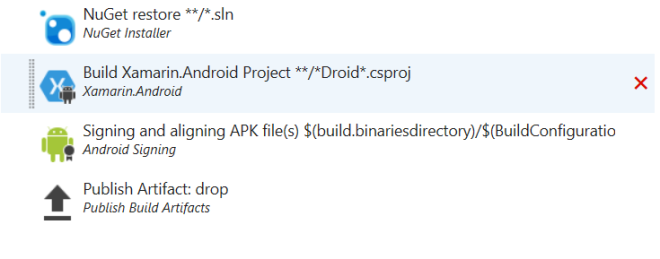
  1. In your build definition, go to your Build Xamarin.Android project step
    vstsdroid
  2. Scroll down the the JDK options section
  3. Select JDK Version 
  4. Select JDK 8 from the JDK Version dropdown
    VSTSJDK.PNG
  5. Save
  6. Run


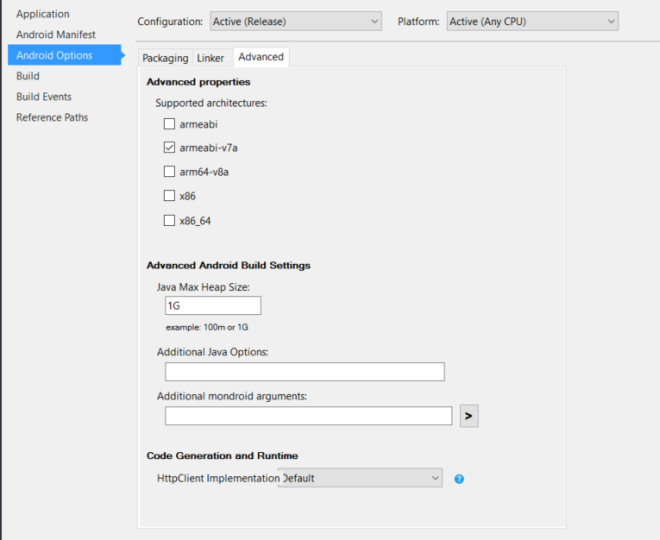
“java.lang.OutOfMemoryError. Consider increasing the value of $(JavaMaximumHeapSize)”

The error is at least pretty explanatory. You ran out of memory in your Java Heap.

The solution is to increase your Java Heap explicitly:

  1. In your IDE (VS or XS), go to your Android project
  2. Open the properties for your project
  3. Set your configuration to Release (or whatever configuration your VSTS build runs as)
  4. Go to the Android Options Tab
  5. Go to the Advanced tab
  6. Go down to the Advanced Android Build Settings
  7. Set the Java Max Heap Size to something larger such as “1G”

javaheap


These errors can be common and are only applicable to basic Android builds. This does not cover Continuous Deployment to services such as HockeyApp or Visual Studio Mobile Center.

Don’t forget to leave a comment if you’ve run into any different issues!

[Video] Xamarin.Flux

Learn how to use the Flux design pattern with Xamarin.

Source code: https://github.com/SuavePirate/Xamarin.Flux

[Video Series] Xamarin.Tips: Calling Platform-Specific Code from a PCL

Learn how to use 4 methods to call platform specific code from shared code in Xamarin. Make calls to the HockeyApp iOS SDK from a Portable Class Library.

  1. Singleton Method
  2. Xamarin.Forms Dependency Service
  3. Service Locator
  4. Dependency Injection


Source Code: https://github.com/SuavePirate/Xamarin.HockeyApp.Portable 

[VIDEO] Xamarin.Tips: Calling Platform-Specific Code from a PCL (All 4 Methods)

Using all 4 methods to call platform specific code from shared code in Xamarin. Make calls to the HockeyApp iOS SDK from a Portable Class Library.


Source Code: https://github.com/SuavePirate/Xamarin.HockeyApp.Portable 

[VIDEO] Xamarin.Tips: Calling Platform-Specific Code from a PCL (Dependency Injection)

Using Dependency Injection to call platform specific code from shared code in Xamarin. Make calls to the HockeyApp iOS SDK from a Portable Class Library.


Source Code: https://github.com/SuavePirate/Xamarin.HockeyApp.Portable