Xamarin.Controls – Android ArcLayout

Here’s a quick and fun new control to play with. It’s called the ArcLayout, and if the name isn’t descriptive enough, it allows you to layout your Views in the layout based on arcs, degrees, radii, etc. rather than using existing LinearLayouts, RelativeLayouts, or FrameLayouts.

The control is originally from OgacleJapan and you can find his native Android repository here: https://github.com/ogaclejapan/ArcLayout.

I’ve simply provided a Xamarin Android Binding Project to wrap it which you can find here: https://github.com/SuavePirate/ArcLayout. I haven’t created a nuget package for it yet, since the binding project could use some clean up first. However, here is an easy way to get started using it right away.

  1. Clone the Xamarin Binding Library (it includes the native project .jar/.aar in it, so you can clone and start right away).
  2. Copy the project to your solution, and add it as a reference in your Xamarin Android project.
  3. Start adding it to your layouts!
<com.ogaclejapan.arclayout.ArcLayout         
         android:id="@id/arc_layout"
         android:layout_width="match_parent"
         android:layout_height="match_parent"
         app:arc_origin="bottom"
         app:arc_color="#4D000000"
         app:arc_radius="168dp"
         app:arc_axisRadius="120dp"
         app:arc_freeAngle="false"
         app:arc_reverseAngle="false">

    <Button
         android:layout_width="48dp"
         android:layout_height="48dp"
         android:gravity="center"
         android:text="A"
         android:textColor="#FFFFFF"
         android:background="#03A9F4"
         app:arc_origin="center"/>

    <Button
         android:layout_width="48dp"
         android:layout_height="48dp"
         android:gravity="center"
         android:text="B"
         android:textColor="#FFFFFF" 
         android:background="#00BCD4"
         app:arc_origin="center"/>

    <Button
         android:layout_width="48dp"
         android:layout_height="48dp"
         android:gravity="center"
         android:text="C"
         android:textColor="#FFFFFF"
         android:background="#009688"
         app:arc_origin="center"/>

</com.ogaclejapan.arclayout.ArcLayout>

Now we can dissect the new attributes and properties we get from ArcLayout:
attrs

Properties of the ArcLayout

attr description
arc_origin Center of the arc on layout. All of patterns that can be specified, see the demo app.
arc_color Arc Shaped color
arc_radius Radius of the layout
arc_axisRadius Radius the axis of the child views
arc_freeAngle If set to true, each child view can set the free angle, default false
arc_reverseAngle If set to true, reverse the order of the child, default false. Note: If arc_freeAngle set to true does not work


Properties of the ArcLayout Child Views

arc_origin Set the origin point of arc_axisRadius as well as layout_gravity, default center
arc_angle If arc_freeAngle set to true, layout the specified angle

Here’s a good example to get you started including a full circle layout and two semicircles:

arc_layout_full_example.axml

<?xml version="1.0" encoding="utf-8"?>
<RelativeLayout xmlns:android="http://schemas.android.com/apk/res/android"
                     xmlns:app="http://schemas.android.com/apk/res-auto"
                 android:id="@+id/MainLayout"
     android:layout_width="match_parent"
     android:layout_height="match_parent">
  <com.ogaclejapan.arclayout.ArcLayout
         android:id="@+id/arc_layout_top"
         android:layout_width="match_parent"
         android:layout_height="match_parent"
         app:arc_origin="top"
         app:arc_color="#321321"
         app:arc_radius="168dp"
         app:arc_axisRadius="120dp"
         app:arc_freeAngle="false"
         app:arc_reverseAngle="false">

    <Button
         android:layout_width="48dp"
         android:layout_height="48dp"
         android:gravity="center"
         android:text="A"
         android:textColor="#FFFFFF"
         android:background="#03A9F4"
         app:arc_origin="center"/>

    <Button
         android:layout_width="48dp"
         android:layout_height="48dp"
         android:gravity="center"
         android:text="B"
         android:textColor="#FFFFFF"
         android:background="#00BCD4"
         app:arc_origin="center"/>

    <Button
         android:layout_width="48dp"
         android:layout_height="48dp"
         android:gravity="center"
         android:text="C"
         android:textColor="#FFFFFF"
         android:background="#009688"
         app:arc_origin="center"/>

</com.ogaclejapan.arclayout.ArcLayout>
<com.ogaclejapan.arclayout.ArcLayout
         android:id="@+id/arc_layout"
         android:layout_width="match_parent"
         android:layout_height="match_parent"
         app:arc_origin="bottom"
         app:arc_color="#03a9f4"
         app:arc_radius="168dp"
         app:arc_axisRadius="120dp"
         app:arc_freeAngle="false"
         app:arc_reverseAngle="false">

    <Button
         android:layout_width="48dp"
         android:layout_height="48dp"
         android:gravity="center"
         android:text="A"
         android:textColor="#FFFFFF"
         android:background="#03A9F4"
         app:arc_origin="center"/>

    <Button
         android:layout_width="48dp"
         android:layout_height="48dp"
         android:gravity="center"
         android:text="B"
         android:textColor="#FFFFFF"
         android:background="#00BCD4"
         app:arc_origin="center"/>

    <Button
         android:layout_width="48dp"
         android:layout_height="48dp"
         android:gravity="center"
         android:text="C"
         android:textColor="#FFFFFF"
         android:background="#009688"
         app:arc_origin="center"/>

</com.ogaclejapan.arclayout.ArcLayout>
<com.ogaclejapan.arclayout.ArcLayout
         android:id="@+id/arc_layout_center"
         android:layout_width="match_parent"
         android:layout_height="match_parent"
         app:arc_origin="center"
         app:arc_color="#4D123123"
         app:arc_radius="50dp"
         app:arc_axisRadius="50dp"
         app:arc_freeAngle="false"
         app:arc_reverseAngle="false">

    <Button
         android:layout_width="48dp"
         android:layout_height="48dp"
         android:gravity="center"
         android:text="A"
         android:textColor="#FFFFFF"
         android:background="#03A9F4"
         app:arc_origin="center"/>

    <Button
         android:layout_width="48dp"
         android:layout_height="48dp"
         android:gravity="center"
         android:text="B"
         android:textColor="#FFFFFF"
         android:background="#00BCD4"
         app:arc_origin="center"/>

    <Button
         android:layout_width="48dp"
         android:layout_height="48dp"
         android:gravity="center"
         android:text="C"
         android:textColor="#FFFFFF"
         android:background="#009688"
         app:arc_origin="center"/>

    <Button
         android:layout_width="48dp"
         android:layout_height="48dp"
         android:gravity="center"
         android:text="D"
         android:textColor="#FFFFFF"
         android:background="#009688"
         app:arc_origin="center"/>
</com.ogaclejapan.arclayout.ArcLayout>
</RelativeLayout>

arclayout

Feel free to contribute to the Xamarin Android Bindings Library repository mentioned above, I’m happy to field pull requests that can help clean it up for a real release.

If you like what you see, don’t forget to follow me on twitter @Suave_Pirate, check out my GitHub, and subscribe to my blog to learn more mobile developer tips and tricks!

Interested in sponsoring developer content? Message @Suave_Pirate on twitter for details.

Xamarin.Tips – Android Bar Background Images in Xamarin.Forms

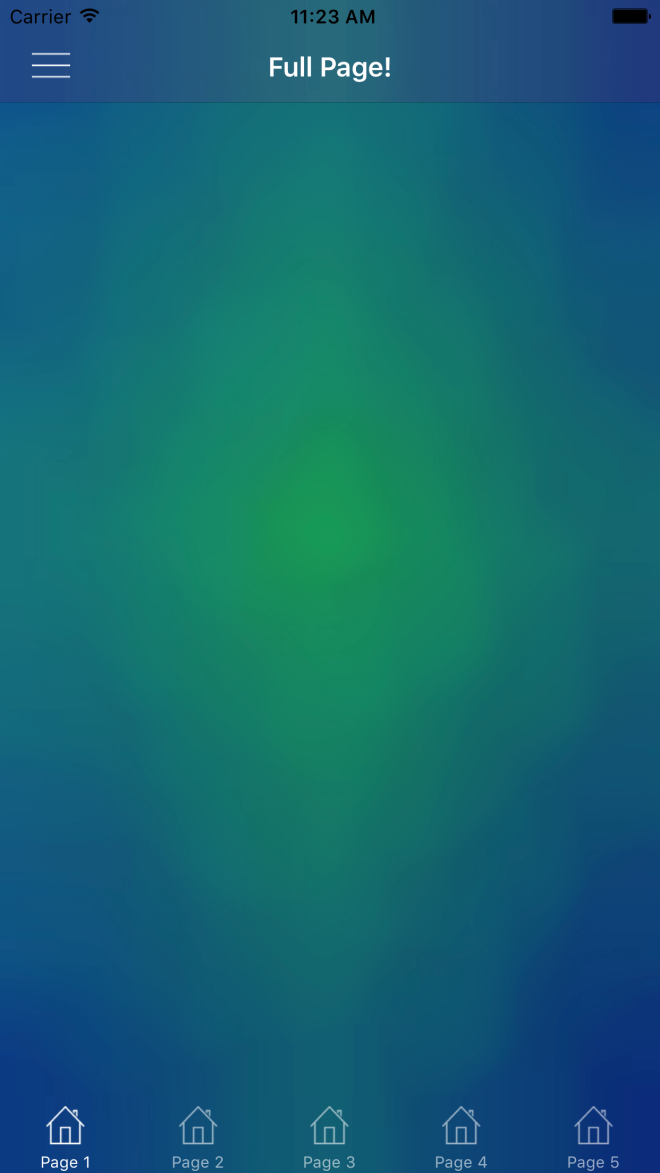
In a previous post, we talked about the iOS side of setting background images for both NavigationBars and TabBars. Beyond that, we looked at setting them so that we can simulate having transparent bars that show a background image behind the entire Page. That looked like this:

Simulator Screen Shot Apr 7, 2017, 11.23.33 AM

So now let’s do the same thing in Android!

Android

So Android handles images very differently compared to iOS, and also gives us a few easy ways to do what we want here. Rather than having to create custom renderers, we need to create Drawables for our images, and apply them in our Android Layouts for our Toolbar and TabBar. This approach is going to be more similar to Morgan Skinner’s approach for iOS here: http://www.morganskinner.com/2015/01/xamarin-formsusing-background-images-on.html

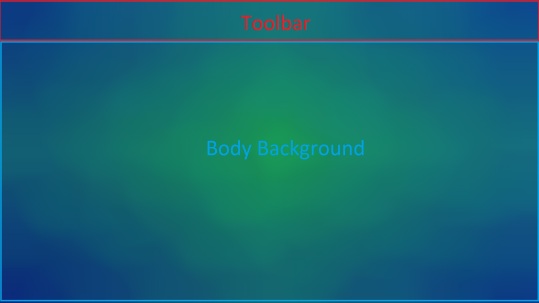
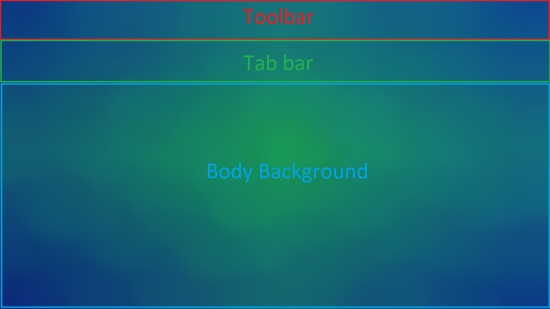
So we will need to crop our image where our Toolbar and Tabbar will be. If you are planning to also support landscape views, be sure to also crop the image separately for landscape and include those images in your appropriate drawables folders such as drawables-land-hdpi.

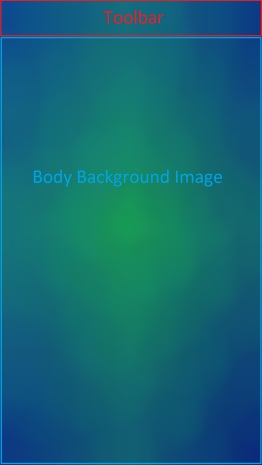
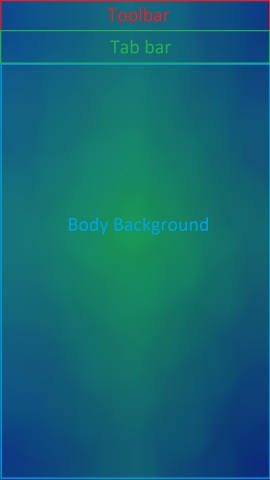
Another thing to consider is that, unlike in iOS, Android tabs are placed below the toolbar rather than at the bottom of the entire view. Because of this, you made need to use a different background for your pages that have a TabBar versus the pages that don’t. Here are some examples of how you might need to crop your images:

Portrait with no tabs

crop_portrait

Portrait with tabs

crop_portrait_tabs

Landscape with no tabs

crop_landscape

Landscape with tabs

crop_landscape_tabs

Be sure that you name the individual images the same, but place them in the appropriate resource folder as explained before. In this example we will call them:

  • toolbar_background.png
  • tabbar_background.png
  • page_background.png
  • tab_page_background.png

Unlike our iOS implementation, we do NOT need any custom renderers. Instead, we will set the background drawable of our layout files for our bars, and then in our xaml page, add an image to be the background.

Toolbar.axml

<?xml version="1.0" encoding="utf-8"?>
<android.support.v7.widget.Toolbar 
    xmlns:android="http://schemas.android.com/apk/res/android"
    xmlns:app="http://schemas.android.com/apk/res-auto"
    android:id="@+id/toolbar"
    android:layout_width="match_parent"
    android:layout_height="?attr/actionBarSize"
    android:minHeight="?attr/actionBarSize"
    android:background="@drawable/toolbar_background"
    android:theme="@style/ThemeOverlay.AppCompat.Dark.ActionBar"
    app:popupTheme="@style/ThemeOverlay.AppCompat.Light"
    app:layout_scrollFlags="scroll|enterAlways" /> 

Tabbar.axml

<?xml version="1.0" encoding="utf-8"?>
<android.support.design.widget.TabLayout         
    xmlns:android="http://schemas.android.com/apk/res/android"              
    xmlns:app="http://schemas.android.com/apk/res-auto"              
    android:id="@+id/sliding_tabs"     
    android:layout_width="match_parent"        
    android:layout_height="wrap_content"          
    android:background="@drawable/tabbar_background"          
    android:theme="@style/ThemeOverlay.AppCompat.Dark.ActionBar"          
    app:tabIndicatorColor="@android:color/white"
    app:tabGravity="fill"      
    app:tabMode="fixed" />

Then be sure to set the resources before starting Xamarin.Forms in your MainActivity:

MainActivity.cs

    public class MainActivity : global::Xamarin.Forms.Platform.Android.FormsAppCompatActivity
    {
        protected override void OnCreate(Bundle bundle)
        {
            TabLayoutResource = Resource.Layout.Tabbar;
            ToolbarResource = Resource.Layout.Toolbar;

            base.OnCreate(bundle);

            global::Xamarin.Forms.Forms.Init(this, bundle);
            LoadApplication(new App());

        }
    }

With all those things set, you can now use your background images on pages with or without tabs:

ContentPageWithTabs.xaml

<ContentPage ...>
    <Grid ...>
        <Image Source="tab_page_background.png" .../>
        <!-- The rest of your content on top of the image -->
    </Grid>
</ContentPage>

ContentPageWithNoTabs.xaml

<ContentPage ...>
    <Grid ...>
        <Image Source="page_background.png" .../>
        <!-- The rest of your content on top of the image -->
    </Grid>
</ContentPage>


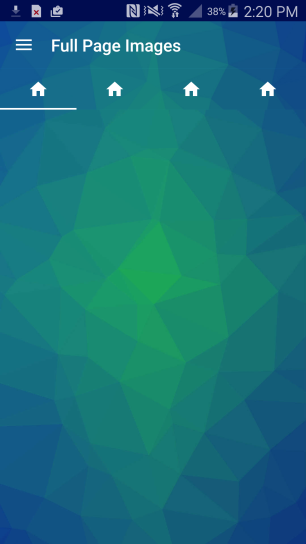
You can see an example result here (with a rushed crop job):

Screenshot_2017-04-18-14-20-08


If you like what you see, don’t forget to follow me on twitter @Suave_Pirate, check out my GitHub, and subscribe to my blog to learn more mobile developer tips and tricks!

Interested in sponsoring developer content? Message @Suave_Pirate on twitter for details.
Xamarin.Controls – Xamarin.Forms PinView

In  previous post, I talked about creating a BorderlessEntry view using a Custom Renderer (or an alternative Effect). We are going to use said control in this post, so you can find it here: Xamarin.Forms Borderless Entry
On top of this control, we are also going to use a custom behavior mentioned in a blog post here: Xamarin.Tips – Restrict the Length of Your Entry Text

Now let’s talk about giving your users the ability to create a PIN to secure their account in your app while giving them a nice experience. The solution is the PinView!

We are going to build this as a custom component in Xamarin.Forms:

PinView.xaml

<ContentView xmlns="http://xamarin.com/schemas/2014/forms"               xmlns:x="http://schemas.microsoft.com/winfx/2009/xaml"               xmlns:behaviors="clr-namespace:YOUR_NAMESPACE.Behaviors;assembly=YOUR_NAMESPACE"              xmlns:views="clr-namespace:YOUR_NAMESPACE;assembly=YOUR_NAMESPACE"              x:Class="YOUR_NAMESPACE.PinView">
    <ContentView.Resources>
        <ResourceDictionary>
<Style x:Key="PinEntry" TargetType="Entry">
                <Setter Property="Keyboard" Value="Numeric"/>
                <Setter Property="IsPassword" Value="True"/>
                <Setter Property="WidthRequest" Value="50"/>
                <Setter Property="HeightRequest" Value="50"/>
                <Setter Property="Margin" Value="8,0"/>
                <Setter Property="HorizontalTextAlignment" Value="Center"/>
            </Style>
<Style x:Key="BottomBar" TargetType="BoxView">
                <Setter Property="HeightRequest" Value="2"/>
                <Setter Property="BackgroundColor" Value="White"/>
                <Setter Property="WidthRequest" Value="50"/>
                <Setter Property="VerticalOptions" Value="Start"/>
                <Setter Property="Margin" Value="0"/>
            </Style>

        </ResourceDictionary>
    </ContentView.Resources>
  <ContentView.Content>
        <StackLayout Orientation="Horizontal" HorizontalOptions="FillAndExpand">
            <StackLayout Orientation="Vertical">
                <views:BorderlessEntry x:Name="Pin1" Style="{StaticResource PinEntry}" TextColor="White">
                    <Entry.Behaviors>
                        <behaviors:EntryLengthValidatorBehavior MaxLength="1"/>
                    </Entry.Behaviors>
                </views:BorderlessEntry>
                <BoxView Style="{StaticResource BottomBar}"/>
            </StackLayout>

            <StackLayout Orientation="Vertical">
                <views:BorderlessEntry x:Name="Pin2" Style="{StaticResource PinEntry}" TextColor="White">
                    <Entry.Behaviors>
                        <behaviors:EntryLengthValidatorBehavior MaxLength="1"/>
                    </Entry.Behaviors>
                </views:BorderlessEntry>
                <BoxView Style="{StaticResource BottomBar}"/>
            </StackLayout>
            <StackLayout Orientation="Vertical">
                <views:BorderlessEntry x:Name="Pin3" Style="{StaticResource PinEntry}" TextColor="White">
                    <Entry.Behaviors>
                        <behaviors:EntryLengthValidatorBehavior MaxLength="1"/>
                    </Entry.Behaviors>
                </views:BorderlessEntry>
                <BoxView Style="{StaticResource BottomBar}"/>
            </StackLayout>
            <StackLayout Orientation="Vertical">
                <views:BorderlessEntry x:Name="Pin4" Style="{StaticResource PinEntry}" TextColor="White">
                    <Entry.Behaviors>
                        <behaviors:EntryLengthValidatorBehavior MaxLength="1"/>
                    </Entry.Behaviors>
                </views:BorderlessEntry>
                <BoxView Style="{StaticResource BottomBar}"/>
            </StackLayout>
        </StackLayout>
  </ContentView.Content>
</ContentView>

Lastly, we add some behaviors to our code-behind:

PinView.xaml.cs

 public partial class PinView : ContentView
    {
        public static BindableProperty PinProperty = BindableProperty.Create("Pin", typeof(string), typeof(PinView), defaultBindingMode: BindingMode.OneWayToSource);
        public string Pin
        {
            get
            {
                return (string)GetValue(PinProperty);
            }
            set
            {
                SetValue(PinProperty, value);
            }
        }
        public PinView()
        {
            InitializeComponent();
            Pin = string.Empty;
            Pin1.TextChanged += Pin1_TextChanged;
            Pin2.TextChanged += Pin2_TextChanged;
            Pin3.TextChanged += Pin3_TextChanged;
            Pin4.TextChanged += Pin4_TextChanged;
        }

        private void Pin4_TextChanged(object sender, TextChangedEventArgs e)
        {
            if (Pin4.Text.Length > 0)
                Pin4.Unfocus();
            else
                Pin3.Focus();
            Pin = Pin1.Text + Pin2.Text + Pin3.Text + Pin4.Text;
        }

        private void Pin3_TextChanged(object sender, TextChangedEventArgs e)
        {
            if (Pin3.Text.Length > 0)
                Pin4.Focus();
            else
                Pin2.Focus();
            Pin = Pin1.Text + Pin2.Text + Pin3.Text + Pin4.Text;
        }

        private void Pin2_TextChanged(object sender, TextChangedEventArgs e)
        {
            if (Pin2.Text.Length > 0)
                Pin3.Focus();
            else
                Pin1.Focus();
            Pin = Pin1.Text + Pin2.Text + Pin3.Text + Pin4.Text;
        }

        private void Pin1_TextChanged(object sender, TextChangedEventArgs e)
        {
            if (Pin1.Text.Length > 0)
                Pin2.Focus();
            Pin = Pin1.Text + Pin2.Text + Pin3.Text + Pin4.Text;
        }
    }

If we dig into the behavior, we set up our TextChanged events so that when each separate Entry is updated, we move the focus to the next Entry. If we clear the text of one of the Entries, we move to the Entry before it, and when we write text into the Entry, we move to the next one.

We also use the Behavior mentioned to restrict the user from entering more than 1 character in each Entry!

If you like what you see, don’t forget to follow me on twitter @Suave_Pirate, check out my GitHub, and subscribe to my blog to learn more mobile developer tips and tricks!

Xamarin.University – Upcoming Guest Lecture on Cross-Platform WebRTC

Join me on Tuesday, May 23rd and learn about bringing voice and video conferencing capabilities to your mobile apps! We will talk about the general capabilities of WebRTC, how to bring it to Native mobile development, using it in Xamarin, and extending the capabilities of it.

Leave with an app that lets you share your voice and videos with others!

Bring your devices and your questions!

Here’s a link to the guest lecture! https://university.xamarin.com/guestlectures/cross-platform-webrtc

If you like what you see, don’t forget to follow me on twitter @Suave_Pirate, check out my GitHub, and subscribe to my blog to learn more mobile developer tips and tricks!

Xamarin.Tips – Changing a TableView’s Separator Color

In previous posts, I talked about the misfortunes of the Xamarin.Forms TableView. In this post, we will look at changing the separator color with a custom renderer.

For some other Xamarin.Tips on upgrading your TableView, check out these two posts on customizing the Section Titles!

Android: Xamarin.Tips – Xamarin.Forms Android Custom TableView Section Titles
iOS: Xamarin.Tips – Xamarin.Forms iOS Custom TableView Section Titles

Let’s get started with a custom view that inherits the TableView and adds a BindableProperty for our SeparatorColor:

ColoredTableView.cs

    public partial class ColoredTableView : TableView
    {
        public static BindableProperty SeparatorColorProperty = BindableProperty.Create("SeparatorColor", typeof(Color), typeof(ColoredTableView), Color.White);
        public Color SeparatorColor
        {
            get
            {
                return (Color)GetValue(SeparatorColorProperty);
            }
            set
            {
                SetValue(SeparatorColorProperty, value);
            }
        }
        public ColoredTableView()
        {
            InitializeComponent();
        }
    }

Now let’s take this view and create our renderers!

Let’s start with Android:

ColoredTableViewRenderer.cs

[assembly: ExportRenderer(typeof(ColoredTableView), typeof(ColoredTableViewRenderer))]
namespace YOUR_ANDROID_NAMESPACE
{
    public class ColoredTableViewRenderer : TableViewRenderer
    {
        protected override void OnElementChanged(ElementChangedEventArgs<TableView> e)
        {
            base.OnElementChanged(e);
            if (Control == null)
                return;

            var listView = Control as Android.Widget.ListView;
            var coloredTableView = (ColoredTableView)Element;
            listView.Divider = new ColorDrawable(coloredTableView.SeparatorColor.ToAndroid());
            listView.DividerHeight = 3;
        }

        protected override void OnElementPropertyChanged(object sender, PropertyChangedEventArgs e)
        {
            base.OnElementPropertyChanged(sender, e);
            if(e.PropertyName == "SeparatorColor")
            {
                var listView = Control as Android.Widget.ListView;
                var coloredTableView = (ColoredTableView)Element;
                listView.Divider = new ColorDrawable(coloredTableView.SeparatorColor.ToAndroid());
            }
        }
    }
}

Basically, we take the color and apply it as a ColorDrawable, including updating when the property changes from our Forms code.

Now let’s write up our iOS renderer:

ColoredTableViewRenderer.cs

[assembly: ExportRenderer(typeof(ColoredTableView), typeof(ColoredTableViewRenderer))]
namespace YOUR_IOS_NAMESPACE
{
    public class ColoredTableViewRenderer : TableViewRenderer
    {
        protected override void OnElementChanged(ElementChangedEventArgs<TableView> e)
        {
            base.OnElementChanged(e);
            if (Control == null)
                return;

            var tableView = Control as UITableView;
            var coloredTableView = Element as ColoredTableView;
            tableView.SeparatorColor = coloredTableView.SeparatorColor.ToUIColor();
        }

        protected override void OnElementPropertyChanged(object sender, PropertyChangedEventArgs e)
        {
            base.OnElementPropertyChanged(sender, e);
            if(e.PropertyName == "SeparatorColor")
            {
                var tableView = Control as UITableView;
                var coloredTableView = Element as ColoredTableView;

                tableView.SeparatorColor = coloredTableView.SeparatorColor.ToUIColor();
            }
        }
    }
}

Similarly to our Android implementation, we set the SeparatorColor of our Native UITableView on set up and when the value changes.

If you like what you see, don’t forget to follow me on twitter @Suave_Pirate, check out my GitHub, and subscribe to my blog to learn more mobile developer tips and tricks!

Xamarin.Tips – Android Shadows on Transparent Views

I talked in a previous post about creating box-shadows on iOS UIViews that are transparent that you can find here: Xamarin.Tips – iOS Shadow on Transparent UIView

This is the Android counterpart! Let’s look at putting some shadows around a view with a fully transparent background. Android presented some completely different challenges compared to iOS. In the iOS solution, we ran into issues with Shadow layers requiring something in front of it to draw the drop shadow. With Android, using a CardView from the design support library gives us access to the Elevation and CardElevation properties which CAN indeed give us shadows around our view even though it is transparent. However, that kills any border on the view. Remember that we are looking for a transparent view, with a solid border, and shadows around it.

The general approach for iOS was to draw two new layers with shadows around the right and bottom sides of the UIView. Using layers allowed us to draw outside the actual frame of the view. However, with iOS, we aren’t so lucky.

So here’s the idea:
1. Adjust the margin and padding to allow us to expand the frame of the view
2. Draw a shadow gradient on the right side
3. Draw a shadow gradient on the bottom side
4. Draw a border around what our inner frame was

Here’s what that looks like in a custom renderer (since the origin of this was a custom Xamarin.Forms view):

TransparentFrameRenderer.cs

[assembly: ExportRenderer(typeof(TransparentFrame), typeof(TransparentFrameRenderer))]
namespace YOUR_ANDROID_NAMESPACE
{
    public class TransparentFrameRenderer : Xamarin.Forms.Platform.Android.AppCompat.FrameRenderer
    {
        protected override void OnElementChanged(ElementChangedEventArgs<Frame> e)
        {
            base.OnElementChanged(e);
            if (e.NewElement != null)
            {
                Element.Margin = new Thickness(-5);
                Element.Padding = new Thickness(15);
                Control.CardElevation = 0;
                Control.PreventCornerOverlap = false;
            }
        }

        protected override void OnDraw(Canvas canvas)
        {
            base.OnDraw(canvas);

            // draw border
            var strokePaint = new Paint();
            strokePaint.SetARGB(255, 255, 255, 255);
            strokePaint.SetStyle(Paint.Style.Stroke);
            strokePaint.StrokeWidth = 2;
            var rect = canvas.ClipBounds;
            var outline = new Rect(15, 15, rect.Right - 15, rect.Bottom - 15);

            var bottomPaint = new Paint();
            bottomPaint.SetStyle(Paint.Style.Fill);
            var shadowShader = new LinearGradient(0, 0, 0, 30, new Android.Graphics.Color(0, 0, 0, 100), new Android.Graphics.Color(0, 0, 0, 0), Shader.TileMode.Mirror);
            bottomPaint.SetShader(shadowShader);

            var rightPaint = new Paint();
            rightPaint.SetStyle(Paint.Style.Fill);
            var rightShader = new LinearGradient(0, 0, 20, 0, new Android.Graphics.Color(0, 0, 0, 100), new Android.Graphics.Color(0, 0, 0, 0), Shader.TileMode.Mirror);
            rightPaint.SetShader(rightShader);

            // draw the bottom and right shadows
            canvas.DrawRect(12, rect.Bottom - 12, rect.Right - 12, rect.Bottom + 3, bottomPaint);
            canvas.DrawRect(rect.Right - 12, 14, rect.Right + 3, rect.Bottom, rightPaint);
            canvas.DrawRect(outline, strokePaint);
        }
    }
}

Look at the Draw override. We are setting up 3 different paints. The first is the Paint for our white border. bottomPaint sets up for our bottom shadow using a LinearGradient as the shader, and similarly, rightPaint sets up our shadow for the right side.

Finally, we call DrawRect for both our shadows, then our border. The values in the DrawRect calls for the shadows are just examples to play with padding and size values. You can play with those as you see fit to make your view look best.

I’ve tested this in some large ListViews to test against the classic Android overdraw issue that can happen, but because it consists of 3 pretty simple strokes, I haven’t run into any performance issues. Hopefully this solution works for you!

This is NOT a complete solution, or a real reusable control, but more of a general approach to rendering shadows around a control with a transparent background.

If you like what you see, don’t forget to follow me on twitter @Suave_Pirate, check out my GitHub, and subscribe to my blog to learn more mobile developer tips and tricks!

Xamarin.Tips – Xamarin.Forms Android Custom TableView Section Titles

Xamarin.Forms’ TableView is a really useful control for displaying static content. However, it has some shortfalls. The one we will look at today is customizing the Section Title.

If you are looking for this solution on iOS, check it out here: Xamarin.Tips – Xamarin.Forms iOS Custom TableView Section Titles

Before reading ahead, I would suggest looking at your solution and assessing whether or not your TableView could be easily replaced by a ListView. I want to point this out, because ListViews have more flexibility for GroupHeader and allow you to put any control in there without having to leave your happy place that is XAML.

If that isn’t the case, keep reading; Let’s look at some simple custom renderers that can solve this problem for Android specifically.

First, let’s create a custom view that inherits TableView:

ColoredTableView.cs

 public partial class ColoredTableView : TableView
    {
        public static BindableProperty GroupHeaderColorProperty = BindableProperty.Create("GroupHeaderColor", typeof(Color), typeof(ColoredTableView), Color.White);
        public Color GroupHeaderColor
        {
            get
            {
                return (Color)GetValue(GroupHeaderColorProperty);
            }
            set
            {
                SetValue(GroupHeaderColorProperty, value);
            }
        }

        public ColoredTableView()
        {
            InitializeComponent();
        }
    }

Now we can create our Android renderer:

ColoredTableViewRenderer

[assembly: ExportRenderer(typeof(ColoredTableView), typeof(ColoredTableViewRenderer))]
namespace YOUR_ANDROID_NAMESPACE
{
    public class ColoredTableViewRenderer : TableViewRenderer
    {
       
        protected override TableViewModelRenderer GetModelRenderer(Android.Widget.ListView listView, TableView view)
        {
            return new CustomHeaderTableViewModelRenderer(Context, listView, view);
        }

        private class CustomHeaderTableViewModelRenderer : TableViewModelRenderer
        {
            private readonly ColoredTableView _coloredTableView;

            public CustomHeaderTableViewModelRenderer(Context context, Android.Widget.ListView listView, TableView view) : base(context, listView, view)
            {
                _coloredTableView = view as ColoredTableView;
            }

            public override Android.Views.View GetView(int position, Android.Views.View convertView, ViewGroup parent)
            {
                var view = base.GetView(position, convertView, parent);

                var element = GetCellForPosition(position);

                // section header will be a TextCell
                if (element.GetType() == typeof(TextCell))
                {
                    try
                    {
                        // Get the textView of the actual layout
                        var textView = ((((view as LinearLayout).GetChildAt(0) as LinearLayout).GetChildAt(1) as LinearLayout).GetChildAt(0) as TextView);

                        // get the divider below the header
                        var divider = (view as LinearLayout).GetChildAt(1);

                        // Set the color
                        textView.SetTextColor(_coloredTableView.GroupHeaderColor.ToAndroid());
                        textView.TextAlignment = Android.Views.TextAlignment.Center;
                        textView.Gravity = GravityFlags.CenterHorizontal;
                        divider.SetBackgroundColor(_coloredTableView.GroupHeaderColor.ToAndroid());
                    }
                    catch (Exception) { }
                }

                return view;
            }
        }
    }
}

Similar to the iOS solution, the important part is our override of GetView. What we are doing here is getting a reference to the inner child native views of our section header (why we check against the type and TextCell). Then we get our actual android TextView and the LinearLayout which is the divider below the header. From there we can change the properties of the views however we prefer. The default behavior of these views are to take the AccentColor from the android styles and use them as the BackgroundColor of the divider and the TextColor of the TextView.

If you like what you see, don’t forget to follow me on twitter @Suave_Pirate, check out my GitHub, and subscribe to my blog to learn more mobile developer tips and tricks!

Xamarin.Controls – BadgeView

Who knew it could be so difficult to just put a number on a circle in Xamarin.Forms? Here’s a freebie to make your life easier in creating your own badges.

Before we dive in, I want to note that with the Xamarin.Forms.Themes, this can be easier. Check out the docs here: https://developer.xamarin.com/guides/xamarin-forms/user-interface/themes/. Basically, they added a StyleClass for BoxView that allows you to render it as a circle (although I’ve had problems with it in the past). This example is going to be avoiding the Themes package with a custom rolled implementation.

To start, we are going to create a custom CircleView. That CircleView is going to inherit from BoxView and use a custom renderer to give us the rounded edges we want. After that, we are going to make a reusable view called BadgeView that will essentially just slap a Label on top of our new CircleView.

Start here, with your CircleView in your PCL or Shared Library:

CircleView.cs

    public partial class CircleView : BoxView
    {
        public static readonly BindableProperty CornerRadiusProperty = BindableProperty.Create(nameof(CornerRadius), typeof(double), typeof(CircleView), 0.0);

        public double CornerRadius
        {
            get { return (double)GetValue(CornerRadiusProperty); }
            set { SetValue(CornerRadiusProperty, value); }
        }

        public CircleView()
        {
            InitializeComponent();
        }
    }

Now let’s create our custom renderers. I want to note, that for iOS it is much simpler, and could also be done as an Effect rather than a BoxRenderer, however, in order to be consistent with the more complicated Android implementation, we are doing both as renderers.

First, and easiest – iOS:

CircleViewRenderer.cs


[assembly: ExportRenderer(typeof(CircleView), typeof(CircleViewRenderer))]
namespace YourNamespace.iOS
{
    public class CircleViewRenderer : BoxRenderer
    {
        protected override void OnElementChanged(ElementChangedEventArgs<BoxView> e)
        {
            base.OnElementChanged(e);

            if (Element == null)
                return;

            Layer.MasksToBounds = true;
            Layer.CornerRadius = (float)((CircleView)Element).CornerRadius / 2.0f;
        }

    }
}

and of course Android:

CircleViewRenderer.cs


[assembly: ExportRenderer(typeof(CircleView), typeof(CircleViewRenderer))]
namespace YouNamespace.Droid
{
    public class CircleViewRenderer : BoxRenderer
    {
        private float _cornerRadius;
        private RectF _bounds;
        private Path _path;
        protected override void OnElementChanged(ElementChangedEventArgs<BoxView> e)
        {
            base.OnElementChanged(e);

            if (Element == null)
            {
                return;
            }
            var element = (CircleView)Element;

            _cornerRadius = TypedValue.ApplyDimension(ComplexUnitType.Dip, (float)element.CornerRadius, Context.Resources.DisplayMetrics);

        }

        protected override void OnSizeChanged(int w, int h, int oldw, int oldh)
        {
            base.OnSizeChanged(w, h, oldw, oldh);
            if (w != oldw && h != oldh)
            {
                _bounds = new RectF(0, 0, w, h);
            }

            _path = new Path();
            _path.Reset();
            _path.AddRoundRect(_bounds, _cornerRadius, _cornerRadius, Path.Direction.Cw);
            _path.Close();
        }

        public override void Draw(Canvas canvas)
        {
            canvas.Save();
            canvas.ClipPath(_path);
            base.Draw(canvas);
            canvas.Restore();
        }
    }
}

Cool. Now we can draw pretty circles in our Xamarin.Forms views:

<views:CircleView CornerRadius="16" WidthRequest="16" HeightRequest="16"/>

Now let’s apply that to a reusable BadgeView.

BadgeView.xaml

<Grid      xmlns="http://xamarin.com/schemas/2014/forms"      xmlns:local="clr-namespace:your_local_namespace"     xmlns:x="http://schemas.microsoft.com/winfx/2009/xaml"      x:Class="your_local_namespace.BadgeView"     HeightRequest="16"     WidthRequest="16">
    <local:CircleView x:Name="BadgeCircle" HeightRequest="16" WidthRequest="16" CornerRadius="16" VerticalOptions="Center" HorizontalOptions="Center" />
    <Label x:Name="BadgeLabel" TextColor="White" VerticalOptions="Center" HorizontalOptions="Center" VerticalTextAlignment="Center" HorizontalTextAlignment="Center" FontSize="10"/>
</Grid>

BadgeView.xaml.cs

 public partial class BadgeView : Grid
    {
        public static BindableProperty TextProperty = BindableProperty.Create("Text", typeof(string), typeof(BadgeView), "0", propertyChanged: (bindable, oldVal, newVal) =>
        {
            var view = (BadgeView)bindable;
            view.BadgeLabel.Text = (string)newVal;
        });

        public static BindableProperty BadgeColorProperty = BindableProperty.Create("BadgeColor", typeof(Color), typeof(BadgeView), Color.Blue, propertyChanged: (bindable, oldVal, newVal) =>
        {
            var view = (BadgeView)bindable;
            view.BadgeCircle.BackgroundColor = (Color)newVal;
        });

        public string Text
        {
            get
            {
                return (string)GetValue(TextProperty);
            }
            set
            {
                SetValue(TextProperty, value);
            }
        }
        public Color BadgeColor
        {
            get
            {
                return (Color)GetValue(BadgeColorProperty);
            }
            set
            {
                SetValue(BadgeColorProperty, value);
            }
        }
        public BadgeView()
        {
            InitializeComponent();
            BadgeLabel.Text = Text;
            BadgeCircle.BackgroundColor = BadgeColor;
        }
    }

This is obviously a super simple example, but you can always add any other properties you want such as handling changing sizes, corners, shapes, colors, etc.

But now we can see our final results when using our control:

 <Grid>
    <Label HorizontalTextAlignment="Center" Text="Look at me!"/>
    <views:BadgeView Text="3" BadgeColor="Green" VerticalOptions="Start" HorizontalOptions="End"/>
</Grid>

BadgeExample

If you like what you see, don’t forget to follow me on twitter @Suave_Pirate, check out my GitHub, and subscribe to my blog to learn more mobile developer tips and tricks!

Xamarin.Forms Borderless Entry

Here’s a quick freebee. If you want to create an entry that has no border, it can be done with a pretty simple custom renderer.

Let’s first create a new control that inherits Entry:

BorderlessEntry.cs

 public partial class BorderlessEntry : Entry
    {
        public BorderlessEntry()
        {
            InitializeComponent();
        }
    }

We aren’t doing any special logic or anything here since all we need to do is remove the border.

Now let’s create our renderer on Android:

BorderlessEntryRenderer.cs


[assembly: ExportRenderer(typeof(BorderlessEntry), typeof(BorderlessEntryRenderer))]
namespace YOUR_NAMESPACE
{
    public class BorderlessEntryRenderer : EntryRenderer
    {
        protected override void OnElementChanged(ElementChangedEventArgs<Entry> e)
        {
            base.OnElementChanged(e);
            if (e.OldElement == null)
            {
                Control.Background = null;
            }
        }
    }
}

Note that setting the background drawable to null will kill the border (including the bottom line in AppCompt).

Now let’s create our renderer on iOS:

BorderlessEntryRenderer.cs

[assembly: ExportRenderer(typeof(BorderlessEntry), typeof(BorderlessEntryRenderer))]
namespace YOUR_NAMESPACE
{
    public class BorderlessEntryRenderer : EntryRenderer
    {
        protected override void OnElementPropertyChanged(object sender, PropertyChangedEventArgs e)
        {
            base.OnElementPropertyChanged(sender, e);
            
            Control.Layer.BorderWidth = 0;
            Control.BorderStyle = UITextBorderStyle.None;
        }
    }
}

The main property here is the BorderStyle.

Lastly, UWP (this should also be the same thing for WP and Win8):

BorderlessEntryRenderer.cs

[assembly: ExportRenderer(typeof(BorderlessEntry), typeof(BorderlessEntryRenderer))]
namespace YOUR_NAMESPACE
{
    public class BorderlessEntryRenderer : EntryRenderer
    {
        protected override void OnElementChanged(ElementChangedEventArgs<Entry> e)
        {
            base.OnElementChanged(e);

            if (Control != null)
            {
                Control.BorderThickness = new Thickness(0);
            }
        }
    }
}

That’s all there is to it!

Xamarin.Controls – Creating Your Own iOS Markdown UILabel

In a previous post, I talked about a Xamarin.Forms control I put on GitHub to allow you to display Markdown strings properly. It worked by parsing the markdown into html, then using the custom renderer to display the html string in a TextView for Android and a UILabel for iOS.

However, we are not always using Xamarin.Forms, so let’s take a look at achieving the same functionality with just Xamarin.iOS.

If you’re looking for the same type of solution, check out my previous post: Xamarin.Controls – Creating Your Own Android Markdown TextView

We’ll break it down into a few parts:

  1. Parse a markdown string into an html string
  2. Parse the html string into an NSAttributedString
  3. Set the AttributedText of the UILabel

Parsing Markdown

This is traditionally the most difficult part. However, our community is awesome and open sourced a Markdown processor with an MIT license (so use it freely!).

I won’t put the actual code in here because it is overwhelmingly long, but here is a link to it:

https://github.com/SuavePirate/MarkdownTextView/blob/master/src/Forms/SPControls.MarkdownTextView/SPControls.MarkdownTextView/Markdown.cs

Note that this is portable, so you can use it in a PCL without a problem and share it between your platforms.

Now that we have our means of processing the Markdown, let’s create some extension methods to make it easier to parse and do some extra processing like cleaning up our tags, line breaks, etc.

#region MARKDOWN STYLES
private const string ORIGINAL_PATTERN_BEGIN = "<code>";
private const string ORIGINAL_PATTERN_END = "</code>";
private const string PARSED_PATTERN_BEGIN = "<font color=\"#888888\" face=\"monospace\"><tt>";
private const string PARSED_PATTERN_END = "</tt></font>";
 
#endregion
 
public static string ToHtml(this string markdownText)
{
    var markdownOptions = new MarkdownOptions
    {
        AutoHyperlink = true,
        AutoNewlines = false,
        EncodeProblemUrlCharacters = false,
        LinkEmails = true,
        StrictBoldItalic = true
    };
    var markdown = new Markdown(markdownOptions);
    var htmlContent = markdown.Transform(markdownText);
    var regex = new Regex("\n");
    htmlContent = regex.Replace(htmlContent, "<br/>");
 
    var html = htmlContent.HtmlWrapped();
    var regex2 = new Regex("\r");
    html = regex.Replace(html, string.Empty);
    html = regex2.Replace(html, string.Empty);
    return html;
}
 
///
<summary>
/// Wrap html with a full html tag
/// </summary>
/// <param name="html"></param>
/// <returns></returns>
public static string HtmlWrapped(this string html)
{
    if (!html.StartsWith("<html>") || !html.EndsWith("</html>"))
    {
        html = $"<html><body>{html}</body></html>";
    }
    return html;
}
 
///<summary>
/// Parses html with code or pre tags and gives them proper
/// styled spans so that Android can parse it properly
/// </summary>
/// <param name="htmlText">The html string</param>
/// <returns>The html string with parsed code tags</returns>
public static string ParseCodeTags(this string htmlText)
{
    if (htmlText.IndexOf(ORIGINAL_PATTERN_BEGIN) < 0) return htmlText;
    var regex = new Regex(ORIGINAL_PATTERN_BEGIN);
    var regex2 = new Regex(ORIGINAL_PATTERN_END);
 
    htmlText = regex.Replace(htmlText, PARSED_PATTERN_BEGIN);
    htmlText = regex2.Replace(htmlText, PARSED_PATTERN_END);
    htmlText = htmlText.TrimLines();
    return htmlText;
}
 
public static bool EqualsIgnoreCase(this string text, string text2)
{
    return text.Equals(text2, StringComparison.CurrentCultureIgnoreCase);
}
 
public static string ReplaceBreaks(this string html)
{
    var regex = new Regex("<br/>");
    html = regex.Replace(html, "\n");
    return html;
}
 
public static string ReplaceBreaksWithSpace(this string html)
{
    var regex = new Regex("<br/>");
    html = regex.Replace(html, " ");
    return html;
}
 
public static string TrimLines(this string originalString)
{
    originalString = originalString.Trim('\n');
    return originalString;
}

Now we can properly parse markdown to html:

var markdown = "# Hello *World*";
var html = markdown.ToHtml();
// html = "<h1>Hello <strong>World</strong></h1>"

Parsing Html to NSAttributedString

The next step is to take our processed html string and turn it into something that an iOS UILabel can use.

How about another extension method?

public static NSAttributedString ToAttributedText(this string html)
{
    NSError error = new NSError();
     try
     {
         var htmlData = NSData.FromString(html);
         if (htmlData != null && htmlData.Length > 0)
         {
             NSAttributedString attributedString = null;

             attributedString = new NSAttributedString(htmlData, new DocumentType = NSDocumentType.HTML, StringEncoding = NSStringEncoding.UTF8    }, ref error);
             return attributedString;
         }
         return null;
     }
     catch (Exception ex)
     {
         Console.WriteLine(ex);
         return null;
     }
}

We’ll add one more extension method just to make the full conversion from markdown to html to formatted html:

public static NSAttributedString MarkdownToHtml(this string markdown) 
{
    return markdown.ToHtml().ToAttributedString();
}

Now for the very last bit: Show it!

Assiging To the UILabel

Pretty simple now that we have our useful extension methods!

var markdown = "# Hello *World*";
myLabel.AttributedText = markdown.MarkdownToHtml();

That’s it! Now you can see some cool stylized text in your labels.