Xamarin.Tip – Build Your Own AccordionView in Xamarin.Forms

If you’re like me, you probably tried to find some decent “Accordion” style view for your Xamarin.Forms app. You probably found some on NuGet that aren’t supported anymore or some old GitHub repositories. Here’s my advice – give up the search and just give in and build your own. But you don’t have to do it alone! Here is a guide to build a simple but flexible and reusable AccordionView. If enough people like it, maybe we’ll put it up on NuGet for consumption.

Here’s the approach we are taking – We need a list of “sections”. Each Section has a header and the body content. For the sake of the simple example, we’ll do it with just a label body, but this could easily be done with a DataTemplate or more complicated view (I use the HtmlLabel for this irl https://github.com/matteobortolazzo/HtmlLabelPlugin).

Let’s create a view called AccordionSectionView:

AccordionSectionView.xaml

<?xml version="1.0" encoding="UTF-8"?>
<ContentView xmlns="http://xamarin.com/schemas/2014/forms" xmlns:x="http://schemas.microsoft.com/winfx/2009/xaml" x:Class="YourNamespace.AccordionSectionView">
    <ContentView.Content>
        <StackLayout Orientation="Vertical" Spacing="0">
            <Grid x:Name="HeaderView">
                <Grid.ColumnDefinitions>
                    <ColumnDefinition Width="*"/>
                    <ColumnDefinition Width="48"/>
                </Grid.ColumnDefinitions>
                <Label x:Name="HeaderLabel"  VerticalOptions="Center" Margin="16" LineBreakMode="WordWrap" />
                <Label x:Name="IndicatorLabel" Style="{DynamicResource BodySecondaryBold}"  FontSize="32" VerticalOptions="Center" HorizontalOptions="Center" HorizontalTextAlignment="Center" VerticalTextAlignment="Center" Margin="0,16,16,16" Grid.Column="1"/>
                <Grid.GestureRecognizers>
                    <TapGestureRecognizer Tapped="Handle_Tapped"/>
                </Grid.GestureRecognizers>
            </Grid>
            <Grid x:Name="BodyView">
                <Label x:Name="BodyLabel" Style="{DynamicResource Body}" FontSize="16" Margin="16"/>
            </Grid>
        </StackLayout>
    </ContentView.Content>
</ContentView>

So we have a StackLayout with a container Grid for the header and our header has a TapGestureRecognizer.

Now let’s look at how the code behind wires it all up.

AccordionSectionView.xaml.cs

/// <summary>
/// Accordion section view.
/// </summary>
public partial class AccordionSectionView : ContentView
{
    #region Bindable Properties
    public static BindableProperty HeaderBackgroundColorProperty = 
        BindableProperty.Create(nameof(HeaderBackgroundColor),                                                                                                      
            typeof(Color),                                                                                                  
            typeof(AccordionSectionView),                                                                                              
            defaultValue: Color.Transparent,                                                                                               
            propertyChanged: (bindable, oldVal, newVal) =>                                                                                                       
            {                                                                                                    
                ((AccordionSectionView)bindable).UpdateHeaderBackgroundColor();                                                                                                
            });

        public static BindableProperty HeaderOpenedBackgroundColorProperty = 
            BindableProperty.Create(nameof(HeaderOpenedBackgroundColor),                                                                                                  
                typeof(Color),                                                                                                       
                typeof(AccordionSectionView),
                defaultValue: Color.Transparent,                                                                                                   
                propertyChanged: (bindable, oldVal, newVal) =>                                                                                               
                {                                                                                                  
                    ((AccordionSectionView)bindable).UpdateHeaderBackgroundColor();                                                                                              
                });

        public static BindableProperty HeaderTextColorProperty =
            BindableProperty.Create(nameof(HeaderTextColor),                                                                                        
                typeof(Color),                                                                                                 
                typeof(AccordionSectionView),                                                                                        
                defaultValue: Color.Black,                                                                                          
                propertyChanged: (bindable, oldVal, newVal) =>                                                                                         
                {                                                                                             
                    ((AccordionSectionView)bindable).UpdateHeaderTextColor((Color)newVal);                                                                                         
                });

        public static BindableProperty HeaderTextProperty =
            BindableProperty.Create(nameof(HeaderTextProperty),                                                                                    
                typeof(string),                                                                                    
                typeof(AccordionSectionView),                                                                                   
                propertyChanged: (bindable, oldVal, newVal) =>                                                                                   
                {                                                                                      
                    ((AccordionSectionView)bindable).UpdateHeaderText((string)newVal);                                                                                   
                });

        public static BindableProperty BodyTextColorProperty =
            BindableProperty.Create(nameof(BodyTextColor),                                                                                      
                typeof(Color),                                                                                      
                typeof(AccordionSectionView),                                                                                       
                defaultValue: Color.Black,                                                                                       
                propertyChanged: (bindable, oldVal, newVal) =>                                                                                       
                {                                                                                         
                    ((AccordionSectionView)bindable).UpdateBodyTextColor((Color)newVal)                                                                                     
                });

        public static BindableProperty BodyTextProperty = 
            BindableProperty.Create(nameof(BodyText),                                                                                 
                typeof(string),                                                                                  
                typeof(AccordionSectionView),                                                                                  
                propertyChanged: (bindable, oldVal, newVal) =>                                                                                  
                {                                                                                      
                    ((AccordionSectionView)bindable).UpdateBodyText((string)newVal);                                                                                 
                });


        public static BindableProperty IsBodyVisibleProperty = 
            BindableProperty.Create(nameof(IsBodyVisible),                                                                                             
                typeof(bool),                                                                                       
                typeof(AccordionSectionView),                                                                                      
                defaultValue: true,
                propertyChanged: (bindable, oldVal, newVal) =>                                                                                       
                {                                                                                           
                    ((AccordionSectionView)bindable).UpdateBodyVisibility((bool)newVal);                                                                                          
                });
    #endregion

    #region Public Properties
    public Color HeaderBackgroundColor
    {
        get
        {
            return (Color)GetValue(HeaderBackgroundColorProperty);
        }
        set
        {
            SetValue(HeaderBackgroundColorProperty, value);
        }
    }
    public Color HeaderOpenedBackgroundColor
    {
        get
        {
            return (Color)GetValue(HeaderOpenedBackgroundColorProperty);
        }
        set
        {
                SetValue(HeaderOpenedBackgroundColorProperty, value);
        }
    }
    public Color HeaderTextColor
    {
        get
        {
            return (Color)GetValue(HeaderTextColorProperty);
        }
        set
        {
            SetValue(HeaderTextColorProperty, value);
        }
    }
    public string HeaderText
    {
        get
        {
            return (string)GetValue(HeaderTextProperty);
        }
        set
        {
            SetValue(HeaderTextProperty, value);
        }
    }
    public Color BodyTextColor
    {
        get
        {
            return (Color)GetValue(BodyTextColorProperty);
        }
        set
        {
            SetValue(BodyTextColorProperty, value);
        }
    }
    public string BodyText
    {
        get
        {
            return (string)GetValue(BodyTextProperty);
        }
        set
        {
            SetValue(BodyTextProperty, value);
        }
    }

    public bool IsBodyVisible
    {
        get
        {
            return (bool)GetValue(IsBodyVisibleProperty);
        }
        set
        {
            SetValue(IsBodyVisibleProperty, value);
        }
    }

    #endregion


    public AccordionSectionView()
    {
        InitializeComponent();
        IsBodyVisible = false; 
        if (Resources != null)
        {
            Resources.MergedWith = typeof(PrimaryTheme);
        }
        else
        {
            Resources = new ResourceDictionary
            {
                MergedWith = typeof(PrimaryTheme)
            };
        }
    }

    /// <summary>
    /// Updates the color of the header background.
    /// </summary>
    /// <param name="color">Color.</param>
    public void UpdateHeaderBackgroundColor(Color color)
    {
        HeaderView.BackgroundColor = color;
    }

    /// <summary>
    /// Updates the color of the header background.
    /// </summary>
    public void UpdateHeaderBackgroundColor()
    {
        if (IsBodyVisible)
        {
            HeaderView.BackgroundColor = HeaderOpenedBackgroundColor;
            BodyView.BackgroundColor = HeaderOpenedBackgroundColor;
        }
        else
        {
            HeaderView.BackgroundColor = HeaderBackgroundColor;
        }
    }

    /// <summary>
    /// Updates the color of the header text.
    /// </summary>
    /// <param name="color">Color.</param>
    public void UpdateHeaderTextColor(Color color)
    {
        HeaderLabel.TextColor = color;
    }

    /// <summary>
    /// Updates the color of the body text.
    /// </summary>
    /// <param name="color">Color.</param>
    public void UpdateBodyTextColor(Color color)
    {
        BodyLabel.TextColor = color;
    }

    /// <summary>
    /// Updates the header text.
    /// </summary>
    /// <param name="text">Text.</param>
    public void UpdateHeaderText(string text)
    {
        HeaderLabel.Text = text;
    }

    /// <summary>
    /// Updates the body text.
    /// </summary>
    /// <param name="text">Text.</param>
    public void UpdateBodyText(string text)
    {
        BodyLabel.Text = text;
    }

    public void UpdateBodyVisibility(bool isVisible)
    {
        BodyView.IsVisible = isVisible;
        IndicatorLabel.Text = "+";
        if(isVisible)
        {
            IndicatorLabel.RotateTo(45, 100);
        }
        else
        {
            IndicatorLabel.RotateTo(0, 100);
        }
    }

    private void Handle_Tapped(object sender, System.EventArgs e)
    {
        IsBodyVisible = !IsBodyVisible;
        UpdateHeaderBackgroundColor();
    }
}

We start by wiring up some bindable properties for the look and feel of the header and body sections, and then handle animations of the IndicatorLabel when the body is opened and closed. These even lets us update the content when the body is opened or closed.

Now we can use this in our pages. Bonus points when used with me DynamicStackLayout control to create dynamic bindable accordions!

MainPage.xaml

...
 <suave:DynamicStackLayout x:Name="Accordion" Orientation="Vertical" ItemsSource="{Binding Items}" Spacing="1" BackgroundColor="{DynamicResource AlternateBackground}">
    <suave:DynamicStackLayout.ItemTemplate>
        <DataTemplate>
                <components:AccordionSectionView HeaderText="{Binding Title}" IsBodyVisible="False" HeaderBackgroundColor="White" HeaderOpenedBackgroundColor="{DynamicResource AlternateBackground}" HeaderTextColor="Black" BodyTextColor="Black" BodyText="{Binding HtmlContent}" />
        </DataTemplate>
    </suave:DynamicStackLayout.ItemTemplate>
</suave:DynamicStackLayout>
...

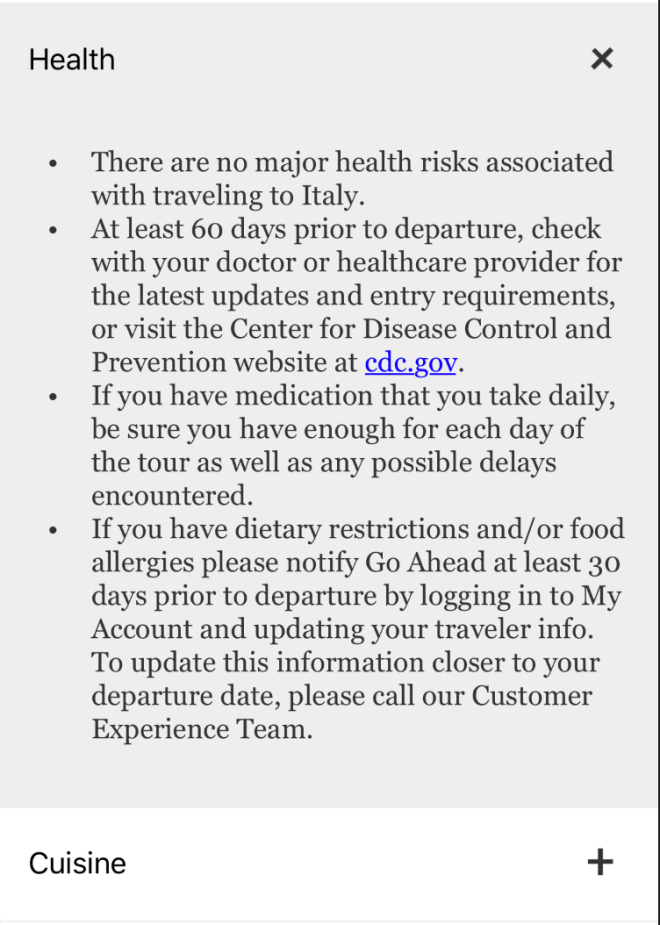
Now all together we have something pretty cool!

Screen Shot 2018-03-26 at 4.40.34 PM


Screen Shot 2018-03-26 at 4.40.48 PM

And that’s it! Let me know what you’ve done to build your own Accordions and collapsible views!


If you like what you see, don’t forget to follow me on twitter @Suave_Pirate, check out my GitHub, and subscribe to my blog to learn more mobile developer tips and tricks!

Interested in sponsoring developer content? Message @Suave_Pirate on twitter for details.

Xamarin.Controls – Material Form Control Updates

A while back I put together a GitHub repository for Material Design Controls for form elements (Entry, Picker, etc.) for Xamarin.Forms (iOS, Android, and UWP).
You can find some of the original posts about that here:

And you can find the GitHub repo and NuGet package here:

In this post, I wanted to focus on some of the newer features I’ve added to the latest 2018.1.28-pre1 release.

The gist is:

  • Invalid vs. Valid State
  • Font updates
  • Color flexibility

With these, you can now specify updated default colors, invalid state colors, and the original focused accent colors.
Here’s an example of a Style resource that uses these:

    <!-- Material Entry Styles -->
    <Style x:Key="PrimaryMaterialEntry" TargetType="material:MaterialEntry">
        <Setter Property="AccentColor" Value="{DynamicResource PrimaryColor}"/>
        <Setter Property="DefaultColor" Value="Gray"/>
        <Setter Property="InvalidColor" Value="Red"/>
    </Style>

What does validation state mean? You can attach behaviors to easily add validation to your material form controls. Here is an example behavior on the MaterialEntry that requires a length, and sets the state:

   /// <summary>
    /// Material entry length behavior. Allows for the limitation of the text with a min and max length
    /// </summary>
    public class MaterialEntryLengthValidationBehavior : Behavior<MaterialEntry>
    {
        public int MaxLength { get; set; }
        public int MinLength { get; set; } = 0;

        /// <summary>
        /// Attach events on attachment to view
        /// </summary>
        /// <param name="bindable">Bindable.</param>
        protected override void OnAttachedTo(MaterialEntry bindable)
        {
            base.OnAttachedTo(bindable);
            bindable.TextChanged += OnEntryTextChanged;
            bindable.EntryUnfocused += Bindable_EntryUnfocused;
        }

        /// <summary>
        /// Detach events on detaching from view
        /// </summary>
        /// <param name="bindable">Bindable.</param>
        protected override void OnDetachingFrom(MaterialEntry bindable)
        {
            base.OnDetachingFrom(bindable);
            bindable.TextChanged -= OnEntryTextChanged;
            bindable.EntryUnfocused -= Bindable_EntryUnfocused;
        }

        /// <summary>
        /// Stop text input once max is hit
        /// </summary>
        /// <param name="sender">Sender.</param>
        /// <param name="e">E.</param>
        void OnEntryTextChanged(object sender, TextChangedEventArgs e)
        {
            var entry = (Entry)sender;

            if (entry.Text == null)
                return;

            // if Entry text is longer than valid length
            if (entry.Text.Length > this.MaxLength)
            {
                string entryText = entry.Text;

                entryText = entryText.Remove(entryText.Length - 1); // remove last char

                entry.Text = entryText;
            }


        }

        /// <summary>
        /// Set invalid on unfocus if the min is not met
        /// </summary>
        /// <param name="sender">Sender.</param>
        /// <param name="e">E.</param>
        void Bindable_EntryUnfocused(object sender, FocusEventArgs e)
        {
            var entry = (MaterialEntry)sender;
            if (MinLength > 0)
            {
                if (entry.Text == null || entry.Text.Length < this.MinLength)
                {
                    entry.IsValid = false;
                }
                else
                {
                    entry.IsValid = true;
                }
            }
        }
    }

Then you can attach it to a MaterialEntry

<material:MaterialEntry Placeholder="CVV" Keyboard="Numeric" Text="{Binding CVV}" Style="{DynamicResource PrimaryMaterialEntry}">
    <material:MaterialEntry.Behaviors>
        <behaviors:MaterialEntryLengthValidationBehavior MaxLength="3" MinLength="3"/>
    </material:MaterialEntry.Behaviors>
</material:MaterialEntry>

And then you get:
Screen Shot 2018-02-22 at 4.19.52 PMScreen Shot 2018-02-22 at 4.19.57 PMScreen Shot 2018-02-22 at 4.20.03 PMScreen Shot 2018-02-22 at 4.20.11 PM

These validation states, and updated color properties are available on all the Material Forms controls, so install the preview nuget package and get started!

Install-Package MaterialFormControls -Version 2018.1.28-pre1

If you like what you see, don’t forget to follow me on twitter @Suave_Pirate, check out my GitHub, and subscribe to my blog to learn more mobile developer tips and tricks!

Interested in sponsoring developer content? Message @Suave_Pirate on twitter for details.

Xamarin.NuGet – Xamarin.Forms Dynamic Bindable StackLayout

I recently released a component I commonly use in my Xamarin.Forms applications for binding data to a wrapping layout here: Xamarin.NuGet – DynamicWrapLayout Announcement! In the spirit of this type of control, I’ve also released a new NuGet package for a bindable DynamicStackLayout. It’s a simple control that allows you to create a StackLayout and bind an ItemsSource collection and an ItemTemplate. This is useful for smaller, but dynamic collections with the use of the orientation changing of a StackLayout. This means you could have a horizontally scrolling list of cards, bind the orientation or change it to vertical, and play with positioning more easily than using a ListView. I would still highly suggest using a ListView over this control for a standard vertical stack of dynamic content since this control does NOT use any view recycling or virtualization which can cause performance issues with large collections or constantly changing collection.

Get it here

NuGet: https://www.nuget.org/packages/DynamicStackLayout

Github: https://github.com/SuavePirate/DynamicStackLayout

In the end, you get something like this!

Be sure to read the documentation below:

DynamicStackLayout

A Xamarin.Forms layout for creating dynamically wrapped views. Inspired by the WrapLayout example: https://developer.xamarin.com/samples/xamarin-forms/UserInterface/CustomLayout/WrapLayout/

Installation

It’s on NuGet! https://www.nuget.org/packages/DynamicStackLayout/

Install-Package DynamicStackLayout

Be sure to install in all projects that use it.

Usage

There are two key properties that make this control useful – the ItemsSource (like a ListView) and the ItemTemplate (although, you can also just add children to the view – it does both!)
Be sure to wrap it in a ScrollView though

XAML

Add the xmlns:

xmlns:suave=&quot;clr-namespace:SuaveControls.DynamicStackLayout;assembly=SuaveControls.DynamicStackLayout&quot;

Use it in your View:

&lt;ScrollView&gt;
    &lt;suave:DynamicStackLayout ItemsSource=&quot;{Binding Items}&quot; HorizontalOptions=&quot;Fill&quot;&gt;
        &lt;suave:DynamicStackLayout.ItemTemplate&gt;
            &lt;DataTemplate&gt;
                &lt;StackLayout BackgroundColor=&quot;Gray&quot; WidthRequest=&quot;120&quot; HeightRequest=&quot;180&quot;&gt;
                    &lt;Label Text=&quot;{Binding .}&quot; VerticalOptions=&quot;FillAndExpand&quot; HorizontalOptions=&quot;FillAndExpand&quot; VerticalTextAlignment=&quot;Center&quot; HorizontalTextAlignment=&quot;Center&quot; /&gt;
                &lt;/StackLayout&gt;
            &lt;/DataTemplate&gt;
        &lt;/suave:DynamicStackLayout.ItemTemplate&gt;
    &lt;/suave:DynamicStackLayout&gt;
&lt;/ScrollView&gt;

Don’t like data-binding and want to just use child views? You can do that too!

&lt;ScrollView&gt;
    &lt;suave:DynamicStackLayout HorizontalOptions=&quot;Fill&quot;&gt;
      &lt;StackLayout BackgroundColor=&quot;Gray&quot; WidthRequest=&quot;120&quot; HeightRequest=&quot;180&quot;&gt;
          &lt;Label Text=&quot;0&quot; TextColor=&quot;White&quot; VerticalOptions=&quot;FillAndExpand&quot; HorizontalOptions=&quot;FillAndExpand&quot; VerticalTextAlignment=&quot;Center&quot; HorizontalTextAlignment=&quot;Center&quot; /&gt;
      &lt;/StackLayout&gt;
      &lt;StackLayout BackgroundColor=&quot;Gray&quot; WidthRequest=&quot;120&quot; HeightRequest=&quot;180&quot;&gt;
          &lt;Label Text=&quot;1&quot; TextColor=&quot;White&quot; VerticalOptions=&quot;FillAndExpand&quot; HorizontalOptions=&quot;FillAndExpand&quot; VerticalTextAlignment=&quot;Center&quot; HorizontalTextAlignment=&quot;Center&quot; /&gt;
      &lt;/StackLayout&gt;
      &lt;StackLayout BackgroundColor=&quot;Gray&quot; WidthRequest=&quot;120&quot; HeightRequest=&quot;180&quot;&gt;
          &lt;Label Text=&quot;2&quot; TextColor=&quot;White&quot; VerticalOptions=&quot;FillAndExpand&quot; HorizontalOptions=&quot;FillAndExpand&quot; VerticalTextAlignment=&quot;Center&quot; HorizontalTextAlignment=&quot;Center&quot; /&gt;
      &lt;/StackLayout&gt;
      &lt;StackLayout BackgroundColor=&quot;Gray&quot; WidthRequest=&quot;120&quot; HeightRequest=&quot;180&quot;&gt;
          &lt;Label Text=&quot;3&quot; TextColor=&quot;White&quot; VerticalOptions=&quot;FillAndExpand&quot; HorizontalOptions=&quot;FillAndExpand&quot; VerticalTextAlignment=&quot;Center&quot; HorizontalTextAlignment=&quot;Center&quot; /&gt;
      &lt;/StackLayout&gt;
      &lt;StackLayout BackgroundColor=&quot;Gray&quot; WidthRequest=&quot;120&quot; HeightRequest=&quot;180&quot;&gt;
          &lt;Label Text=&quot;4&quot; TextColor=&quot;White&quot; VerticalOptions=&quot;FillAndExpand&quot; HorizontalOptions=&quot;FillAndExpand&quot; VerticalTextAlignment=&quot;Center&quot; HorizontalTextAlignment=&quot;Center&quot; /&gt;
      &lt;/StackLayout&gt;
    &lt;/suave:DynamicStackLayout&gt;
&lt;/ScrollView&gt;

Features

  • Bindable child views
  • Bindable to collections
  • Handles layout changing well (try rotating the device)
  • Doesn’t require custom renderers (All Xamarin.Forms baby!)

Notes

This does not use any native view virtualization, which means performance does not scale well with extremely large data sets.

Coming soon

  • ItemSelected event and SelectedItem bindable property (for now, you can add custom gestures and commands to your DataTemplate and handle the events yourself)
  • Better Collection Updating


If you like what you see, don’t forget to follow me on twitter @Suave_Pirate, check out my GitHub, and subscribe to my blog to learn more mobile developer tips and tricks!

Interested in sponsoring developer content? Message @Suave_Pirate on twitter for details.

Xamarin.iOS UITextField Shaker NuGet Announcement!

Shake up those text boxes with the newest UITextFieldShaker now available on NuGet!

This is a Xamarin.iOS Binding Library around a popular iOS extension called UITextField+Shake developed by Andrea Mazzini.

Check out the binding GitHub here: https://github.com/SuavePirate/UITextFieldShaker
And the NuGet here: https://www.nuget.org/packages/UITextFieldShaker/

UITextFieldShaker

Be sure to check out the documentation here or on GitHub:

Documentation


UITextFieldShaker

A Xamarin.iOS Binding implementation of the UITextField+Shaker extension.

Installation

Use NuGet!

Install-Package UITextFieldShaker

https://www.nuget.org/packages/UITextFieldShaker

Usage

Simply include the namespace, and start calling Shake() on your UITextFields!

MyTextField.Shake();

There are a number of overloads to allow you to choose how many times it shakes, the delta between shakes, add an action when the shaking is done, choose the direction it shakes, and more.

void Shake();
void Shake(int times, nfloat delta);
void Shake(int times, nfloat delta, Action handler);
void Shake(int times, nfloat delta, double interval);
void Shake(int times, nfloat delta, double interval, Action handler);
void Shake(int times, nfloat delta, double interval, ShakeDirection shakeDirection);
void Shake(int times, nfloat delta, double interval, ShakeDirection shakeDirection, Action handler);

Start Shaking!


If you like what you see, don’t forget to follow me on twitter @Suave_Pirate, check out my GitHub, and subscribe to my blog to learn more mobile developer tips and tricks!

Interested in sponsoring developer content? Message @Suave_Pirate on twitter for details.

Xamarin.Forms Floating Action Button NuGet Announcement

As promised, here is another release of one of my GitHub libraries for Xamarin! This time we are talking about the FloatingActionButton or “FAB”!

Here are some important links:

GitHub project: https://github.com/SuavePirate/Xamarin.Forms.Controls.FloatingActionButton
NuGet package: https://www.nuget.org/packages/SuaveControls.FloatingActionButton

Don’t forget to read up on my original post on how to create your own FloatingActionButton and how to use it: Xamarin.Controls – Xamarin.Forms FloatingActionButton (including iOS!)

Documentation


Xamarin.Forms.Controls.FloatingActionButton

A custom view to create a FloatingActionButton for both Android and iOS as part of Material Design

That’s right, even on iOS!

How to use

Clone the repository and open include the src projects in your Xamarin.Forms and Platform projects.

Now Available on NuGet!

Install-Package SuaveControls.FloatingActionButton

Special note for iOS: Make sure to call FloatingActionButtonRenderer.InitRenderer(); in your AppDelegate.cs in order to avoid linking it out.

Then you can include it in your XAML or call it from C# (See the example projects for a demo):

<?xml version="1.0" encoding="utf-8" ?>
<ContentPage xmlns="http://xamarin.com/schemas/2014/forms"
             xmlns:x="http://schemas.microsoft.com/winfx/2009/xaml"
             xmlns:local="clr-namespace:SuaveControls.FabExample"
             xmlns:controls="clr-namespace:SuaveControls.Views;assembly=SuaveControls.FloatingActionButton"
             x:Class="SuaveControls.FabExample.MainPage">
    <StackLayout Margin="32">
        <Label Text="This is a Floating Action Button!" 
           VerticalOptions="Center" 
           HorizontalOptions="Center"/>

        <controls:FloatingActionButton x:Name="FAB" HorizontalOptions="CenterAndExpand" WidthRequest="50" HeightRequest="50"  VerticalOptions="CenterAndExpand" Image="ic_add_white.png" ButtonColor="#03A9F4" Clicked="Button_Clicked"/>
    </StackLayout>
</ContentPage>

Android Example

Android Floating Action Button

iOS Example

iOS Floating Action Button

TODO:

  • Make it more flexible. Add Different color states, add sizing adjustments, etc.
  • Create UWP implementation
  • Create Xamarin Component

Come support the project and join the contributors list! We would love to see this TODO list dropped to nothing!


If you like what you see, don’t forget to follow me on twitter @Suave_Pirate, check out my GitHub, and subscribe to my blog to learn more mobile developer tips and tricks!

Interested in sponsoring developer content? Message @Suave_Pirate on twitter for details.

Xamarin.Nuget – Coming to a Nuget Package Near You

Your voices have been heard – I’m bringing all my helpful controls and libraries to nuget!

Over the next two weeks, I will be going through each one of my projects and getting them nuget-ready. I’ll then be putting them up on nuget and announcing their individual releases here on my blog.

Here’s what you can expect to see on nuget:

So stay tuned, and if you want to contribute to any of these tools, please fork those repositories!

If you like what you see, don’t forget to follow me on twitter @Suave_Pirate, check out my GitHub, and subscribe to my blog to learn more mobile developer tips and tricks!

Interested in sponsoring developer content? Message @Suave_Pirate on twitter for details.

Xamarin.Tip – Read All Contacts in Android

To follow the posts made for iOS, let’s talk about reading the device contacts in Xamarin.Android.

Since Xamarin hasn’t been working on the Xamarin.Mobile component for a while, and James Montemagno dropped support for his Contacts Plugin, if you want to access the contact APIs on each platform, you might just have to go at it yourself – or just copy this code!

Android

The first thing we need to do is create our shared model to represent a contact on the device. In this example, we’ll focus on just the name and phone number of a given contact:
PhoneContact.cs

public class PhoneContact
{
    public string FirstName { get; set; }
    public string LastName { get; set; }
    public string PhoneNumber { get; set; }
 
    public string Name { get => $"{FirstName} {LastName}"; }
 
}

Now we need to create our service to enable the reading of the contacts on the device. We’ll call it the ContactService.

    public class ContactService_Android
    {
        public IEnumerable<PhoneContact> GetAllContacts()
        {
            var phoneContacts = new List<PhoneContact>();

            using (var phones = Android.App.Application.Context.ContentResolver.Query(ContactsContract.CommonDataKinds.Phone.ContentUri, null, null, null, null))
            {
                if (phones != null)
                {
                    while (phones.MoveToNext())
                    {
                        try
                        {
                            string name = phones.GetString(phones.GetColumnIndex(ContactsContract.Contacts.InterfaceConsts.DisplayName));
                            string phoneNumber = phones.GetString(phones.GetColumnIndex(ContactsContract.CommonDataKinds.Phone.Number));

                            string[] words = name.Split(' ');
                            var contact = new PhoneContact();
                            contact.FirstName = words[0];
                            if (words.Length > 1)
                                contact.LastName = words[1];
                            else
                                contact.LastName = ""; //no last name
                            contact.PhoneNumber = phoneNumber;
                            phoneContacts.Add(contact);
                        }
                        catch (Exception ex)
                        {
                            //something wrong with one contact, may be display name is completely empty, decide what to do
                        }
                    }
                    phones.Close(); 
                }
                // if we get here, we can't access the contacts. Consider throwing an exception to display to the user
            }

            return phoneContacts;
        }
    }

 
In this method, we get access to the Context‘s ContentResolver and query for all contacts’ phone numbers.

We can then iterate over each phone number and read their name and number which is added to the master list of PhoneContacts. This list is what ends up being returned, and we close the query context we opened in the using statement.

There is one more step we need to do in order to access the contacts on the device. In the AndroidManifest.xml we need to add the permission for READ_CONTACTS. This can be added in the XML directly or done in the UI from Visual Studio:
Screen Shot 2017-09-07 at 5.30.01 PM
 
Now that we have access to all the contacts on the device, we can render those in a list through either an Android ListView, RecyclerView, or if in Xamarin.Forms – a Xamarin.Forms.ListView.

Screenshot_1504821136

 Try building some other fun features into your ContactsService or selector!
– Filter the list via search
– Build a more user friendly selector without duplicating contacts
– Gather additional properties for contacts

If you like what you see, don’t forget to follow me on twitter @Suave_Pirate, check out my GitHub, and subscribe to my blog to learn more mobile developer tips and tricks!

Interested in sponsoring developer content? Message @Suave_Pirate on twitter for details.

Xamarin.Tip – Borderless Inputs

I published multiple posts this week about creating Xamarin.Forms controls without borders using Custom renderers. This post is your one stop shop for all these posts. These are the controls that are used in my repository to create Material Design inputs in Xamarin.Forms that you can find here:
https://github.com/SuavePirate/SuaveControls.MaterialFormControls. These will be talked about in posts to come!
Check the borderless controls out here:

  1. Xamarin.Forms Borderless Entry
  2. Xamarin.Forms Borderless Picker
  3. Xamarin.Forms Borderless DatePicker
  4. Xamarin.Forms Borderless TimePicker
  5. Xamarin.Forms Borderless Editor

And check out how they look here:

BorderlessEntry


BorderlessEditor

BorderlessPicker

BorderlessDatePicker

BorderlessTimePicker

If you like what you see, don’t forget to follow me on twitter @Suave_Pirate, check out my GitHub, and subscribe to my blog to learn more mobile developer tips and tricks!

Interested in sponsoring developer content? Message @Suave_Pirate on twitter for details.

Xamarin.Tip – Borderless Editor

I previously put out a post on removing the border of a Xamarin.Forms Entry which was then used to create a custom PinView as well as a MaterialEntry that follows the material design standards for text fields. Check those out here:

In this post, we’ll apply some of the same principles to create a BorderlessEditor. It’s going to use a simple custom renderer, although this could and should be done using an Effect if being used on its own. However, this BorderlessEditor will be the foundation for future controls.

You can find this code as part of my library in progress to create Material Design Form controls for Xamarin.Forms – https://github.com/SuavePirate/SuaveControls.MaterialFormControls.

Let’s get started with our custom control by first creating a custom subclass of Xamarin.Forms.Editor followed by a custom renderer class for iOS, Android, and UWP that kills the border.

BorderlessEditor.cs

namespace SuaveControls.MaterialForms
{
    public class BorderlessEditor : Editor
    {
    }
}

Nothing special here since we are using the default behavior of the Editor.

Android

Now let’s create an Android custom renderer.

BorderlessEditorRenderer.cs – Android

[assembly: ExportRenderer(typeof(BorderlessEditor), typeof(BorderlessEditorRenderer))]
namespace SuaveControls.MaterialForms.Android.Renderers
{
    public class BorderlessEditorRenderer : EditorRenderer
    {
        public static void Init() { }
        protected override void OnElementChanged(ElementChangedEventArgs<Editor> e)
        {
            base.OnElementChanged(e);
            if (e.OldElement == null)
            {
                Control.Background = null;

                var layoutParams = new MarginLayoutParams(Control.LayoutParameters);
                layoutParams.SetMargins(0, 0, 0, 0);
                LayoutParameters = layoutParams;
                Control.LayoutParameters = layoutParams;
                Control.SetPadding(0, 0, 0, 0);
                SetPadding(0, 0, 0, 0);
            }
        }
    }
}

We simple kill the default padding and margins while setting the Background property to null. This Background is what creates the drawable underline for the AppCompat Editor.

iOS

Follow with an iOS renderer.

BorderlessEditorRenderer.cs – iOS

[assembly: ExportRenderer(typeof(BorderlessEditor), typeof(BorderlessEditorRenderer))]
namespace SuaveControls.MaterialForms.iOS.Renderers
{
    public class BorderlessEditorRenderer : EditorRenderer
    {
        public static void Init() { }
        protected override void OnElementPropertyChanged(object sender, PropertyChangedEventArgs e)
        {
            base.OnElementPropertyChanged(sender, e);

            Control.Layer.BorderWidth = 0;
        }
    }
}

All we do here is set the BorderWidth to 0.

UWP

Lastly a renderer for UWP

BorderlessEditorRenderer.cs – UWP


[assembly: ExportRenderer(typeof(BorderlessEditor), typeof(BorderlessEditorRenderer))]

namespace SuaveControls.MaterialForms.UWP.Renderers
{
    public class BorderlessEditorRenderer : EditorRenderer
    {
        public static void Init() { }
        protected override void OnElementChanged(ElementChangedEventArgs<Editor> e)
        {
            base.OnElementChanged(e);

            if (Control != null)
            {
                Control.BorderThickness = new Windows.UI.Xaml.Thickness(0);
                Control.Margin = new Windows.UI.Xaml.Thickness(0);
                Control.Padding = new Windows.UI.Xaml.Thickness(0);
            }
        }
    }
}

Similar to how we did it on Android, we set both the Margin and Padding to 0 and also set the BorderThickness to a 0’d Thickness.

Using the BorderlessEditor

Now you can use the BorderlessEditor in your XAML or C# code:

MainPage.xaml

<?xml version="1.0" encoding="utf-8" ?>
<ContentPage xmlns="http://xamarin.com/schemas/2014/forms"
             xmlns:x="http://schemas.microsoft.com/winfx/2009/xaml"
             xmlns:local="clr-namespace:ExampleMaterialApp"
             xmlns:suave="clr-namespace:SuaveControls.MaterialForms;assembly=SuaveControls.MaterialForms"
             x:Class="ExampleMaterialApp.MainPage">

    <ScrollView>
        <StackLayout Spacing="16" Margin="16" BackgroundColor="Blue">
            <Label Text="Borderless Editor!" Margin="32" HorizontalOptions="Center" HorizontalTextAlignment="Center"/>
            <suave:BorderlessEditor BackgroundColor="Black" TextColor="White" HeightRequest="300" Margin="32"/>

        </StackLayout>
    </ScrollView>

</ContentPage>

Check out those results on iOS:

If you like what you see, don’t forget to follow me on twitter @Suave_Pirate, check out my GitHub, and subscribe to my blog to learn more mobile developer tips and tricks!

Interested in sponsoring developer content? Message @Suave_Pirate on twitter for details.

Xamarin.Tip – BottomNavigationView in Xamarin.Android

I previously talked about adding a BottomNavigationView to your native Android apps using Java (Android.Basics – Adding a Bottom Navigation View), but I couldn’t leave my Xamarin buddies out! Consider this phase 1 in moving your tabs to the bottom of your Xamarin apps! In this post, we’ll look at a basic implementation of the new Material Design BottomNavigationView in Xamarin.Android, and in a later post, we’ll implement it in Xamarin.Forms with a custom TabbedRenderer.

Resources

Create a Menu Resource

The BottomNavigationView uses a menu to create the items in the navigation view, so you’ll need to create an xml resource under Resource/menu.

bottom_bar_menu.xml

<menu xmlns:android="http://schemas.android.com/apk/res/android">
    <item android:id="@+id/all_puppies"
        android:title="@string/action_all"
        android:icon="@drawable/ic_home_white_24dp" />

    <item android:id="@+id/big_puppies"
        android:title="@string/action_big"
        android:icon="@drawable/ic_dog_white_24dp" />

    <item android:id="@+id/small_puppies"
        android:title="@string/action_small"
        android:icon="@drawable/ic_small_dog_white_24dp" />

    <item android:id="@+id/trained_puppies"
        android:title="@string/action_trained"
        android:icon="@drawable/ic_trained_white_24dp" />

    <item android:id="@+id/active_puppies"
        android:title="@string/action_active"
        android:icon="@drawable/ic_active_white_24dp" />
</menu>


Note that the images I use are from my previous post, and are included in the source code in GitHub linked above.

Update the Layout

Add an android.support.design.widget.BottomNavigationView to your layout, or you can now add it easily in Visual Studio (for Mac) in the design view by selecting it on the right.

main.xml

<?xml version="1.0" encoding="utf-8"?>
<RelativeLayout xmlns:android="http://schemas.android.com/apk/res/android"
    xmlns:app="http://schemas.android.com/apk/res-auto"
    android:orientation="vertical"
    android:layout_width="match_parent"
    android:layout_height="match_parent">
    <TextView
        android:id="@+id/textView"
        android:layout_width="match_parent"
        android:layout_height="wrap_content"
        android:layout_centerInParent="true"
        android:layout_centerHorizontal="true"
        android:layout_centerVertical="true"
        android:text="All"
        android:textAlignment="center"
        android:gravity="center" />
    <android.support.design.widget.BottomNavigationView
        android:id="@+id/bottomNavigationView"
        android:minWidth="25px"
        android:minHeight="25px"
        android:layout_width="match_parent"
        android:layout_height="56dp"
        android:layout_alignParentBottom="true"
        android:background="@android:color/white"
        app:elevation="6dp"
        app:menu="@menu/bottom_bar_menu" />
</RelativeLayout>

or….

Screen Shot 2017-07-25 at 3.48.02 PM

Just make sure you properly set the layout_width and layout_height to meet the standards and also add elevation to give it the shadow and solid background.

Add Listeners

Xamarin did a great job of wrapping the Java listener with C# events so we can add the event handlers we know and love to handle changes when an item is selected in the BottomNavigationView.

MainActivity.cs

    public class MainActivity : Activity
    {

        protected override void OnCreate(Bundle savedInstanceState)
        {
            base.OnCreate(savedInstanceState);

            // Set our view from the "main" layout resource
            SetContentView(Resource.Layout.Main);

            var textView = FindViewById<TextView>(Resource.Id.textView);
            var bottomBar = FindViewById<BottomNavigationView>(Resource.Id.bottomNavigationView);
            textView.Text = "All";
            bottomBar.NavigationItemSelected += (s,a) => {
                textView.Text = a.Item.TitleFormatted.ToString();
            };
        }
    }

Things to Remember

Remember that this is part of the AppCompat packages from Google, and is only in version 25+ of the Android Support Design Library. You can install the nuget package for it here: https://www.nuget.org/packages/Xamarin.Android.Support.Design/25.4.0-rc1

Because of this, you also need to set the theme of your Activity to something that is a sub-theme of Theme.AppCompat.

Results

Check it out!

Xamarin_Bottom_Bar

If you like what you see, don’t forget to follow me on twitter @Suave_Pirate, check out my GitHub, and subscribe to my blog to learn more mobile developer tips and tricks!

Interested in sponsoring developer content? Message @Suave_Pirate on twitter for details.