
Xamarin.Basics – Ad Hoc iOS Builds, Part 2a: Publishing in HockeyApp

Before Getting Started

Before learning how to upload your iOS builds to HockeyApp, be sure to check out Part 1 of this series: Xamarin.Basics – Ad Hoc iOS Builds, Part1: Certificates and Profiles to learn about the requirements for producing Ad Hoc builds that will be distributed in HockeyApp.

Quick Intro

Up to this point, we should have everything we need to build our iOS application in Release/Ad Hoc mode to produce an .ipa file. This output .ipa is what we will be uploading to HockeyApp and other distribution channels such as Mobile Center. It’s important to note that HockeyApp is actually on its way out the door and being booted by the new Visual Studio Mobile Center produced by Microsoft after acquiring HockeyApp and their team. At this point, Mobile Center is still in Preview, so if you’re looking for a production ready solution for the time being, stay here. If not, follow my next blog post (to be posted here) on doing this in Mobile Center.

Building

Now that we have our Distribution Certificate and Ad Hoc Provisioning Profile created in the Apple Developer Portal and downloaded on our Mac, we can move into Visual Studio and build our Application for Ad Hoc Release. The screenshots you’ll see below will be from Visual Studio 2017 on Windows, but the same principles apply to Visual Studio for Mac.

Ensure your Bundle Identifiers Match

In the Apple Developer portal, we created an App ID and in this definition, we set a Bundle Identifier. This ID needs to match the ID of our actual application. You can set the Bundle Identifier in the Info.plist file of your iOS project in Visual Studio.

Screen Shot 2017-07-12 at 1.54.00 PM

Set Build Configuration to Release – iPhone

Screen Shot 2017-07-12 at 2.07.06 PM

In order to build for iOS Ad Hoc distribution, you’ll need to build against an actual iOS device. Building for simulators does some things differently behind the scenes that makes it faster to install in a simulator. Since our app needs to run against devices, we need to build against a real device. We also need to build in Release mode since we shouldn’t be debugging an Ad Hoc build.

Double Check Your Bundle Signing

Before building, double check that your app is going to use the proper Signing Identity and Provisioning Profile. You can do this by opening the Properties (“Options” if your in VS for Mac) and go to the Bundle Signing tab. Here you can explicitly set a Profile and Certificate to use or let it automatically choose the profile and hope it works out.

Screen Shot 2017-07-12 at 2.12.12 PM.png

Build and Deploy

Now simply build and deploy your app by right clicking the project in the Solution Explorer and clicking the Deploy option.

Screen Shot 2017-07-12 at 2.21.49 PM

This will now create the .ipa file in your bin. Locate your .ipa at YOUR_IOS_PROJECT\bin\Ad-Hoc\YOUR_BUNDLE.ipa. This .ipa is what will be uploaded to HockeyApp and distributed.

Using HockeyApp

HockeyApp has some great getting started documentation for creating your app and also viewing crash reports etc. You can find that here: https://support.hockeyapp.net/kb.

We will focus on uploading a new build using the .ipa file we created. In order to do this, you will need to have created an account with HockeyApp and created an iOS Alpha or Beta application slot.

From here you can click on the Add Version button which will then prompt you to upload your .ipa file.

Screen Shot 2017-07-12 at 2.39.05 PMScreen Shot 2017-07-12 at 2.39.12 PM

Now you’ll be able to add some release notes to your version that is being uploaded. Then enable the people who are allowed to install your app and send them notifications.

Once this is done, your users whose devices are registered by their UDID to the Apple Developer Portal and the Provisioning Profile used will be able to download and install it through the HockeyApp mobile website!

With your users having their hands on the app, you’ll be able to view crash reports, respond to feedback and more through the HockeyApp portal!

Next Steps

Now that we’ve been able to manually upload builds to HockeyApp, we’ll be able to look at using Continuous Integration and Deployment to distribute our new versions as we commit our changes in the source code. James Montemagno has a great blog post in the official Xamarin blog here: https://blog.xamarin.com/continuous-integration-for-ios-apps-with-visual-studio-team-services/.

In a following post, we will look at the future of deploying our iOS applications internally by using the new Visual Studio Mobile Center.

If you like what you see, don’t forget to follow me on twitter @Suave_Pirate, check out my GitHub, and subscribe to my blog to learn more mobile developer tips and tricks!

Interested in sponsoring developer content? Message @Suave_Pirate on twitter for details.

Android – Comparing Models in Kotlin, Java, and C# for Xamarin

Models are an obvious important part of our applications we develop. It’s how we define our data and because of that, we can grow our models to be quite large in number. This post will look at comparing the definition of models between Java, C# (for Xamarin), and Kotlin.

Our example model will be a simple Person that has a Name and Description along with an ID. Let’s look at how we can define our Person model with these fields as well as the ability to access these fields publicly.

Using Java

Java is going to be our largest and most annoying to develop. We need to define our class, private fields, and then public functions/methods to get and set the value of each of the fields. We also need to be able to instantiate a Person with all these properties set in the constructor.

Person.java

public class Person{
    private int id;
    private String name;
    private String description;

    public Person(int id, string name, string description){
        this.id = id;
        this.name = name;
        this.description = description;
    }

    public void setID(int id){
        this.id = id;
    }
    public int getID(){
        return this.id;
    }
    public void setName(String name){
        this.name = name;
    }
    public String getName(){
        return this.name;
    }
    public void setDescription(String description){
        this.description = description;
    }
    public String getDescription(){
        return this.description;
    }
}

That’s exhausting…

Now we can instantiate it and update properties like this:

...
Person bob = new Person(1, "Bob", "He writes code and stuff");
bob.setDescription("He doesn't actually write code");
...

Using C# for Xamarin Applications

C# makes our lives a lot easier with the get and set mechanism built into properties.

Person.cs

public class Person
{
    public int ID { get; set; }
    public string Name { get; set; }
    public string Description { get; set; }

    public Person(int id, string name, string description)
    {
        ID = id;
        Name = name;
        Description = description;
    }
}

Nice and neat!

Now we can instantiate it and update properties like this:

...
var bob = new Person(1, "Bob", "He writes code and stuff");
bob.Description = "He doesn't actually write code";
...

Using Kotlin

Kotlin has some cool tricks that allow us to define and set properties directly in our constructor without having to define and set them separately. This gives us the quickest way to create simple POCO definitions and speed up that development time.

Person.kt

class Person(var id: Int, var name: String, var description: String);

One line.

Now we can instantiate it and update properties like this:

...
val bob = Person(1, "Bob", "He writes code and stuff");
bob.description = "He doesn't actually write code";
...

Conclusion

Each language has their nuances, but I think we can all agree that defining models in Java is just a headache that other languages have solved with better solutions.

If you like what you see, don’t forget to follow me on twitter @Suave_Pirate, check out my GitHub, and subscribe to my blog to learn more mobile developer tips and tricks!

Interested in sponsoring developer content? Message @Suave_Pirate on twitter for details.

Xamarin.Tip – PCL Profile Problems

New to Xamarin now that Microsoft is pushing it harder with Visual Studio 2017 and Visual Studio for Mac? Can’t create a new PCL and reference it in your Out of the Box Xamarin.Forms project? This post is for you, and I assure you – you are not alone.


The Problem

The core of the problem is this shift within the Microsoft Stack from many different versions of the .NET framework and tools into a “standard” – .NET Standard. However, certain parts of Xamarin aren’t quite there. These are things that worked in Visual Studio 2015, but are now new problems for VS 2017 and VS for Mac, especially if you’re working on a team that uses a mix of these.

There are multiple types of Profiles available for a Portable Class Library. Here’s a quick matrix of the different Profiles and where they compare to .NET Standard versions and supported profiles:

PCL Profile .NET Standard PCL Platforms
Profile7 1.1 .NET Framework 4.5, Windows 8
Profile31 1.0 Windows 8.1, Windows Phone Silverlight 8.1
Profile32 1.2 Windows 8.1, Windows Phone 8.1
Profile44 1.2 .NET Framework 4.5.1, Windows 8.1
Profile49 1.0 .NET Framework 4.5, Windows Phone Silverlight 8
Profile78 1.0 .NET Framework 4.5, Windows 8, Windows Phone Silverlight 8
Profile84 1.0 Windows Phone 8.1, Windows Phone Silverlight 8.1
Profile111 1.1 .NET Framework 4.5, Windows 8, Windows Phone 8.1
Profile151 1.2 .NET Framework 4.5.1, Windows 8.1, Windows Phone 8.1
Profile157 1.0 Windows 8.1, Windows Phone 8.1, Windows Phone Silverlight 8.1
Profile259 1.0 .NET Framework 4.5, Windows 8, Windows Phone 8.1, Windows Phone Silverlight 8

Now we can look at the different .NET Standard versions and their supported platforms:


.NET Standard 1.0 1.1 1.2 1.3 1.4 1.5 1.6 2.0
.NET Core 1.0 1.0 1.0 1.0 1.0 1.0 1.0 2.0
.NET Framework (with tooling 1.0) 4.5 4.5 4.5.1 4.6 4.6.1 4.6.2
.NET Framework (with tooling 2.0 preview) 4.5 4.5 4.5.1 4.6 4.6.1 4.6.1 4.6.1 4.6.1
Mono 4.6 4.6 4.6 4.6 4.6 4.6 4.6 vNext
Xamarin.iOS 10.0 10.0 10.0 10.0 10.0 10.0 10.0 vNext
Xamarin.Android 7.0 7.0 7.0 7.0 7.0 7.0 7.0 vNext
Universal Windows Platform 10.0 10.0 10.0 10.0 10.0 vNext vNext vNext
Windows 8.0 8.0 8.1
Windows Phone 8.1 8.1 8.1
Windows Phone Silverlight 8.0


Xamarin.Forms is created to support everything from Windows Silverlight 8.0 and up. This means that Xamarin.Forms projects are created using a Profile 259 PCL. This is fine, however, Profile 259 is on it’s way out the door, and therefore can’t be created in Visual Studio 2017! When you create a new PCL in VS 2017, it is created with the latest version of .NET Standard that supports .NET Core, UWP, and Xamarin (as of now this is default to Profile7. However, this is incompatible with Profile 259 and therefore cannot be referenced by your newly created Xamarin.Forms project. There’s no way in the IDE or properties to get it to 259, so if you do still want to support Windows Phone and Windows 8 with your Xamarin Projects in Visual Studio 2017, read below. If you don’t, update your Xamarin.Forms project to remove support for Windows 8 and Windows phone and your profiles will be matching again.

Here’s what the default Xamarin.Forms project targets are:
Screen Shot 2017-07-03 at 11.42.45 AM

And here is what a newly created PCL project targets are with everything selected:

Screen Shot 2017-07-03 at 11.42.58 AM


The Solution

We need to get our newly created PCLs to Profile 259 in order to reference them in our Xamarin.Forms project. We can’t do this in the IDE, so we need to dive into the .csproj file itself and make some changes:

NewPCL.csproj

<Project ToolsVersion="15.0" xmlns="http://schemas.microsoft.com/developer/msbuild/2003">
  <Import ... />
  <PropertyGroup>
    <MinimumVisualStudioVersion>10.0</MinimumVisualStudioVersion>
    <Configuration Condition=" '$(Configuration)' == '' ">Debug</Configuration>
    <Platform Condition=" '$(Platform)' == '' ">AnyCPU</Platform>
    <ProjectGuid>{4a6a9117-1715-47ea-a6c7-6b0fd5b31bdb}</ProjectGuid>
    <OutputType>Library</OutputType>
    <RootNamespace>NewPCL</RootNamespace>
    <AssemblyName>NewPCL</AssemblyName>
    <DefaultLanguage>en-US</DefaultLanguage>
    <FileAlignment>512</FileAlignment>
    <ProjectTypeGuids>{786C830F-07A1-408B-BD7F-6EE04809D6DB};{FAE04EC0-301F-11D3-BF4B-00C04F79EFBC}</ProjectTypeGuids>

    <!-- THIS IS WHAT NEEDS TO CHANGE -->
    <TargetFrameworkProfile>Profile7</TargetFrameworkProfile>


    <TargetFrameworkVersion>v4.5</TargetFrameworkVersion>
  </PropertyGroup>
...
</Project>

Take that line of Profile7 and update it to Profile259 so that it looks like this all together:

<Project ToolsVersion="15.0" xmlns="http://schemas.microsoft.com/developer/msbuild/2003">
  <Import ... />
  <PropertyGroup>
    <MinimumVisualStudioVersion>10.0</MinimumVisualStudioVersion>
    <Configuration Condition=" '$(Configuration)' == '' ">Debug</Configuration>
    <Platform Condition=" '$(Platform)' == '' ">AnyCPU</Platform>
    <ProjectGuid>{4a6a9117-1715-47ea-a6c7-6b0fd5b31bdb}</ProjectGuid>
    <OutputType>Library</OutputType>
    <RootNamespace>NewPCL</RootNamespace>
    <AssemblyName>NewPCL</AssemblyName>
    <DefaultLanguage>en-US</DefaultLanguage>
    <FileAlignment>512</FileAlignment>
    <ProjectTypeGuids>{786C830F-07A1-408B-BD7F-6EE04809D6DB};{FAE04EC0-301F-11D3-BF4B-00C04F79EFBC}</ProjectTypeGuids>

    <!-- THIS IS WHAT HAS CHANGED -->
    <TargetFrameworkProfile>Profile259</TargetFrameworkProfile>


    <TargetFrameworkVersion>v4.5</TargetFrameworkVersion>
  </PropertyGroup>
...
</Project>

 
Now you’ll be able to add this project as a reference in your Xamarin.Forms PCL project and continue on.

I know this is pretty annoying to do on large projects that contain many different project files. Take a look at my Onion Architecture project as an example…

This is something that is happening because of this weird in-between state we are at with .NET tooling and the move to .NET Standard. Going forward, Xamarin.Forms will be dropping support for Windows Phone Silverlight which will no longer require Profile259 in order to build our applications in Xamarin.Forms. However, for now, this is the fix for new projects!

Still Broken?

Still having issues with your project structures? Leave a comment and I’ll try to help resolve it.

If you like what you see, don’t forget to follow me on twitter @Suave_Pirate, check out my GitHub, and subscribe to my blog to learn more mobile developer tips and tricks!

Interested in sponsoring developer content? Message @Suave_Pirate on twitter for details.

[Video] Xamarin.Basics – Ad Hoc iOS Builds, Part 1: Certificates and Profiles

If you like what you see, don’t forget to follow me on twitter @Suave_Pirate, check out my GitHub, and subscribe to my blog to learn more mobile developer tips and tricks!

Interested in sponsoring developer content? Message @Suave_Pirate on twitter for details.

Xamarin.Basics – Ad Hoc iOS Builds, Part 1: Certificates and Profiles

For those who are newer to iOS application development and are trying to run their app on devices or deploy it to others’ devices, let me first offer you my condolences. Now let’s look at the overwhelming number of steps required to do a basic build on an iOS device!

Resources Required Before Starting

  1. A Mac. You can’t do this without an actual Mac device running OSX
  2. XCode installed on the Mac
  3. An Apple Developer license (read below)

Join the Apple Developer Program

In order to distribute apps, you’ll need to create certificates and profiles in the end. Before you can do that, you’ll need to join the Apple developer program for iOS. Keep in mind, this can take time (multiple days).

Head over to https://developer.apple.com/programs/ and click on the Enroll button.

apple_enroll

You’ll see an intimidating following something like this:

Enrolling as an Individual

If you are an individual or sole proprietor/single person business, sign in with your Apple ID to get started. You’ll need to provide basic personal information, including your legal name and address.

Enrolling as an Organization

If you’re enrolling your organization, you’ll need an Apple ID as well as the following to get started:

 
A D-U-N-S® Number

Your organization must have a D-U-N-S Number so that we can verify your organization’s identity and legal entity status. These unique nine-digit numbers are assigned by Dun & Bradstreet and are widely used as standard business identifiers. You can check to see if your organization already has a D-U-N-S Number and request one if necessary. They are free in most jurisdictions. Learn more

 
Legal Entity Status

Your organization must be a legal entity so that it can enter into contracts with Apple. We do not accept DBAs, fictitious businesses, trade names, or branches.

Legal Binding Authority

As the person enrolling your organization in the Apple Developer Program, you must have the legal authority to bind your organization to legal agreements. You must be the organization’s owner/founder, executive team member, senior project lead, or have legal authority granted to you by a senior employee.

Follow all the steps for either an individual or organization. PS. This costs about $100 (as of June 2017). Once you’ve submitted your enrollment application, an Apple employee will review your request and get back to you within 1-2 business days (usually) with your accepted (or declined) enrollment. Once this is done, you’ll be able to access the developer portal where you can add other members of your organization, manage certificates, apps, devices, and profiles.

Getting the Proper Requirements for Ad Hoc

Now that you can access the portal, go to the Developer portal and click on Account to sign in with your Apple ID.

After signing in, you’ll see some options on the left navigation bar. Click on Certificates, IDs, and Profiles

Components You Will Get From This Post

There are 4 major components you will need in order to be able to deploy an app to multiple devices:

  1. An App ID
  2. An Ad Hoc Certificate – created, downloaded, and installed on the machine.
  3. The UDIDs of every iOS device that will run the app
  4. A Provisioning Profile that combines all three things

Creating an App ID

In the developer portal Certificates, IDs, and Profiles section, click on App IDs from the left menu, then click the plus button in the top right:
Screen Shot 2017-06-21 at 10.33.47 AMScreen Shot 2017-06-21 at 10.23.59 AMScreen Shot 2017-06-21 at 10.24.04 AM

Then fill out the fields for Name and Bundle Identifier.
Screen Shot 2017-06-21 at 10.24.22 AMScreen Shot 2017-06-21 at 10.24.36 AM

Scroll on down and select the additional App Services this app will need to support:Screen Shot 2017-06-21 at 10.24.50 AM

Click Continue and you’ll be done creating your App ID and can continue to creating a certificate.

Creating a Distribution Certificate

Over in the left navigation, click on Certificates > Production then click the plus button in the top right:Screen Shot 2017-06-21 at 10.25.06 AMScreen Shot 2017-06-21 at 10.25.10 AM

In the Production select App Store and Ad Hoc, then scroll down to Continue:

Screen Shot 2017-06-21 at 10.25.20 AM

You’ll then see a page that explains how to create a Certificate Signing Request that is required to generate the Certificate. Click Continue, then in the Mac open the Keychain Access application.
Then from the Keychain Access menu, go to Certificate Assistant and Request a Certificate from a Certificate Authority:
cert_request

Fill out the form and save the request file locally:
Screen Shot 2017-06-21 at 10.26.09 AM

Take this newly saved file and go back to the Apple Developer Portal and upload it:

upload_cert

Click Continue and you’ll now be able to download the Certificate. Double click / open the newly downloaded certificate, and it will be installed into your keychain.

Important Notes About Certificates

Guess what! It gets more complicated and annoying!

Once you’ve created a certificate, you can ONLY USE IT on the machine that created the signing request due to the signing mechanism. In order to allow a user to use the certificate, you’ll need to export it to a .p12 file which is then signed by a new password. The other Mac user can then take that .p12 file and save it to their keychain using said password. We won’t go into depth about this process in this post, but perhaps in a follow-up.

Adding iOS Devices

In order to install an ad-hoc or non-App Store iOS app, the devices that will install and run the app need to be registered and eventually included in part of the build process. In the Apple Developer Portal we can add devices to our profile (up to 100 devices).

In the left navigation, click on Devices > All then once again click the plus button in the top right:Screen Shot 2017-06-21 at 10.26.56 AM

Give your new device a Name and then get the UDID of the device.

Getting the UDID of an iOS Device

Plug in your iOS device to your Mac and open iTunes if it doesn’t open automatically. In iTunes, click on the device button to get to the device details:Screen Shot 2017-06-21 at 11.50.49 AM.png

You’ll notice that there is no UDID field! Here’s the secret: click the device’s Serial Number to reveal the UDID:

Copy the UDID.

Back in the Apple Developer Portal add the UDID and click Continue to save the device.

Now that we have an App ID, Certificate, and our devices, the last step is to create a Provisioning Profile and install it on the Mac.

Creating an Ad Hoc Provisioning Profile

In the left navigation, click on Provisioning Profiles > Distribution and then the plus button in the top right.Screen Shot 2017-06-21 at 10.33.16 AM

Next you’ll be asked which type of Profile you want to create. Select Ad Hoc under the Distribution section.Screen Shot 2017-06-21 at 10.33.22 AM

Click Continue and you’ll then need to select which App ID this profile is for. In the dropdown, select the App ID you created:select_app_id

Click Continue and you’ll need to select the Distribution Certificate to associate with the profile. Select the certificate you just created:
Screen Shot 2017-06-21 at 10.33.50 AM

Click Continue and you’ll need to select the devices that are allowed to run this application built with this profile. Select the devices you added or want to enable:Screen Shot 2017-06-21 at 10.34.00 AM

Click Continue and give your profile a Nameprofile_preview
Click Continue and you can review the profile before generating it.

Click Generate and then Download the profile. Double-Click or open the newly downloaded profile and it will then be instlled into XCode.

Now with your certificate installed on the machine’s keychain and the profile installed into XCode, you’ll be able to build against iOS devices in Release. Doing this build will then generate an .ipa file. This file is what can be uploaded to Mobile Center, HockeyApp, or any other distribution channel you want to use.

Next Steps

In the next few blog posts, we’ll look at actually uploading a new build .ipa file to both HockeyApp and Mobile Center so that test users can download and install it on their devices. Stay tuned!

If you like what you see, don’t forget to follow me on twitter @Suave_Pirate, check out my GitHub, and subscribe to my blog to learn more mobile developer tips and tricks!

Interested in sponsoring developer content? Message @Suave_Pirate on twitter for details.

Xamarin.Tip – Fixing the VS for Mac Xamarin.Forms Template Android Issues

Here’s another quick resolution to one of the most annoying issues I’ve faced in working with Visual Studio for Mac…

The Problem

When creating a brand new, out of the box, Xamarin.Forms project, it didn’t work. This has been a common trend for Xamarin/Microsoft over the last year or so as they roll out Xamarin + Visual Studio updates. The latest culprit was that the Android project was never able to actually install the Xamarin.Forms package from nuget. This was not obvious during the actual build, since the project DID load successfully, and the build errors were along the lines of not being able to find Android Support library resources in the styles.xml. This also caused an issue where source files were not loading with intellisense or highlighting, so the error was even less obvious (see Xamarin.Tip – Fixing the Highlighting Drop In Your Xamarin.Android Projects).

When going into the nuget package manager and trying to manually add the Xamarin.Forms package, I was hit with this error:

Could not install package 'Xamarin.Android.Support.v4 23.3.0'. You are trying to install this package into a project that targets 'MonoAndroid,Version=v2.3'
...

The Solution

My first instinct was to check the Android target version in the project options to make sure that they were within the supported SDK range, and they were:
Screen Shot 2017-06-21 at 4.05.17 PM

Unlike Visual Studio 2017 (or any Windows VS with Xamarin), there was no “Compile using Android Version” picker. THIS field is what is really determines the projects target framework level, but VS for Mac doesn’t have it like it should (hope you’re reading this Microsoft!).

Let’s fix it manually:

  1. Unload your Android project by right clicking it in the Solution explorer and clicking “Unload”
  2. Open the Android project .csproj in the editor by right clicking > Tools > Edit.
  3. For each build configuration, add an explicit TargetFrameworkVersion that’s compatible. In my case that was v4.4
  4. Your .csproj should look like this:
    <Project DefaultTargets="Build" ToolsVersion="4.0" xmlns="http://schemas.microsoft.com/developer/msbuild/2003">
    ... 
      <PropertyGroup>
        <Configuration Condition=" '$(Configuration)' == '' ">Debug</Configuration>
        <Platform Condition=" '$(Platform)' == '' ">AnyCPU</Platform>
        <ProjectGuid>{2BC9AAD5-D311-499E-8B06-A63CCB65C633}</ProjectGuid>
        <ProjectTypeGuids>{EFBA0AD7-5A72-4C68-AF49-83D382785DCF};{FAE04EC0-301F-11D3-BF4B-00C04F79EFBC}</ProjectTypeGuids>
        <OutputType>Library</OutputType>
        <RootNamespace>AppName.Droid</RootNamespace>
        <AssemblyName>AppName.Droid</AssemblyName>
        <AndroidApplication>True</AndroidApplication>
        <AndroidResgenFile>Resources\Resource.designer.cs</AndroidResgenFile>
        <AndroidResgenClass>Resource</AndroidResgenClass>
        <AndroidManifest>Properties\AndroidManifest.xml</AndroidManifest>
        <MonoAndroidResourcePrefix>Resources</MonoAndroidResourcePrefix>
        <MonoAndroidAssetsPrefix>Assets</MonoAndroidAssetsPrefix>
        <AndroidUseLatestPlatformSdk>true</AndroidUseLatestPlatformSdk>
        <TargetFrameworkVersion>v4.4</TargetFrameworkVersion> <!-- THIS IS WHAT YOU NEED TO ADD OR CHANGE -->
      </PropertyGroup>
      <PropertyGroup Condition=" '$(Configuration)|$(Platform)' == 'Debug|AnyCPU' ">
        <DebugSymbols>true</DebugSymbols>
        <DebugType>full</DebugType>
        <Optimize>false</Optimize>
        <OutputPath>bin\Debug</OutputPath>
        <DefineConstants>DEBUG;</DefineConstants>
        <ErrorReport>prompt</ErrorReport>
        <WarningLevel>4</WarningLevel>
        <AndroidLinkMode>None</AndroidLinkMode>
        <TargetFrameworkVersion>v4.4</TargetFrameworkVersion><!-- THIS IS WHAT YOU NEED TO ADD OR CHANGE -->
      </PropertyGroup>
      <PropertyGroup Condition=" '$(Configuration)|$(Platform)' == 'Release|AnyCPU' ">
        <DebugSymbols>true</DebugSymbols>
        <DebugType>pdbonly</DebugType>
        <Optimize>true</Optimize>
        <OutputPath>bin\Release</OutputPath>
        <ErrorReport>prompt</ErrorReport>
        <WarningLevel>4</WarningLevel>
        <AndroidManagedSymbols>true</AndroidManagedSymbols>
        <AndroidUseSharedRuntime>false</AndroidUseSharedRuntime>
        <TargetFrameworkVersion>v4.4</TargetFrameworkVersion><!-- THIS IS WHAT YOU NEED TO ADD OR CHANGE -->
      </PropertyGroup>
    
    ...
    </Project>
    
  5. Close the .csproj editor
  6. Reload the project by right clicking in the Solution Explorer and selecting Reload
  7. Retry adding the Xamarin.Forms nuget package to the project

Now you should be good to go. Did this not work for you? Leave a comment below and I’d be happy to help you fix this annoying issue as well!

If you like what you see, don’t forget to follow me on twitter @Suave_Pirate, check out my GitHub, and subscribe to my blog to learn more mobile developer tips and tricks!

Interested in sponsoring developer content? Message @Suave_Pirate on twitter for details.

Xamarin.Tip – Mvvm Light and Dependency Injection

Inversion of Control and Dependency Injection are some design principles that help make our applications more flexible and scalable. They both help us separate our implementations and make it easy to substitute drastic changes to our implemented data or business logic whether it be for writing unit tests or product improvement.

Xamarin is a platform where IoC and DI fit extremely well. I’ve talked about this concept a few other times in both my blogs and videos about the Onion Architecture in Xamarin as well as how to call Platform Specific code from a Portable Class Library. You can find those posts and videos here:

  1. Onionizing Xamarin Part 6
  2. [VIDEO] Xamarin.Tips: Calling Platform-Specific Code from a PCL (Dependency Injection)

In this post, I want to talk about using DI with Mvvm Light at a VERY basic level.

First, let’s define an interface for a service we might use:

IUserService.cs

public interface IUserService
{
    Task<User> GetCurrentUserAsync();
}

Now let’s create two different implementations. One that will be the service used in the application and the other that will be used for testing.

UserService.cs

public class UserService : IUserService
{
    // makes a call to a web api to get a user
    public async Task<User> GetCurrentUserAsync()
    {
        using (var client = new HttpClient())
        {
            var response = await client.GetAsync("https://mywebapi.mydomain/api/currentuser");
            var content = await response.Content.ReadAsStringAsync();
            return JsonConvert.DeserializeObject<User>(content);
        }
    }
}

TestUserServices.cs

public class TestUserService : IUserService
{
    public Task<User> GetCurrentUserAsync()
    {
        return Task.FromResult(new User { Name = "Test User" });
    }
}

Now we need a ViewModel that will use this service. We define a private readonly IUserService and then inject the implementation that we want in the constructor of the ViewModel.

CurrentUserViewModel.cs

public class CurrentUserViewModel : ViewModelBase
{
    // use the interface as the service and inject the implementation in the constructur
    private readonly IUserService _userService;
    private User _user;

    public User User
    {
        get
        {
            return _user;
        }
        set
        {
            Set(ref _user, value);
        }
    }

    public CurrentUserViewModel(IUserService userService)
    {
        _userService = userService;
    }

    public async Task UpdateUserAsync()
    {
        User = await _userService.GetCurrentUserAsync();
    }
}

Now let’s define an IoCConfig that handles registering dependencies and implementations.

IoCConfig.cs

public class IoCConfig
{
    public IoCConfig()
    {
        // use SimpleIoc from MvvmLight as our locator provider
        ServiceLocator.SetLocatorProvider(() => SimpleIoc.Default);
    }

    // register the real implementation
    public void RegisterServices()
    {
        SimpleIoc.Default.Register<IUserService, UserService>();
    }

    // register the test implementation
    public void RegisterTestServices()
    {
        SimpleIoc.Default.Register<IUserService, TestUserService>();
    }

    // register the view model
    public void RegisterViewModels()
    {
        SimpleIoc.Default.Register<CurrentUserViewModel>();
    }
}

Now that we can register our Services as well as our ViewModels, the dependency resolver from SimpleIoc can retrieve an instance of CurrentUserViewModel with whichever version of IUserService is registered depending on whether we call RegisterServices or RegisterTestServices.

Now we can retrieve our instance of the CurrentUserViewModel by calling

var currentUserViewModel = ServiceLocator.Current.GetInstance<CurrentUserViewModel>();

MvvmLight recommends using a ViewModelLocator to get the instance of your ViewModels:

ViewModelLocator.cs

public class ViewModelLocator
{
    private readonly IoCConfig _iocConfig;
    public CurrentUserViewModel CurrentUser
    {
        get
        {
            return ServiceLocator.Current.GetInstance<CurrentUserViewModel>();
        }
    }

    public ViewModelLocator()
    {
        _iocConfig = new IoCConfig();
        _iocConfig.RegisterServices();
        //_iocConfig.RegisterTestServices();
        _iocConfig.RegisterViewModels();
    }

}

It’s recommended to either create your ViewModelLocator at the app start up, or if you’re using Xamarin.Forms, register it as a Resource in your App.xaml

<Application ...     xmlns:locator="clr-namespace:YOUR_LOCATOR_LOCATION">
    <Application.Resources>
        <ResourceDictionary>
            <locator:ViewModelLocator x:Key="Locator"/>
        </ResourceDictionary>
    </Application.Resources>
</Application>

Now in your XAML pages, you can automatically wire up your view model.

MainPage.xaml

<ContentPage ...     BindingContext="{Binding Source={StaticResource Locator}, Path=CurrentUser}"     Title="{Binding User.Name}">
...
</ContentPage>

In order to change to your testing data, you can just switch which call to your IoCConfig is made for registering your dependency without having to make any changes to any of your other layers or UI!

If you like what you see, don’t forget to follow me on twitter @Suave_Pirate, check out my GitHub, and subscribe to my blog to learn more mobile developer tips and tricks!

Interested in sponsoring developer content? Message @Suave_Pirate on twitter for details.

Xamarin.Tip – Adding Dynamic Elevation to Your Xamarin.Forms Buttons

Before Reading

In a previous post, I talked about bringing Material Design to your iOS applications in Xamarin.Forms and adding drop shadows to them. You might want to read that here first: Xamarin.Tips – Creating a Material Design Button in iOS

In another post, we learned how to override the Android Button Elevations. We will be doing this in this post in order to set a dynamic elevation. You can read that here: Xamarin.Tips – Overriding Android Button Shadows/Elevation

Now in this post, we will combine these two concepts with a new custom Xamarin.Forms component called MaterialButton that will have a new Elevation property to control the elevation and shadow of the underlying button control.

The source code and an example can be found here: https://github.com/SuavePirate/MaterialButton

Using the existing code

You can of course use the code I wrote and put on GitHub for this. In order to use it, simply:

  1. Clone the repository at  https://github.com/SuavePirate/MaterialButton
  2. Include all 3 `src` projects in your Solution
  3. Reference the Shared project in all Xamarin.Forms and platform projects
  4. Reference the Android project in your Android projects
  5. Reference the iOS project in your iOS projects
  6. Use the control as below (see example projects to demo)

Reference the control in your XAML:

MainPage.xaml

<ContentPage xmlns="http://xamarin.com/schemas/2014/forms"              xmlns:x="http://schemas.microsoft.com/winfx/2009/xaml"              xmlns:local="clr-namespace:MaterialButtonExample"              xmlns:suave="clr-namespace:SuaveControls.MaterialButton.Shared;assembly=SuaveControls.MaterialButton.Shared"              x:Class="MaterialButtonExample.MainPage">

	<suave:MaterialButton x:Name="MyButton"                            BackgroundColor="#03A9F4"                            TextColor="White"                            Text="Click to raise elevation"                            Elevation="1"                            VerticalOptions="Center"                            HorizontalOptions="Center"                           WidthRequest="300"                           Clicked="MyButton_Clicked"/>

</ContentPage>

MainPage.xaml.cs

namespace MaterialButtonExample
{
    public partial class MainPage : ContentPage
    {
        public MainPage()
        {
            InitializeComponent();
        }

        private void MyButton_Clicked(object sender, EventArgs e)
        {
            MyButton.Elevation++;
        }
    }
}

In your iOS AppDelegate you’ll also need to call the Initialize method to ensure that the Custom renderer does not get excluded during linking:

AppDelegate.cs

namespace MaterialButtonExample.iOS
{
    [Register("AppDelegate")]
    public partial class AppDelegate : global::Xamarin.Forms.Platform.iOS.FormsApplicationDelegate
    {

        public override bool FinishedLaunching(UIApplication app, NSDictionary options)
        {
            global::Xamarin.Forms.Forms.Init();
            MaterialButtonRenderer.Initialize();
            LoadApplication(new App());

            return base.FinishedLaunching(app, options);
        }
    }
}

Now you can see your results!

Creating Your Own Material Design Button

First things first, let’s create our new Xamarin.Forms control before we implement our custom renderers:

MaterialButton.cs

namespace SuaveControls.MaterialButton.Shared
{
    public class MaterialButton : Button
    {
        public static BindableProperty ElevationProperty = BindableProperty.Create(nameof(Elevation), typeof(float), typeof(MaterialButton), 4.0f);

        public float Elevation
        {
            get
            {
                return (float)GetValue(ElevationProperty);
            }
            set
            {
                SetValue(ElevationProperty, value);
            }
        }
    }
}

Now let’s implement our iOS and Android custom renderers.

iOS:
MaterialButtonRenderer


[assembly: ExportRenderer(typeof(MaterialButton), typeof(MaterialButtonRenderer))]
namespace SuaveControls.MaterialButton.iOS
{
    public class MaterialButtonRenderer : ButtonRenderer
    {
        public static void Initialize()
        {
            // empty, but used for beating the linker
        }
        protected override void OnElementChanged(ElementChangedEventArgs<Button> e)
        {
            base.OnElementChanged(e);

            if (e.NewElement == null)
                return;

        }

        public override void Draw(CGRect rect)
        {
            base.Draw(rect);
            UpdateShadow();
        }

        protected override void OnElementPropertyChanged(object sender, PropertyChangedEventArgs e)
        {
            base.OnElementPropertyChanged(sender, e);
            if(e.PropertyName == "Elevation")
            {
                UpdateShadow();
            }
        }

        private void UpdateShadow()
        {

            var materialButton = (Shared.MaterialButton)Element;

            // Update shadow to match better material design standards of elevation
            Layer.ShadowRadius = materialButton.Elevation;
            Layer.ShadowColor = UIColor.Gray.CGColor;
            Layer.ShadowOffset = new CGSize(2, 2);
            Layer.ShadowOpacity = 0.80f;
            Layer.ShadowPath = UIBezierPath.FromRect(Layer.Bounds).CGPath;
            Layer.MasksToBounds = false;

        }
    }
}

Notice how we use the UpdateShadow method to use the Elevation property to set the ShadowRadius of our UIButton's Layer.

It’s important to also make the UpdateShadow call in the OnElementPropertyChanged so that we can dynamically change the Elevation property in our Xamarin.Forms control and see it reflected in the underlying UIButton.

Now let’s do it on Android:

MaterialButtonRenderer

[assembly: ExportRenderer(typeof(MaterialButton), typeof(MaterialButtonRenderer))]
namespace SuaveControls.MaterialButton.Droid
{
    public class MaterialButtonRenderer : Xamarin.Forms.Platform.Android.AppCompat.ButtonRenderer
    {
        ///
<summary>
        /// Set up the elevation from load
        /// </summary>

        /// <param name="e"></param>
        protected override void OnElementChanged(ElementChangedEventArgs<Xamarin.Forms.Button> e)
        {
            base.OnElementChanged(e);
            if (e.NewElement == null)
                return;

            var materialButton = (Shared.MaterialButton)Element;

            // we need to reset the StateListAnimator to override the setting of Elevation on touch down and release.
            Control.StateListAnimator = new Android.Animation.StateListAnimator();

            // set the elevation manually
            ViewCompat.SetElevation(this, materialButton.Elevation);
            ViewCompat.SetElevation(Control, materialButton.Elevation);
        }

        public override void Draw(Canvas canvas)
        {
            var materialButton = (Shared.MaterialButton)Element;
            Control.Elevation = materialButton.Elevation;
            base.Draw(canvas);
        }

        ///
<summary>
        /// Update the elevation when updated from Xamarin.Forms
        /// </summary>

        /// <param name="sender"></param>
        /// <param name="e"></param>
        protected override void OnElementPropertyChanged(object sender, PropertyChangedEventArgs e)
        {
            base.OnElementPropertyChanged(sender, e);
            if(e.PropertyName == "Elevation")
            {
                var materialButton = (Shared.MaterialButton)Element;
                ViewCompat.SetElevation(this, materialButton.Elevation);
                ViewCompat.SetElevation(Control, materialButton.Elevation);
                UpdateLayout();
            }
        }
    }
}

Just as mentioned in the iOS implementation, we need to make sure that we implement our changes in both the OnElementChanged method as well as the OnElementPropertyChanged event to ensure we are able to update our Elevation with MVVM.

Now we can use our control in our pages!

MainPage.xaml

<ContentPage xmlns="http://xamarin.com/schemas/2014/forms"              xmlns:x="http://schemas.microsoft.com/winfx/2009/xaml"              xmlns:local="clr-namespace:MaterialButtonExample"              xmlns:suave="clr-namespace:SuaveControls.MaterialButton.Shared;assembly=SuaveControls.MaterialButton.Shared"              x:Class="MaterialButtonExample.MainPage">

	<suave:MaterialButton x:Name="MyButton"                            BackgroundColor="#03A9F4"                            TextColor="White"                            Text="Click to raise elevation"                            Elevation="1"                            VerticalOptions="Center"                            HorizontalOptions="Center"                           WidthRequest="300"                           Clicked="MyButton_Clicked"/>

</ContentPage>

MainPage.xaml.cs

namespace MaterialButtonExample
{
    public partial class MainPage : ContentPage
    {
        public MainPage()
        {
            InitializeComponent();
        }

        private void MyButton_Clicked(object sender, EventArgs e)
        {
            MyButton.Elevation++;
        }
    }
}

In your iOS AppDelegate you’ll also need to call the Initialize method to ensure that the Custom renderer does not get excluded during linking:

AppDelegate.cs

namespace MaterialButtonExample.iOS
{
    [Register("AppDelegate")]
    public partial class AppDelegate : global::Xamarin.Forms.Platform.iOS.FormsApplicationDelegate
    {

        public override bool FinishedLaunching(UIApplication app, NSDictionary options)
        {
            global::Xamarin.Forms.Forms.Init();
            MaterialButtonRenderer.Initialize();
            LoadApplication(new App());

            return base.FinishedLaunching(app, options);
        }
    }
}

Now you can see your results!

If you like what you see, don’t forget to follow me on twitter @Suave_Pirate, check out my GitHub, and subscribe to my blog to learn more mobile developer tips and tricks!

Interested in sponsoring developer content? Message @Suave_Pirate on twitter for details.

Xamarin.Tip – MvvmLight Code Snippets for Visual Studio for Mac

I previously made a post about some Mvvm Light shortcuts / code snippets in Visual Studio, but what about Visual Studio for Mac?

Code snippets in Visual Studio for Mac work a little differently, but here is how to add your own:

  1. Go to Visual Studio > Preferences > Text Editor > Code Snippets
  2. Click on the Add button
  3. Set the language for your snippet, the shortcut, and other optional options
  4. Write the template for your snippet
  5. Confirm and use

Here are two easy ones that have made my life easier for a Bindable Property and Relay Command:

propb:

private $type$ $fieldName$;

public $type$ $name$
{
    get
    {
        return $fieldName$;
    }
    set
    {
        Set(() => $name$, ref $fieldName$, value);
    }
}

Screen Shot 2017-05-25 at 4.38.45 PM

rcmd:

private ICommand $fieldName$;

public ICommand $name$ => $fieldName$ ??
    ($fieldName$ = new RelayCommand(() => ));

Screen Shot 2017-05-25 at 4.39.19 PM.png

It’s as easy as that. Now go out there and start writing less code!

If you like what you see, don’t forget to follow me on twitter @Suave_Pirate, check out my GitHub, and subscribe to my blog to learn more mobile developer tips and tricks!

Interested in sponsoring developer content? Message @Suave_Pirate on twitter for details.

Xamarin.Tip – iOS Material Design Navigation Bar

To keep the Material Design coming to iOS, let’s look at making our NavigationBar more material.

Here’s what a “standard” UINavigationBar looks like on iOS:

Screen Shot 2017-05-16 at 12.25.17 PM

And here is what a Material Design Toolbar looks like on Android:
layout_structure_appbar_structure4

The goal here is to get something more similar to the Android Material Design look. The most notable differences are the drop shadow created by the toolbar onto the rest of the view as well as the distinct back button and other icons.
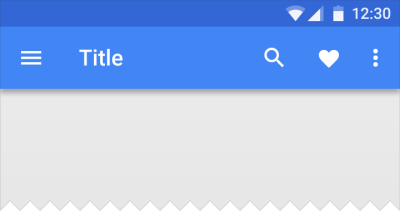
So, if you’re using Xamarin.Forms, you’ll need to create a custom renderer to get this job done. Let’s take a look at that:

MaterialNavigationRenderer.cs


[assembly: ExportRenderer(typeof(NavigationPage), typeof(MaterialNavigationRenderer))]
namespace YOUR_IOS_NAMESPACE
{
    ///
<summary>
    /// Custom renderer creating a material design navigation bar
    /// </summary>

    public class MaterialNavigationRenderer : NavigationRenderer
    {
        protected override void OnElementChanged(VisualElementChangedEventArgs e)
        {
            base.OnElementChanged(e);

            // Create the material drop shadow
            NavigationBar.Layer.ShadowColor = UIColor.Black.CGColor;
            NavigationBar.Layer.ShadowOffset = new CGSize(0, 0);
            NavigationBar.Layer.ShadowRadius = 3;
            NavigationBar.Layer.ShadowOpacity = 1;

            // Create the back arrow icon image
            var arrowImage = UIImage.FromBundle("Icons/ic_arrow_back_white.png");
            NavigationBar.BackIndicatorImage = arrowImage;
            NavigationBar.BackIndicatorTransitionMaskImage = arrowImage;

            // Set the back button title to empty since Material Design doesn't use it.
            if (NavigationItem?.BackBarButtonItem != null)
                NavigationItem.BackBarButtonItem.Title = " ";
            if (NavigationBar.BackItem != null)
            {
                NavigationBar.BackItem.Title = " ";
                NavigationBar.BackItem.BackBarButtonItem.Image = arrowImage;
            }
        }
    }
}

This will override our Renderer for all of our instances of a NavigationPage. To breakdown what is being done here, the renderer is initializing the native UINavigationBar, then updating the Layer of the UINavigationBar to create a drop shadow. After that, we instantiate the back arrow icon to replace the default iOS one. Lastly, we set the back button title to empty so that it doesn’t show up next to our new back button image.

The back button icon is taken from the official Material Design Icons from Google found here: https://material.io/icons/

The last thing we need to do is update our toolbar icon to fit the Material standards (thicker and bolder). To do this, we go back to the icons linked above and download the new check icon we want and substitute the ToolbarItem we have in our XAML.

Now we can see the results of our custom renderer and updated icon with our more Material Design looking toolbar:

Screen Shot 2017-05-16 at 12.31.37 PM


Next Steps

Want to take it further? Try updating your custom renderer to move the Title text alignment to the left and use the Roboto font! Check out this blog post on how to bring Roboto to your iOS fonts: https://alexdunn.org/2017/05/03/xamarin-tips-bringing-material-design-fonts-to-ios/.

If you like what you see, don’t forget to follow me on twitter @Suave_Pirate, check out my GitHub, and subscribe to my blog to learn more mobile developer tips and tricks!

Interested in sponsoring developer content? Message @Suave_Pirate on twitter for details.
