Xamarin iOS Expanding Splash View NuGet Announcement!

Here’s another fun NuGet package I’ve put up for everyone: The ExpandingSplashView is a Xamarin.iOS Binding implementation of the CBZSplashView from CallumBoddy on GitHub: https://github.com/callumboddy/CBZSplashView

It allows you to create a quick expanding view and add it to any ViewController very easily. It also allows for you to create the expanding view from either a rasterized image such as a png icon, or from a vector icon using a UIBezierPath.

Here’s the NuGet Package: https://www.nuget.org/packages/ExpandingSplashView

And the GitHub project for the binding and NuGet: https://github.com/SuavePirate/ExpandingSplashView
twitter-gif
Be sure to read the documentation either below here or on the GitHub project!

Documentation


CBZSplashView

A Xamarin.iOS implementation of the popular iOS control CBZSplashView from @callumboddy

Credit where credit is due (I just spent a couple hours fighting with the binding libraries, but @callumboddy did the real work): https://github.com/callumboddy/CBZSplashView

Installation

You can either clone the repository and reference the CBZSplashView project, or you can now use NuGet!

Install-Package ExpandingSplashView

https://www.nuget.org/packages/ExpandingSplashView

Usage

This can be used on any view, but is best suited for covering an entire UIViewController. Simply create either a CBZSplashViewCBZRasterSplashView, or CBZVectorSplashView via their constructors or the static initializer within the CBZSplashView:

var splashView = new CBZRasterSplashView(someUIImage, someUIColor);

Then add the splashview to your View:

View.Add(splashView);

Then start your animation whenever you want:

splashView.StartAnimation();

Here’s an entire ViewController class example:

using System;

using UIKit;
using CBZSplashView;

namespace Example
{
    public partial class ViewController : UIViewController
    {
        private CBZSplashView.CBZSplashView _splashView;
        protected ViewController(IntPtr handle) : base(handle)
        {
        }

        public override void ViewDidLoad()
        {
            base.ViewDidLoad();

            var icon = UIImage.FromFile("snapchatIcon.png");

            _splashView = new CBZSplashView.CBZRasterSplashView(icon, UIColor.Yellow);

            View.Add(_splashView);

        }

        public override void ViewDidAppear(bool animated)
        {
            base.ViewDidAppear(animated);

            if (_splashView != null)
                _splashView.StartAnimation();
        }
    }
}

If you like what you see, don’t forget to follow me on twitter @Suave_Pirate, check out my GitHub, and subscribe to my blog to learn more mobile developer tips and tricks!

Interested in sponsoring developer content? Message @Suave_Pirate on twitter for details.

Xamarin.Forms Floating Action Button NuGet Announcement

As promised, here is another release of one of my GitHub libraries for Xamarin! This time we are talking about the FloatingActionButton or “FAB”!

Here are some important links:

GitHub project: https://github.com/SuavePirate/Xamarin.Forms.Controls.FloatingActionButton
NuGet package: https://www.nuget.org/packages/SuaveControls.FloatingActionButton

Don’t forget to read up on my original post on how to create your own FloatingActionButton and how to use it: Xamarin.Controls – Xamarin.Forms FloatingActionButton (including iOS!)

Documentation


Xamarin.Forms.Controls.FloatingActionButton

A custom view to create a FloatingActionButton for both Android and iOS as part of Material Design

That’s right, even on iOS!

How to use

Clone the repository and open include the src projects in your Xamarin.Forms and Platform projects.

Now Available on NuGet!

Install-Package SuaveControls.FloatingActionButton

Special note for iOS: Make sure to call FloatingActionButtonRenderer.InitRenderer(); in your AppDelegate.cs in order to avoid linking it out.

Then you can include it in your XAML or call it from C# (See the example projects for a demo):

<?xml version="1.0" encoding="utf-8" ?>
<ContentPage xmlns="http://xamarin.com/schemas/2014/forms"
             xmlns:x="http://schemas.microsoft.com/winfx/2009/xaml"
             xmlns:local="clr-namespace:SuaveControls.FabExample"
             xmlns:controls="clr-namespace:SuaveControls.Views;assembly=SuaveControls.FloatingActionButton"
             x:Class="SuaveControls.FabExample.MainPage">
    <StackLayout Margin="32">
        <Label Text="This is a Floating Action Button!" 
           VerticalOptions="Center" 
           HorizontalOptions="Center"/>

        <controls:FloatingActionButton x:Name="FAB" HorizontalOptions="CenterAndExpand" WidthRequest="50" HeightRequest="50"  VerticalOptions="CenterAndExpand" Image="ic_add_white.png" ButtonColor="#03A9F4" Clicked="Button_Clicked"/>
    </StackLayout>
</ContentPage>

Android Example

Android Floating Action Button

iOS Example

iOS Floating Action Button

TODO:

  • Make it more flexible. Add Different color states, add sizing adjustments, etc.
  • Create UWP implementation
  • Create Xamarin Component

Come support the project and join the contributors list! We would love to see this TODO list dropped to nothing!


If you like what you see, don’t forget to follow me on twitter @Suave_Pirate, check out my GitHub, and subscribe to my blog to learn more mobile developer tips and tricks!

Interested in sponsoring developer content? Message @Suave_Pirate on twitter for details.

Xamarin.Forms BadgeView NuGet Announcement!

As promised, here is another release of one of my GitHub libraries for Xamarin! This time we are talking about the BadgeView​!

Here are some important links:

GitHub project: https://github.com/SuavePirate/BadgeView
NuGet package: https://www.nuget.org/packages/BadgeView

Don’t forget to read up on my original post on how to create your own BadgeView and how to use it: Xamarin.Controls – BadgeView

Documentation


BadgeView

A simple Xamarin.Forms control to display a round badge

Now available on nuget! https://www.nuget.org/packages/BadgeView

Installation

Install-Package BadgeView

Usage

<ContentPage xmlns="http://xamarin.com/schemas/2014/forms" xmlns:badge="clr-namespace:BadgeView.Shared;assembly=BadgeView.Shared" xmlns:x="http://schemas.microsoft.com/winfx/2009/xaml" x:Class="BadgeViewExample.BadgePage">
    <ContentPage.Content>
        <StackLayout Orientation="Horizontal" HorizontalOptions="CenterAndExpand" VerticalOptions="Center">
            <Label HorizontalTextAlignment="Center" Text="Look at me!" />
            <badge:BadgeView Text="3" BadgeColor="Green" VerticalOptions="Center" HorizontalOptions="End" />
        </StackLayout>
    </ContentPage.Content>
</ContentPage>

With Bindings

<badge:BadgeView Text="{Binding BadgeNumber}" BadgeColor="{Binding BadgeColor}" VerticalOptions="Center" HorizontalOptions="End" />

Without XAML

var badge = new BadgeView()
{
    Text = "4",
    BadgeColor = Color.Red
};

Additional Resources

Check out my blog post on how to build your own if you want!

Xamarin.Controls – BadgeView


// TODO:

I’m still working on adding UWP support, but if you want to help contribute to the repository, please do!

If you like what you see, don’t forget to follow me on twitter @Suave_Pirate, check out my GitHub, and subscribe to my blog to learn more mobile developer tips and tricks!

Interested in sponsoring developer content? Message @Suave_Pirate on twitter for details.

.NET Flux Toolkit Nuget Announcement

Last week I mentioned that I was going to be publishing some of my GitHub library projects on Nuget to make them easier to integrate into your projects – Here’s the newest library for using the Flux in your .NET applications such as Xamarin, UWP, WPF, WinForms, and even ASP.NET.

Nuget: https://www.nuget.org/packages/FluxToolkit/
GitHub: https://github.com/SuavePirate/FluxToolkit/

Here’s how to get started!

FluxToolkit

A super simple library to enable the implementation of Flux in .NET Applications such as Xamarin, UWP, WPF, and more. It contains some base level Flux components to help you get started with your implementation faster.

What is Flux?

Flux is a design pattern created by Facebook with the purpose of creating robust data-driven UI components and handles the flow of data between components and outward to services.

Components

Flux consists of 4 major components – Stores, Actions, Components, and the Dispatcher

Stores

Stores are responsible for containing and managing data for a single domain or data type. Stores listen to the dispatcher for certain events and use the data from the dispatcher to update their data, handle errors, and then pass that update down to the components that are subscribed to the store.

Actions

Actions are responsible for piping events through the dispatcher. Actions are invoked from Components or from background processes. They can also handle some small business logic such as data mapping or talking to external services.

Components

Components are the UI and UI logic layers. They are responsible for displaying views to the users and for handling user events. They invoke Actions and subsribe to Stores to handle updates to the data.

Dispatcher

A single dispatcher is responsible for the Pub/Sub mechanism of events invoked from Actions. Stores subscribe to events by name through the Dispatcher.

How does it work with MVVM and data binding?

ViewModels can be considered part of the Component layer but are separated from the actual UI/Views. This means that the ViewModels are responsible for invoking Actions, and subscribing to Stores. The Views themselves are only responsible for showing the UI and communicating to the ViewModel.

Getting Started

Install

The FluxToolkit is available on Nuget: https://www.nuget.org/packages/FluxToolkit It has no external dependencies and should work with any .NET Standard library or project including Xamarin, Xamarin.Forms, UWP, WPF, and even WinForms. It has not been used for web application development, but it is compatible with ASP.NET projects.

Install the nuget package with the nuget package manager or via the Package Manager command line:

Install-Package FluxToolkit

Create your Stores

Use the StoreBase class from the FluxToolkit to implement your unique stores for your different data types. It contains a generic Data field based on the TData type you pass into the definition. Now you don’t have to worry about communicating to the dispatcher for pub/sub – simply call the base methods for Subsribe and Unsubscribe.

Ensure that you are not using multiple instances of your Stores, but rather should be using either a Singleton or Inversion of Control with Dependency Injection to pass the implementation of your Store to the Components that require it through the constructor. Constantly creating new Stores can cause memory leaks due to the event subscriptions.

Here’s an example store implementation:

    /// <summary>
    /// Event store for holding and managing todo items
    /// </summary>
    public class TodoStore : StoreBase<ObservableCollection<Todo>>
    {
        /// <summary>
        /// Creates a new store and handles subscriptions to the dispatcher
        /// </summary>
        public TodoStore()
        {
            Subscribe<string>(TodoActionTypes.ADD_TODO);
            Subscribe(TodoActionTypes.DELETE_COMPLETED_TODOS);
            Subscribe<string>(TodoActionTypes.DELETE_TODO);
            Subscribe<Todo>(TodoActionTypes.EDIT_TODO);
            Subscribe(TodoActionTypes.TOGGLE_ALL_TODOS);
            Subscribe<string>(TodoActionTypes.TOGGLE_TODO);

            Data = new ObservableCollection<Todo>();
        }

        /// <summary>
        /// Processes an event from the dispatcher before emitting it.
        /// </summary>
        /// <typeparam name="TData"></typeparam>
        /// <param name="eventType"></param>
        /// <param name="data"></param>
        protected override void ReceiveEvent<TData>(string eventType, TData data)
        {
            try
            {
                Error = null;
                switch (eventType)
                {
                    case TodoActionTypes.ADD_TODO:
                        Data.Add(new Todo
                        {
                            Id = Guid.NewGuid().ToString(),
                            Text = data as string,
                            IsComplete = false
                        });
                        break;
                    case TodoActionTypes.DELETE_COMPLETED_TODOS:
                        var itemsToRemove = Data.Where(t => t.IsComplete);
                        foreach(var item in itemsToRemove.ToList())
                        {
                            Data.Remove(item);
                        }
                        break;
                    case TodoActionTypes.DELETE_TODO:
                        var itemToRemove = Data.FirstOrDefault(t => t.Id == data as string);
                        if (itemToRemove != null)
                            Data.Remove(itemToRemove);
                        break;
                    case TodoActionTypes.EDIT_TODO:
                        var itemToEdit = Data.FirstOrDefault(t => t.Id == (data as Todo).Id);
                        if (itemToEdit != null)
                            itemToEdit.Text = (data as Todo).Text;
                        break;
                    case TodoActionTypes.TOGGLE_ALL_TODOS:
                        var areAllComplete = !Data.Any(t => !t.IsComplete);
                        foreach(var todo in Data)
                        {
                            todo.IsComplete = !areAllComplete;
                        }
                        break;
                    case TodoActionTypes.TOGGLE_TODO:
                        var itemToToggle = Data.First(t => t.Id == (data as string));
                        if (itemToToggle != null)
                            itemToToggle.IsComplete = !itemToToggle.IsComplete;
                        break;

                }
            }
            catch (Exception ex)
            {
                // if something goes wrong, set the error before emitting
                Error = ex.Message;
            }
           
            base.ReceiveEvent(eventType, data);
        }
    }

Create your Actions

Create an Actions class for each of your main data types. These actions will call to the Dispatcher to fire events and will also need to implement IActions in order to properly handle the pub/sub mechanism.

    /// <summary>
    /// Actions to be taken against Todo items
    /// </summary>
    public class TodoActions : IActions
    {
        public void AddTodo(string text)
        {
            Dispatcher.Send<IActions, string>(this, TodoActionTypes.ADD_TODO, text);
        }

        public void DeleteCompletedTodos()
        {
            Dispatcher.Send<IActions>(this, TodoActionTypes.DELETE_COMPLETED_TODOS);
        }

        public void DeleteTodo(string id)
        {
            Dispatcher.Send<IActions, string>(this, TodoActionTypes.DELETE_TODO, id);
        }

        public void EditTodo(string id, string text)
        {
            Dispatcher.Send<IActions, Todo>(this, TodoActionTypes.EDIT_TODO, new Todo
            {
                Id = id,
                Text = text
            });
        }

        public void StartEditingTodo(string id)
        {
            Dispatcher.Send<IActions, string>(this, TodoActionTypes.START_EDITING_TODO, id);
        }

        public void StopEditingTodo()
        {
            Dispatcher.Send<IActions>(this, TodoActionTypes.STOP_EDITING_TODO);
        }

        public void ToggleAllTodos()
        {
            Dispatcher.Send<IActions>(this, TodoActionTypes.TOGGLE_ALL_TODOS);
        }

        public void ToggleTodo(string id)
        {
            Dispatcher.Send<IActions, string>(this, TodoActionTypes.TOGGLE_TODO, id);
        }
        
    }

Define your ActionTypes

For each of your data types, you’ll need to define some ActionTypes which translate to the id or name of the events your Actions are invoking through the Dispatcher.

    /// <summary>
    /// Different types of actions that can be completed within the context of Todo items
    /// </summary>
    public class TodoActionTypes
    {
        public const string ADD_TODO = "add_todo";
        public const string DELETE_COMPLETED_TODOS = "delete_completed_todos";
        public const string DELETE_TODO = "delete_todo";
        public const string EDIT_TODO = "edit_todo";
        public const string START_EDITING_TODO = "start_editing_todo";
        public const string STOP_EDITING_TODO = "stop_editing_todo";
        public const string TOGGLE_ALL_TODOS = "toggle_all_todos";
        public const string TOGGLE_TODO = "toggle_todo";
        public const string UPDATE_DRAFT = "update_draft";
    }

Wire up your Components (with MVVM or without)

Have your components subscribe to the Stores that are appropriate for the data need, and invoke the Actions they need. This is a great place to place inject your Stores and Actions into the constructor of your Componentswhether it is through a ViewModel or an ActivityViewController, or Xamarin.Forms.Page.

    public class TodoListPageViewModel : BasePageViewModel
    {
        private readonly TodoStore _todoStore;
        private readonly TodoActions _todoActions;
        private ObservableCollection<Todo> _items;
        private ICommand _createCommand;
        private ICommand _toggleCommand;
        private ICommand _toggleAllCommand;
        private ICommand _deleteCommand;
        private ICommand _deleteCompletedCommand;
        private ICommand _editCommand;
        private ICommand _populateCommand;

        public ICommand CreateCommand
        {
            get
            {
                return _createCommand ??
                    (_createCommand = new RelayCommand(async () =>
                    {
                        var result = await UserDialogs.Instance.PromptAsync(string.Empty, "New", "Done", "Cancel", "Todo...");
                        if (result.Ok)
                        {
                            _todoActions.AddTodo(result.Text);
                        }
                    }));
            }
        }

        public ICommand EditCommand
        {
            get
            {
                return _editCommand ??
                    (_editCommand = new RelayCommand<Todo>(async (t) =>
                    {
                        var result = await UserDialogs.Instance.PromptAsync(new PromptConfig()
                            .SetText(t.Text)
                            .SetTitle("Edit")
                            .SetOkText("Done")
                            .SetCancelText("Cancel")
                            .SetPlaceholder("Todo..."));
                        if (result.Ok)
                        {
                            _todoActions.EditTodo(t.Id, result.Text);
                        }
                    }));
            }
        }

        public ICommand ToggleCommand
        {
            get
            {
                return _toggleCommand ??
                    (_toggleCommand = new RelayCommand<Todo>((t) =>
                    {
                        _todoActions.ToggleTodo(t.Id);
                    }));
            }
        }

        public ICommand ToggleAllCommand
        {
            get
            {
                return _toggleAllCommand ??
                    (_toggleAllCommand = new RelayCommand(() =>
                    {
                        _todoActions.ToggleAllTodos();
                    }));
            }
        }

        public ICommand DeleteCommand
        {
            get
            {
                return _deleteCommand ??
                    (_deleteCommand = new RelayCommand<Todo>((t) =>
                    {
                        _todoActions.DeleteTodo(t.Id);
                    }));
            }
        }

        public ICommand DeleteCompletedCommand
        {
            get
            {
                return _deleteCompletedCommand ??
                    (_deleteCompletedCommand = new RelayCommand(() =>
                    {
                        _todoActions.DeleteCompletedTodos();
                    }));
            }
        }

        public ICommand PopulateCommand
        {
            get
            {
                return _populateCommand ??
                    (_populateCommand = new RelayCommand(() =>
                    {
                        for(var i = 1; i < 20; i++)
                        {
                            _todoActions.AddTodo($"New Item {i}");
                            Task.Delay(200);
                        }
                    }));
            }
        }

        public ObservableCollection<Todo> Items
        {
            get
            {
                return _todoStore.Data;
            }
        }

        public TodoListPageViewModel(TodoStore todoStore, TodoActions todoActions)
        {
            _todoStore = todoStore;
            _todoActions = todoActions;
            _todoStore.OnEmitted += TodoStore_OnEmitted;
        }

        /// <summary>
        /// Processes events from the todo store and updates any UI that isn't handled automatically
        /// </summary>
        /// <param name="sender"></param>
        /// <param name="e"></param>
        private void TodoStore_OnEmitted(object sender, StoreEventArgs e)
        {
            switch (e.EventType)
            {
                case TodoActionTypes.ADD_TODO:
                    if(_todoStore.Error == null)
                    {
                        UserDialogs.Instance.Toast("Item added");
                    }
                    break;
                case TodoActionTypes.DELETE_COMPLETED_TODOS:
                    if (_todoStore.Error == null)
                    {
                        UserDialogs.Instance.Toast("Items deleted");
                    }
                    break;
                case TodoActionTypes.DELETE_TODO:
                    if (_todoStore.Error == null)
                    {
                        UserDialogs.Instance.Toast("Item deleted");
                    }
                    break;
                case TodoActionTypes.TOGGLE_ALL_TODOS:
                    if (_todoStore.Error == null)
                    {
                        UserDialogs.Instance.Toast("Items toggled");
                    }
                    break;
                case TodoActionTypes.TOGGLE_TODO:
                    if (_todoStore.Error == null)
                    {
                        UserDialogs.Instance.Toast("Item toggled");
                    }
                    break;
            }
            if(_todoStore.Error != null)
            {
                UserDialogs.Instance.ShowError(_todoStore.Error);
            }
        }
    }

Contributing

Want to add additional examples or more tooling to help people develop their apps with Flux? Fork this repository and create a pull request!

Additional Resources


If you like what you see, don’t forget to follow me on twitter @Suave_Pirate, check out my GitHub, and subscribe to my blog to learn more mobile developer tips and tricks!

Interested in sponsoring developer content? Message @Suave_Pirate on twitter for details.

Xamarin.Nuget – Coming to a Nuget Package Near You

Your voices have been heard – I’m bringing all my helpful controls and libraries to nuget!

Over the next two weeks, I will be going through each one of my projects and getting them nuget-ready. I’ll then be putting them up on nuget and announcing their individual releases here on my blog.

Here’s what you can expect to see on nuget:

So stay tuned, and if you want to contribute to any of these tools, please fork those repositories!

If you like what you see, don’t forget to follow me on twitter @Suave_Pirate, check out my GitHub, and subscribe to my blog to learn more mobile developer tips and tricks!

Interested in sponsoring developer content? Message @Suave_Pirate on twitter for details.

Xamarin.Tip – Read All Contacts in Android

To follow the posts made for iOS, let’s talk about reading the device contacts in Xamarin.Android.

Since Xamarin hasn’t been working on the Xamarin.Mobile component for a while, and James Montemagno dropped support for his Contacts Plugin, if you want to access the contact APIs on each platform, you might just have to go at it yourself – or just copy this code!

Android

The first thing we need to do is create our shared model to represent a contact on the device. In this example, we’ll focus on just the name and phone number of a given contact:
PhoneContact.cs

public class PhoneContact
{
    public string FirstName { get; set; }
    public string LastName { get; set; }
    public string PhoneNumber { get; set; }
 
    public string Name { get => $"{FirstName} {LastName}"; }
 
}

Now we need to create our service to enable the reading of the contacts on the device. We’ll call it the ContactService.

    public class ContactService_Android
    {
        public IEnumerable<PhoneContact> GetAllContacts()
        {
            var phoneContacts = new List<PhoneContact>();

            using (var phones = Android.App.Application.Context.ContentResolver.Query(ContactsContract.CommonDataKinds.Phone.ContentUri, null, null, null, null))
            {
                if (phones != null)
                {
                    while (phones.MoveToNext())
                    {
                        try
                        {
                            string name = phones.GetString(phones.GetColumnIndex(ContactsContract.Contacts.InterfaceConsts.DisplayName));
                            string phoneNumber = phones.GetString(phones.GetColumnIndex(ContactsContract.CommonDataKinds.Phone.Number));

                            string[] words = name.Split(' ');
                            var contact = new PhoneContact();
                            contact.FirstName = words[0];
                            if (words.Length > 1)
                                contact.LastName = words[1];
                            else
                                contact.LastName = ""; //no last name
                            contact.PhoneNumber = phoneNumber;
                            phoneContacts.Add(contact);
                        }
                        catch (Exception ex)
                        {
                            //something wrong with one contact, may be display name is completely empty, decide what to do
                        }
                    }
                    phones.Close(); 
                }
                // if we get here, we can't access the contacts. Consider throwing an exception to display to the user
            }

            return phoneContacts;
        }
    }

 
In this method, we get access to the Context‘s ContentResolver and query for all contacts’ phone numbers.

We can then iterate over each phone number and read their name and number which is added to the master list of PhoneContacts. This list is what ends up being returned, and we close the query context we opened in the using statement.

There is one more step we need to do in order to access the contacts on the device. In the AndroidManifest.xml we need to add the permission for READ_CONTACTS. This can be added in the XML directly or done in the UI from Visual Studio:
Screen Shot 2017-09-07 at 5.30.01 PM
 
Now that we have access to all the contacts on the device, we can render those in a list through either an Android ListView, RecyclerView, or if in Xamarin.Forms – a Xamarin.Forms.ListView.

Screenshot_1504821136

 Try building some other fun features into your ContactsService or selector!
– Filter the list via search
– Build a more user friendly selector without duplicating contacts
– Gather additional properties for contacts

If you like what you see, don’t forget to follow me on twitter @Suave_Pirate, check out my GitHub, and subscribe to my blog to learn more mobile developer tips and tricks!

Interested in sponsoring developer content? Message @Suave_Pirate on twitter for details.

Xamarin.Tip – Read All Contacts in iOS 2.0

This is a second post to follow Xamarin.Tip – Read All Contacts in iOS to give a more efficient alternative to interacting with the CNContact API. Check out the change in the ContactService below! Using the EnumerateContacts ensures we get contacts from all groups including non standard groups like those brought from backups or iCloud integrated contacts. It is also a newer API call that has better performance.

Since Xamarin hasn’t been working on the Xamarin.Mobile component for a while, and James Montemagno dropped support for his Contacts Plugin, if you want to access the contact APIs on each platform, you might just have to go at it yourself – or just copy this code!

iOS

Today we’ll look at getting all of the contacts in iOS and mapping them to a local shared model that any platform can ingest.

So let’s first define a simple model for our contact. This can have more models that are shared, but we will focus on the phone number and name for the sake of demonstrating.

PhoneContact.cs


    public class PhoneContact
    {
        public string FirstName { get; set; }
        public string LastName { get; set; }
        public string PhoneNumber { get; set; }

        public string Name { get => $"{FirstName} {LastName}"; }

    }

Now let’s create a service in our iOS app project that uses the CNContact API. This will be responsible for getting all of the devices contacts (whether they have come from a back up, added, or are synced through iCloud).

The breakdown of this code can be found below.

ContactService.cs

    public class ContactService
    {
       public IEnumerable<PhoneContact> GetAllContacts()
        {
            var keysTOFetch = new[] { CNContactKey.GivenName, CNContactKey.FamilyName, CNContactKey.PhoneNumbers };
            NSError error;
            //var containerId = new CNContactStore().DefaultContainerIdentifier;
            // using the container id of null to get all containers
            var contactList = new List<CNContact>();

            using (var store = new CNContactStore())
            {
                var request = new CNContactFetchRequest(keysTOFetch);
                store.EnumerateContacts(request, out error, new CNContactStoreListContactsHandler((CNContact contact, ref bool stop) => contactList.Add(contact)));
                
            }
            var contacts = new List<PhoneContact>();

            foreach (var item in contactList)
            {
                var numbers = item.PhoneNumbers;
                if (numbers != null)
                {
                    foreach (var item2 in numbers)
                    {
                        contacts.Add(new PhoneContact
                        {
                            FirstName = item.GivenName,
                            LastName = item.FamilyName,
                            PhoneNumber = item2.Value.StringValue

                        });
                    }
                }
            }
            return contacts;
        }
    
    }

Let’s breakdown what the code is doing here:

  1. Identify the properties of the contacts you want to grab – see keysToFetch
  2. Instantiate the CNContactStore and get all of the collections which will contain all of the contacts.
  3. Fetch all of the contacts from each container and add them to the master list.
  4. Loop over all of the contact data and add a new PhoneContact
    for each of the phone numbers they have. This could be done with giving a contact an IEnumerable PhoneNumbers rather than just one phone number, but in order to separate each phone number, that’s how we will do it.
  5. Return the formatted list of contacts/phone numbers

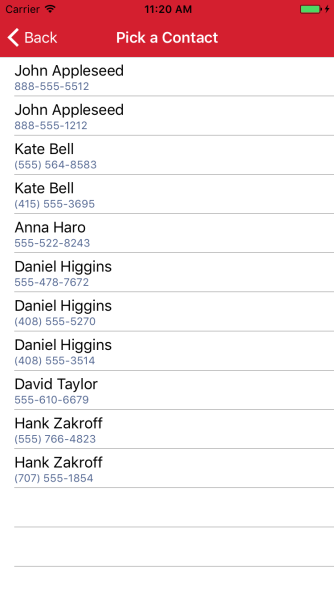
We can list this out in a UITableView, or in the case of the screenshot below, in a Xamarin.Forms ListView.

The last thing we need to do is make sure we have the permission to access the user’s contacts! We can do this by updating the info.plist with a Privacy - Contacts Usage Description property.

Screen Shot 2017-08-22 at 10.34.43 AM

Try building some other fun features into your ContactsService or selector!
– Filter the list via search
– Build a more user friendly selector without duplicating contacts
– Gather additional properties for contacts

Simulator Screen Shot Aug 21, 2017, 11.20.32 AM.png

Next we’ll look at building this same type of ContactService for Android in order to be able to gather all of the contacts on the device and follow up with using both of these services in Xamarin.Forms to create a contact picker control!

If you like what you see, don’t forget to follow me on twitter @Suave_Pirate, check out my GitHub, and subscribe to my blog to learn more mobile developer tips and tricks!

Interested in sponsoring developer content? Message @Suave_Pirate on twitter for details.

Xamarin.Meetup – “Fluxing” Up Your Apps With Alex Dunn

Join us at the Microsoft NERD Center in Cambridge for the September Boston Mobile C# User-group on September 20th!

I’ll personally be speaking about implementing the Flux design pattern in your Xamarin and other .NET applications.

https://www.meetup.com/bostonmobiledev/events/242742363/

Meeting Details

Flux is the design pattern created by Facebook in your .NET apps to build robust and manageable data-driven interfaces. Learn what Flux is, how it differs from other patterns such as MVVM and MVC, and follow along and build your first app with Flux.

About the Presenter

Alex Dunn is a software consultant and architect with a passion for mobile application development and edge technology such as machine learning, AI, IoT, and modern web. He’s a Xamarin MVP and a Microsoft MVP for .NET, and can be found giving Guest Lectures at Xamarin University or organizing Boston’s Mobile C# User-group. Follow Alex and learn how to build beautiful and robust applications.

Twitter: @Suave_Pirate
GitHub: @SuavePirate
Blog: https://alexdunn.org
Flux Resources:

Source code for demo: https://github.com/suavepirate/xamarin.flux
Xamarin University Lecture:
https://university.xamarin.com/guestlectures/architecting-your-app-with-xamarin-facebook-flux
Gone Mobile Podcast:
http://gonemobile.io/blog/e0044.fluxing.up.your.xamarin.apps.with.alex.dunn/


If you like what you see, don’t forget to follow me on twitter @Suave_Pirate, check out my GitHub, and subscribe to my blog to learn more mobile developer tips and tricks!

Interested in sponsoring developer content? Message @Suave_Pirate on twitter for details.

Xamarin.Tip – Read All Contacts in iOS

Since Xamarin hasn’t been working on the Xamarin.Mobile component for a while, and James Montemagno dropped support for his Contacts Plugin, if you want to access the contact APIs on each platform, you might just have to go at it yourself – or just copy this code!

iOS

Today we’ll look at getting all of the contacts in iOS and mapping them to a local shared model that any platform can ingest.

So let’s first define a simple model for our contact. This can have more models that are shared, but we will focus on the phone number and name for the sake of demonstrating.

PhoneContact.cs


    public class PhoneContact
    {
        public string FirstName { get; set; }
        public string LastName { get; set; }
        public string PhoneNumber { get; set; }

        public string Name { get => $"{FirstName} {LastName}"; }

    }

Now let’s create a service in our iOS app project that uses the CNContact API. This will be responsible for getting all of the devices contacts (whether they have come from a back up, added, or are synced through iCloud).

The breakdown of this code can be found below.

ContactService.cs

    public class ContactService
    {
        public IEnumerable<PhoneContact> GetAllContacts()
        {
            var keysToFetch = new[] { CNContactKey.GivenName, CNContactKey.FamilyName, CNContactKey.PhoneNumbers };
            NSError error;
            //var containerId = new CNContactStore().DefaultContainerIdentifier;
            // using the container id of null to get all containers.
            // If you want to get contacts for only a single container type, you can specify that here
            var contactList = new List<CNContact>();

            using (var store = new CNContactStore())
            {
                var allContainers = store.GetContainers(null, out error);
                foreach (var container in allContainers)
                {
                    try
                    {
                        using (var predicate = CNContact.GetPredicateForContactsInContainer(container.Identifier))
                        {
                            var containerResults = store.GetUnifiedContacts(predicate, keysToFetch, out error);
                            contactList.AddRange(containerResults);
                        }
                    }
                    catch
                    {
                        // ignore missed contacts from errors
                    }
                }
            }
            var contacts = new List<PhoneContact>();

            foreach (var item in contactList)
            {
                var numbers = item.PhoneNumbers;
                if (numbers != null)
                {
                    foreach (var item2 in numbers)
                    {
                        contacts.Add(new PhoneContact
                        {
                            FirstName = item.GivenName,
                            LastName = item.FamilyName,
                            PhoneNumber = item2.Value.StringValue

                        });
                    }
                }
            }
            return contacts;
        }
    }

Let’s breakdown what the code is doing here:

  1. Identify the properties of the contacts you want to grab – see keysToFetch
  2. Instantiate the CNContactStore and get all of the collections which will contain all of the contacts.
  3. Fetch all of the contacts from each container and add them to the master list.
  4. Loop over all of the contact data and add a new PhoneContact
    for each of the phone numbers they have. This could be done with giving a contact an IEnumerable PhoneNumbers rather than just one phone number, but in order to separate each phone number, that’s how we will do it.
  5. Return the formatted list of contacts/phone numbers

We can list this out in a UITableView, or in the case of the screenshot below, in a Xamarin.Forms ListView.

The last thing we need to do is make sure we have the permission to access the user’s contacts! We can do this by updating the info.plist with a Privacy - Contacts Usage Description property.

Screen Shot 2017-08-22 at 10.34.43 AM

Try building some other fun features into your ContactsService or selector!
– Filter the list via search
– Build a more user friendly selector without duplicating contacts
– Gather additional properties for contacts

Simulator Screen Shot Aug 21, 2017, 11.20.32 AM.png

Next we’ll look at building this same type of ContactService for Android in order to be able to gather all of the contacts on the device and follow up with using both of these services in Xamarin.Forms to create a contact picker control!

If you like what you see, don’t forget to follow me on twitter @Suave_Pirate, check out my GitHub, and subscribe to my blog to learn more mobile developer tips and tricks!

Interested in sponsoring developer content? Message @Suave_Pirate on twitter for details.

Xamarin.University – Guest Lecture Available for Free!

Xamarin University has now published my second guest lecture on WebRTC and building cross-platform voice/video conferencing apps for free! Check it out here:


And as always, find the source code on my GitHub here: https://github.com/SuavePirate/Xamarin.WebRTC

 
If you like what you see, don’t forget to follow me on twitter @Suave_Pirate, check out my GitHub, and subscribe to my blog to learn more mobile developer tips and tricks!

Interested in sponsoring developer content? Message @Suave_Pirate on twitter for details.